Contacts
The Contacts section in Votel acts as your central hub for managing leads and tracking their progress through various stages of your business workflow. It's similar to what many traditional CRMs call Pipelines or Tables providing both visual and structured ways to view, organize, and control all your leads in one place.
Pipeline vs Table View
Votel offers two viewing modes for managing leads. Pipeline View and Table View, allowing teams to switch between visual and data-focused perspectives seamlessly.
Pipeline View
- The Pipeline View provides a Kanban-style layout, showing leads as cards under different stages such as Review, To Do, In Progress, and Done.
- This view helps you visually track where each lead currently stands in your process.
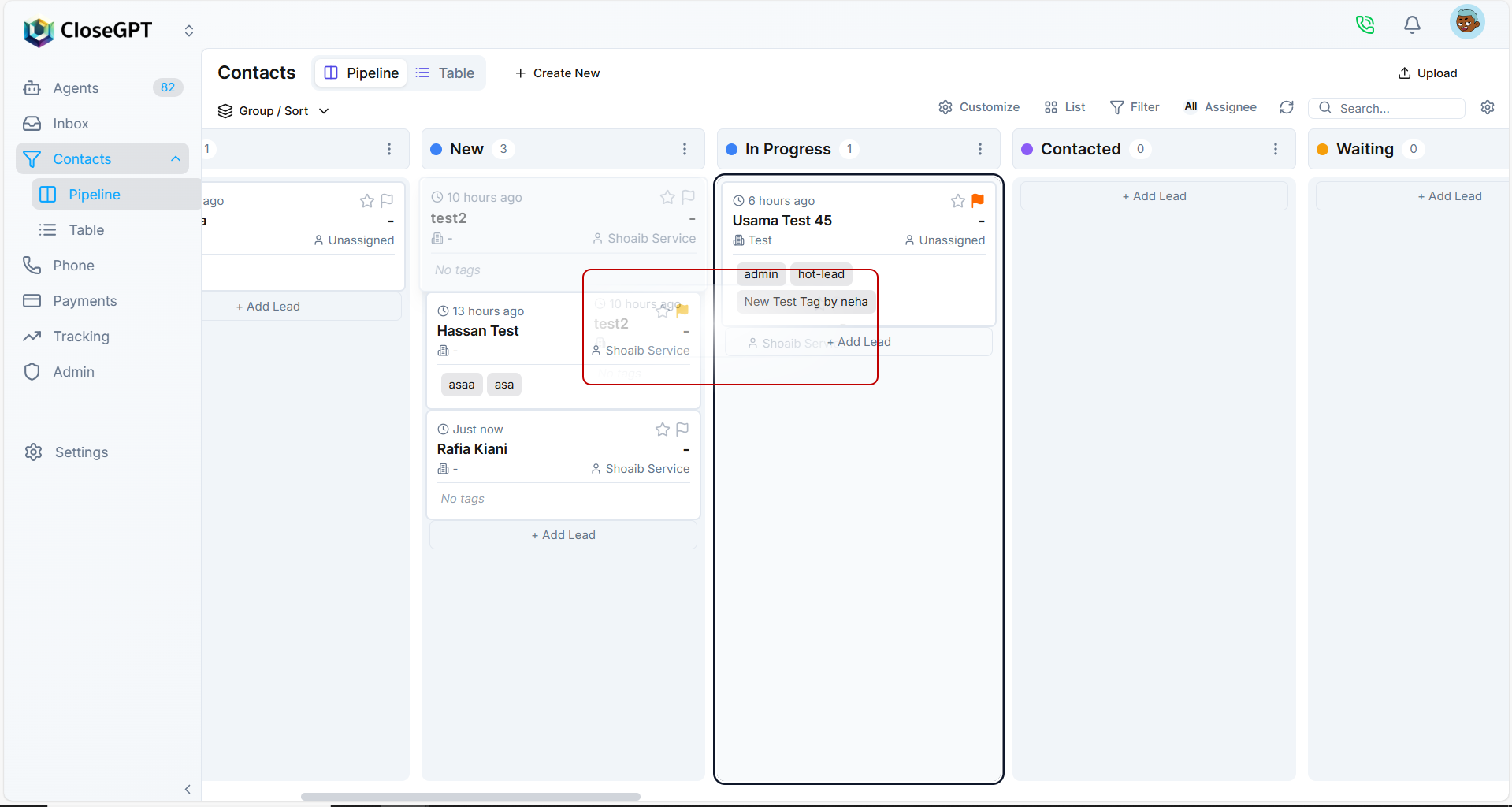
- You can drag and drop lead cards between stages to instantly update their progress.
- Perfect for teams that manage deals, follow-ups, or sales activities and need a quick at-a-glance overview of ongoing opportunities.
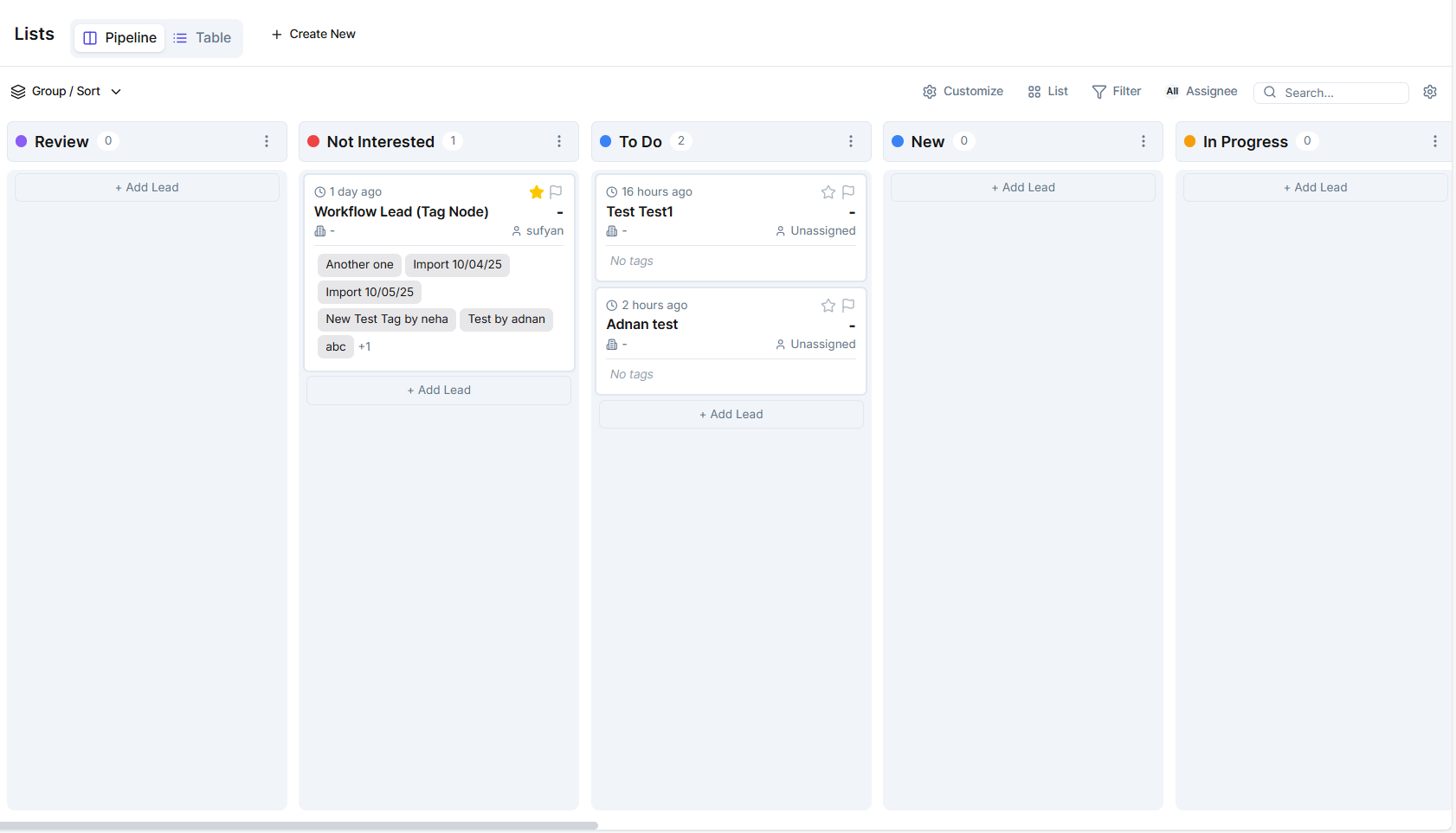
Table View
-
The Table View presents your leads in a spreadsheet-style layout, where each row is a lead and each column represents a specific attribute (e.g., Name, Email, Company, Tags, etc.).
-
It's ideal for users who prefer data-heavy management, filtering, and mass editing.
-
You can customize visible columns, sort or group data, and export leads for reporting or further analysis.

💡 You can switch between both views anytime, depending on your workflow preference.
Create Your Own Views
Click "+ Create New" at the top to design your own custom List View. You can select specific filters, groupings, or columns to create a personalized workspace, such as "High-Priority Leads" or "Unassigned Contacts." Once saved, these views can be quickly accessed by all team members, ensuring everyone works with consistent, relevant data.
Managing Lists View
Once you've created your list, you can make it according to your business needs. You can:
- Customize card fields to show only relevant lead information.
- Group leads into columns like New, Contacted, Won, Lost, etc.
- Assign team members to specific leads for collaboration.
Grouping Leads
Grouping helps you organize leads based on shared properties. You can group leads by salutations, company name or size, assignee, and dozens of other attributes.
💡 Grouping gives you a segmented view for example, seeing which team member has the most open leads or which campaign generated the highest number of prospects.
Sorting Leads
The Sort feature lets you arrange leads according to any property such as Created Date, Name, Rating, or Company. It ensures your most relevant or time-sensitive leads are always on top, aligning perfectly with your team's priorities.

Leads According to Assignee
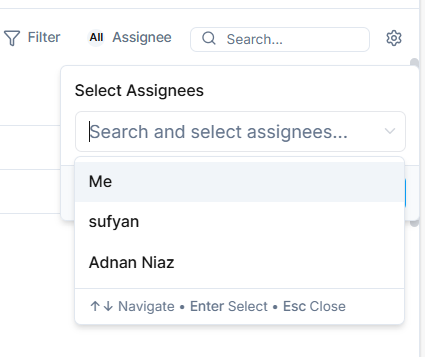
If you work in a team, you can assign each lead to a specific member and in list, you can view the all leads assigned to a specific member or assignee.
This helps organize ownership, accountability, and follow-up.
Click Assignee, choose your team member.
Customization Options
Click the Customize button to tailor your List interface. You can:
- Show or hide columns such as First Name, Company, Email, Tags, and more.
- Reorder columns to match your workflow.
- Save the layout as a custom view for quick access later.
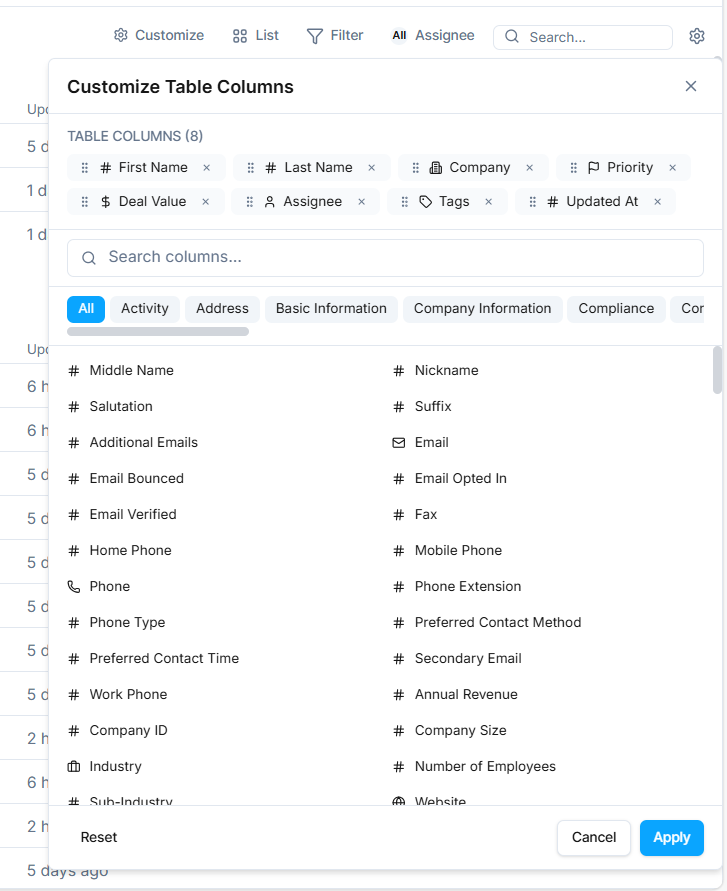
This allows every team to configure the interface exactly as they need whether they're in sales, support, or marketing.
List Statuses
Each lead in your List belongs to a Status (or stage). Statuses define where a lead stands in your workflow, such as:
- Review: New or unprocessed leads.
- To Do: Leads that require action.
- In Progress: Conversations or deals currently underway.
- Done: Successfully completed or closed leads.
- Not Interested / Backlog: Leads that are inactive or deprioritized.

You can add, rename, or reorder statuses to perfectly match your business pipeline.
Filters
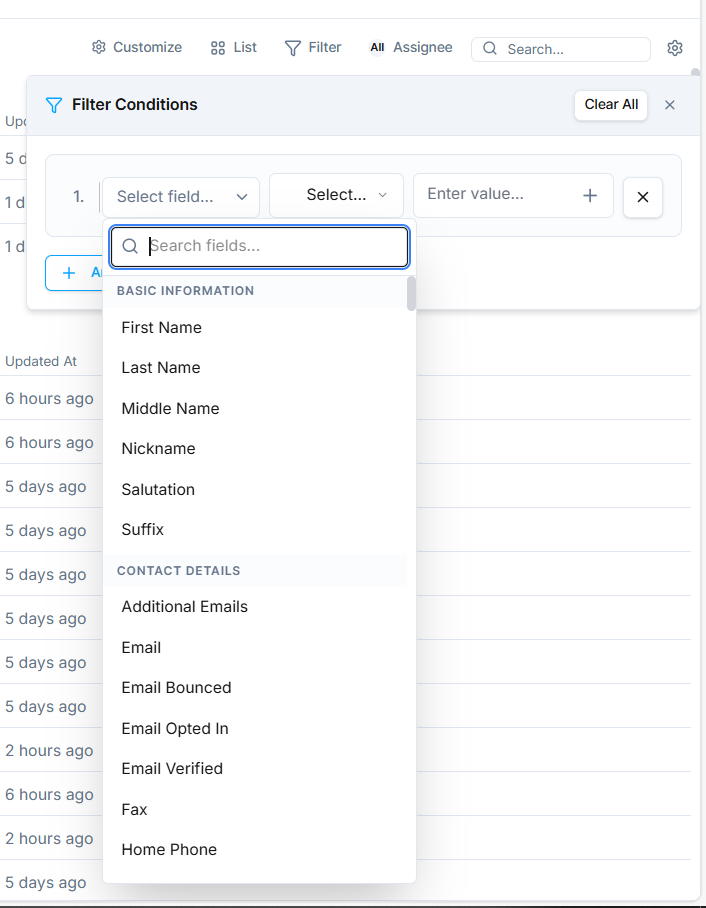
Filters allow you to narrow down your List to focus on the most relevant leads. You can apply multiple filters at once, such as:
- Name + Company
- Name + Email
- Campaign + Rating
- Assignee + Lead Status and so many others combinations to play around
This makes it easy to target specific audiences for example, "All unassigned leads from Campaign A with high ratings."
Managing Leads
Creating Leads
-
Click Add Lead.
-
Enter lead name and details.
-
Click More Options to add extended fields (over 250 available).
Importing Leads
- Import leads from an Excel or CSV file.
- The system will auto-map fields for you. You can review or adjust mappings before finalizing.
Editing Leads
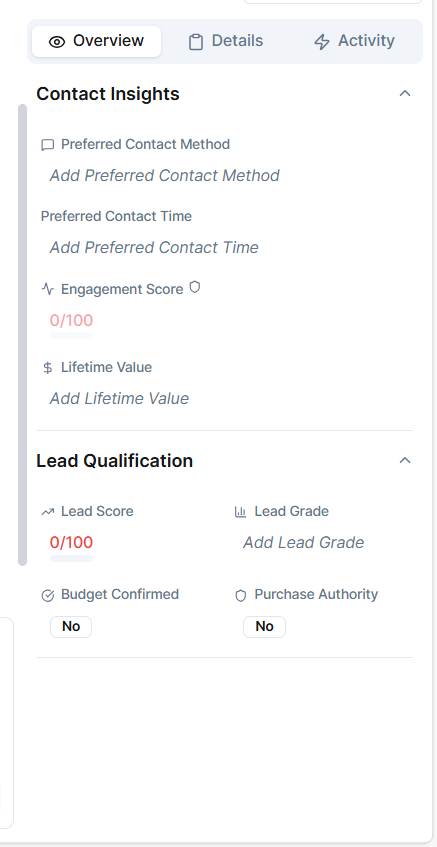
Just click on any leads to open and edit its details. Inside, you can view:
- Chat and call history
- Contact details and insights
- Tags and internal notes
- Engagement activities
Drag-and-Drop Lead Management
The Pipeline view allows drag-and-drop functionality, enabling you to move leads between stages instantly. This simple action automatically updates the lead's workflow stage and keeps your pipeline current and organized.
Why the Contacts Section Matters
The Contacts section serves as your operational command center, helping you:
- Visualize the complete lead lifecycle.
- Identify bottlenecks in your sales or communication flow.
- Distribute leads evenly across team members.
- Quickly access filtered and organized data for faster decision-making.