Payment & Billing
Votel Payments & Billing Section Documentation
The Payments & Billing section in Votel provides comprehensive tools for managing subscriptions, tracking transactions, and overseeing products/services. This centralized dashboard helps administrators monitor revenue, handle payments, and ensure billing compliance. Access it via the main navigation menu under "Payments & Billing."
Key Features:
- Subscriptions Tab: View and manage active, trial, and canceled customer subscriptions with details on amounts, status, and billing cycles.
- Transactions Tab: Track all payment records, including pending, failed, and successful charges, with export options for reporting.
- Products Tab: List and configure products/services, including pricing, billing frequency, and status controls.
Tab-by-Tab Guide
Subscriptions Tab

This tab displays an overview of all customer subscriptions, filtered by status (Active, Trial, Canceled). Use it to manage renewals, upgrades, or cancellations.
UI Elements:
| Column | Description | Example |
|---|---|---|
| Customer ID | Unique identifier for the customer. | CUST-12345 |
| Product ID | Linked product/service ID. | SUB-001 |
| Trial | Indicates trial period (Yes/No). | No |
| Amount | Recurring charge per cycle. | $50.00 |
| Status | Current state (e.g., Active with green indicator). | Active |
| Current Period | Start/end dates of the billing cycle. | Oct 1 - Oct 31, 2025 |
| Actions | Buttons for Edit, Cancel, or View Details. | [Edit] [Cancel] |
Actions:
- Filter/Search: Use the search bar to find by customer/product ID.
- Refresh: Updates the list in real-time.
- Manage: Click "Actions" to pause, resume, or adjust a subscription (e.g., change amount or period).
- Add New: Not directly here; create via Products tab or customer onboarding.
Common Use Cases:
- Monitor churn: Sort by "Status" to identify canceled subscriptions.
- Revenue Forecasting: Sum "Amount" for active ones to project monthly recurring revenue (MRR).
Transactions Tab
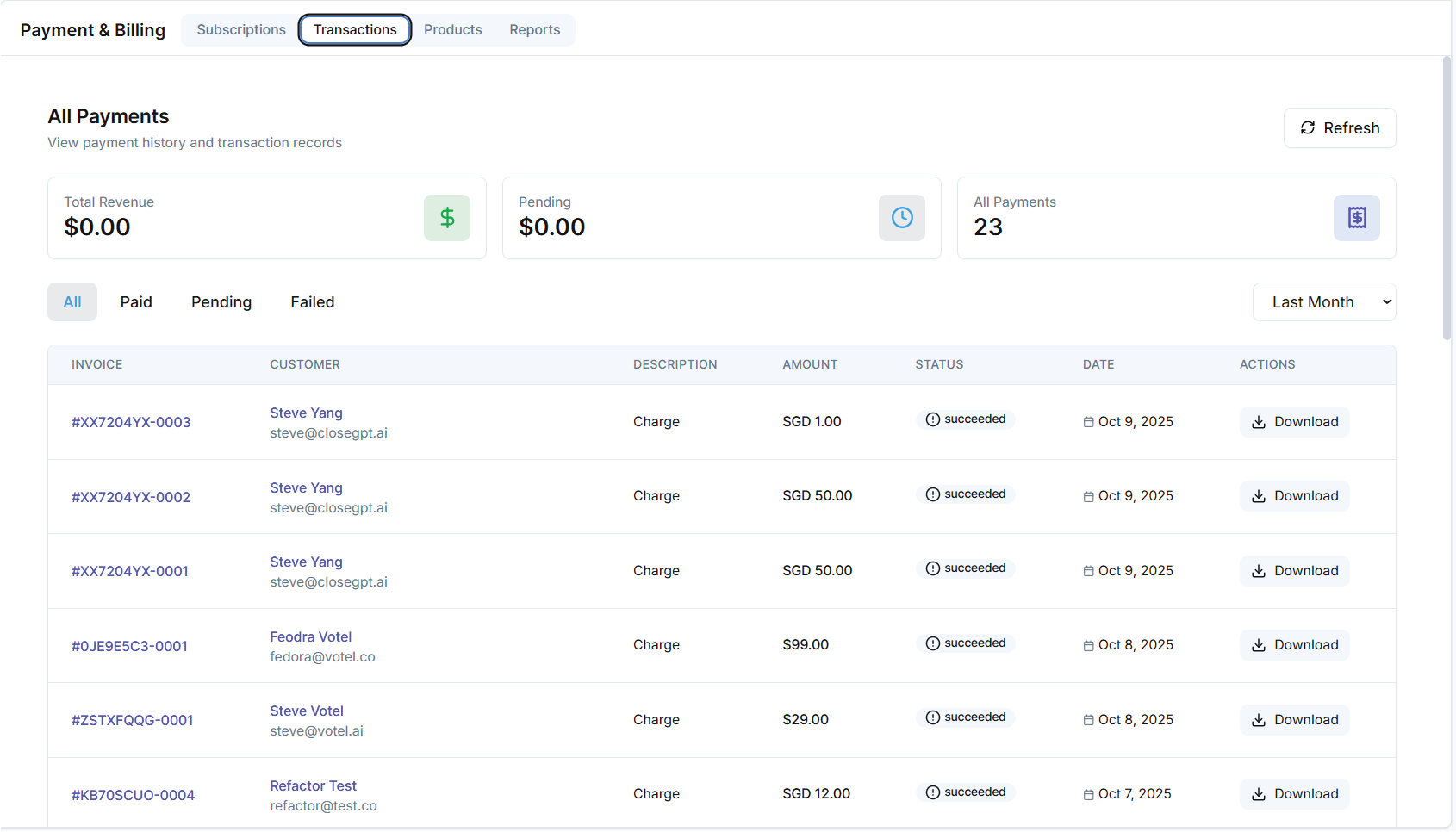
Track every payment event, including charges, refunds, and disputes. Filter by date range (e.g., Last Month) for audits or reconciliation.
UI Elements:
| Column | Description | Example |
|---|---|---|
| Invoice ID | Unique transaction identifier. | INV-0001 |
| Pending | Status indicator (Pending with yellow icon). | - |
| Failed | Status indicator (Failed with red icon). | - |
| Customer | Linked customer name or ID. | Steve Yang |
| Description | Brief note on the transaction type. | Charge |
| Amount | Transaction value (positive for charges, negative for refunds). | $100.00 |
| Status | Overall state (e.g., Succeeded with green check). | Succeeded |
| Date | Timestamp of the event. | Oct 8, 2025 |
| Actions | Download receipt or view details. | [Download] |
Summary Metrics (Top of Tab):
- Total Revenue: Aggregated successful amounts (e.g., $0.00 if no data).
- Pending/Failed: Counts and icons for quick status checks.
- All Payments: Total count (e.g., 23).
- Last Month: Filter button for historical views.
Actions:
- Filter: By status, date, or customer using dropdowns.
- Refresh: Pulls latest gateway data.
- Download: Export individual receipts or full reports.
- Dispute/Refund: Initiate from the Actions menu (requires gateway integration).
Common Use Cases:
- Monthly Reconciliation: Filter "Last Month" and export for accounting software.
- Fraud Detection: Review "Failed" or "Pending" for patterns.
Products Tab

Manage your catalog of billable items, including services like AI integrations or custom tools. Create, edit, or deactivate products here.
Top Controls:
- Create Product: Blue button to add new items (e.g., name, price, billing cycle).
- All/Status Filter: Toggle views (e.g., Active only).
Actions:
- Create: Fill form with name, description, price, type, and billing.
- Edit: Update pricing or status; changes apply to new subscriptions.
- Deactivate: Sets to Inactive; existing subs continue until renewal.
- Reports: Link to usage analytics per product.