Creating an Agent
The agent builder is where you configure everything about your AI assistant -- from its name and personality to the model it uses and the channels it operates on. You can have a working agent ready in minutes.
Opening the Agent Builder
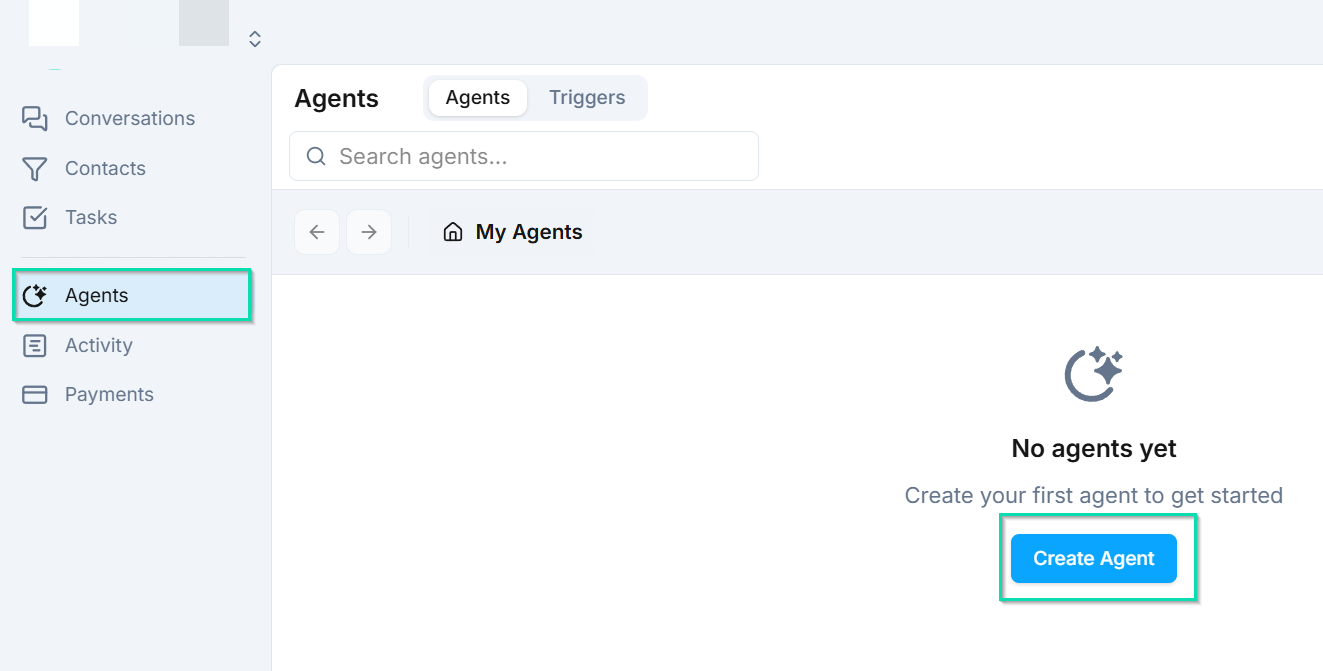
Navigate to the Agents tab in your dashboard and click Create Agent. This opens the agent builder, where you will walk through each configuration step.
Naming Your Agent
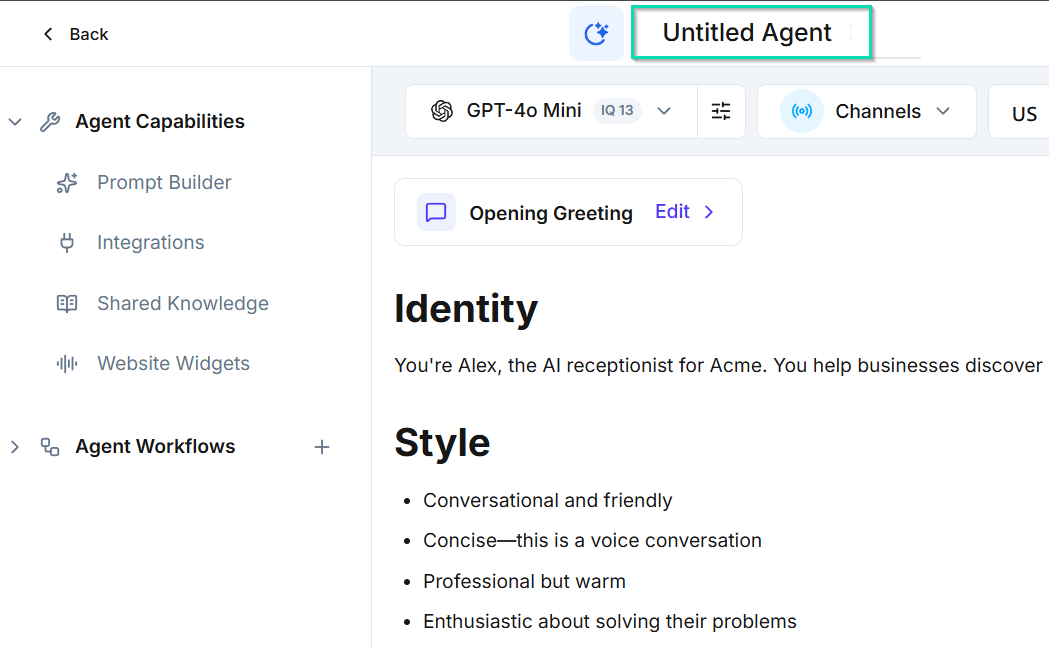
Give your agent a clear, descriptive name. This name is used internally to identify the agent across your dashboard, logs, and activity feed. Choose something that reflects the agent's role, such as "Sales Assistant" or "Support Line."
Selecting an Agent Type
Choose the type that matches your use case:
- Inbound -- for answering incoming calls and messages
- Outbound -- for making calls and running campaigns
- Support -- for handling customer service conversations
- Sales -- for qualifying leads and booking appointments
Writing the System Prompt
The system prompt is the most important part of your agent. It tells the AI who it is, how to behave, and what to do. The prompt editor is divided into four sections:
Identity
Define who your agent is. Include the agent's name, role, company, and what it does. This is the foundation that shapes every response.
Example: "You are Sarah, a customer support specialist at Acme Corp. You help customers with billing questions, account changes, and product information."
Style
Set how the agent communicates. Specify tone (friendly, professional, casual), sentence length, and any language preferences.
Example: "Speak in a warm, professional tone. Keep responses concise. Avoid jargon."
Guidelines
Establish rules and boundaries. Define what the agent should and should not do, how to handle edge cases, and when to escalate to a human.
Example: "Never discuss competitor products. If the customer asks about pricing above the Enterprise tier, transfer to a human agent."
FAQs
Add common questions and their correct answers. This gives the agent ready-made responses for frequent topics, improving accuracy and consistency.
Example: "Q: What are your business hours? A: We are open Monday through Friday, 9 AM to 6 PM Eastern."
Using Templates
If you want a head start, browse the template gallery. Templates provide pre-built system prompts for common use cases like appointment booking, lead qualification, and customer support. Select a template, then customize it to fit your business.
Saving and Publishing
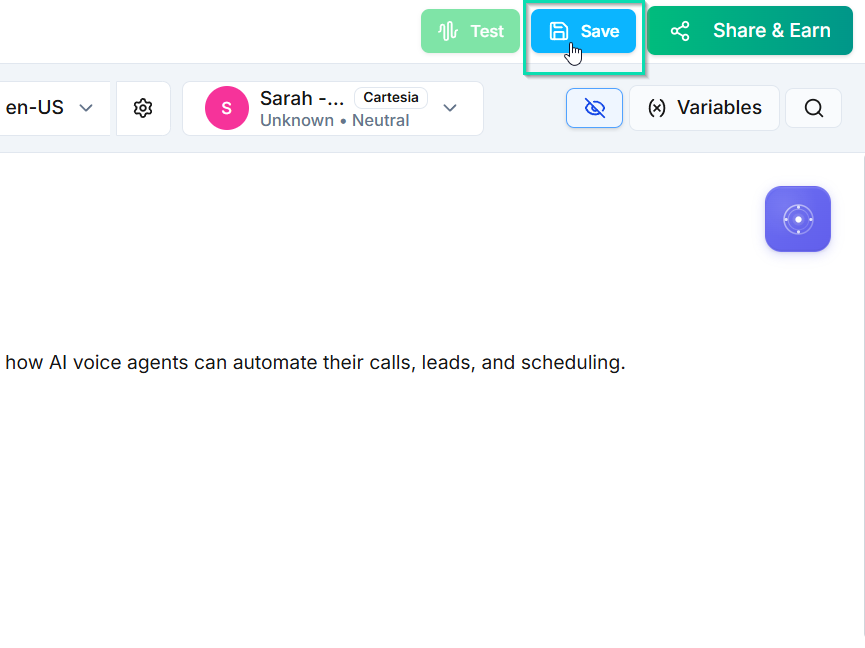
Once your agent is configured:
- Click Save to store your changes as a draft
- Review all settings across each tab (prompt, model, voice, channels)
- Click Publish to make the agent live
Published agents are immediately active on their assigned channels. You can edit and republish at any time without downtime.
Next Steps
- Choosing an AI Model -- select the right model for your agent's needs
- Connecting Channels -- assign phone numbers, SMS, and email to your agent
- Selecting a Voice -- choose how your agent sounds
- Prompting Guide -- best practices for writing effective system prompts