Integrations and MCP Tools
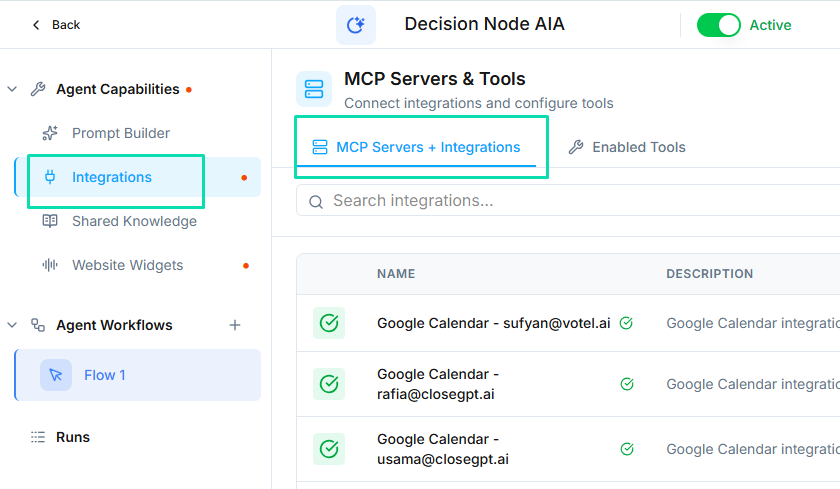
Integrations connect your agent to external platforms and services. This allows the agent to read and write data from your CRM, book appointments, trigger automations, and sync information across your business tools -- all during live conversations.
Video Walkthrough
OAuth Integrations
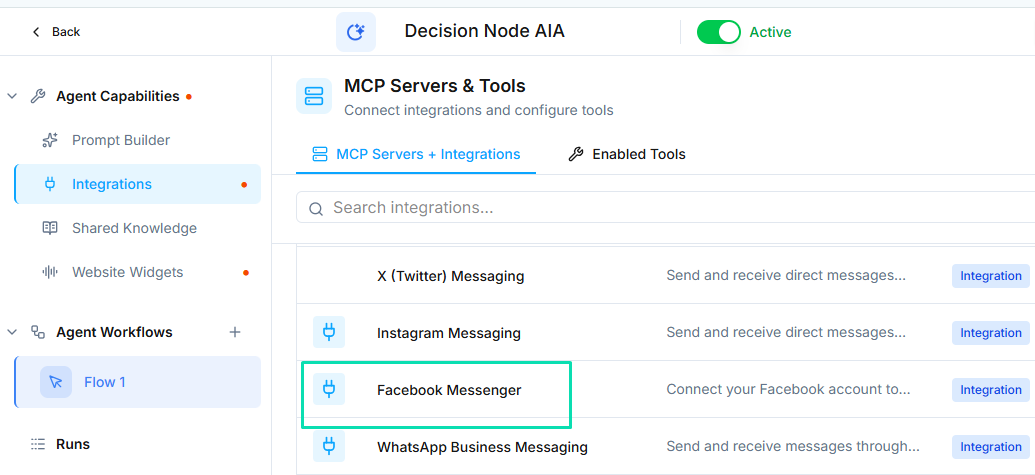
OAuth integrations use secure authorization to connect directly to third-party platforms. Available OAuth integrations include:
- Facebook Messenger -- receive and respond to messages from your Facebook page
- Facebook Lead Ads -- automatically import leads from Facebook ad campaigns
- Google Calendar -- check availability and book appointments in real time
- GHL Business Location -- sync with GoHighLevel business location data
MCP Platform Integrations
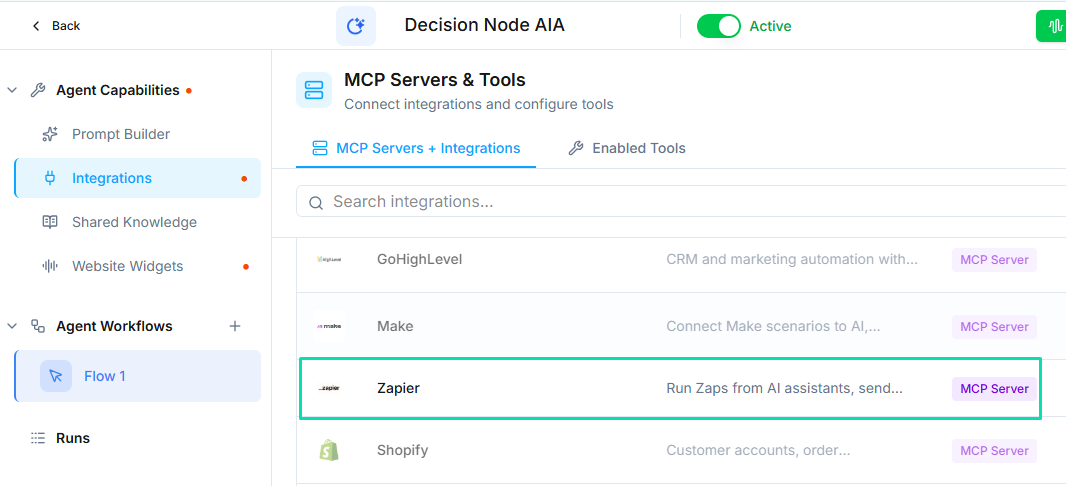
MCP (Model Context Protocol) integrations extend your agent's capabilities by connecting to automation and business platforms:
- Zapier -- trigger thousands of app workflows from agent conversations
- Make (Integromat) -- build advanced multi-step automations
- HubSpot -- read and update contacts, deals, and tasks in your CRM
- Salesforce -- sync leads, opportunities, and customer records
- Shopify -- access order information, product details, and customer data
- GoHighLevel -- manage contacts, pipelines, and campaigns
What Integrations Enable
With integrations connected, your agent can:
- Sync leads from your CRM into and push new leads back
- Update customer records after conversations (notes, status changes, tags)
- Trigger workflows in external tools -- send emails, create tasks, start sequences
- Book and modify appointments by checking real-time calendar availability
- Look up information such as order status, account details, or product pricing during a call
Setting Up Integrations
- Open your agent in the agent builder
- Navigate to the Integrations tab
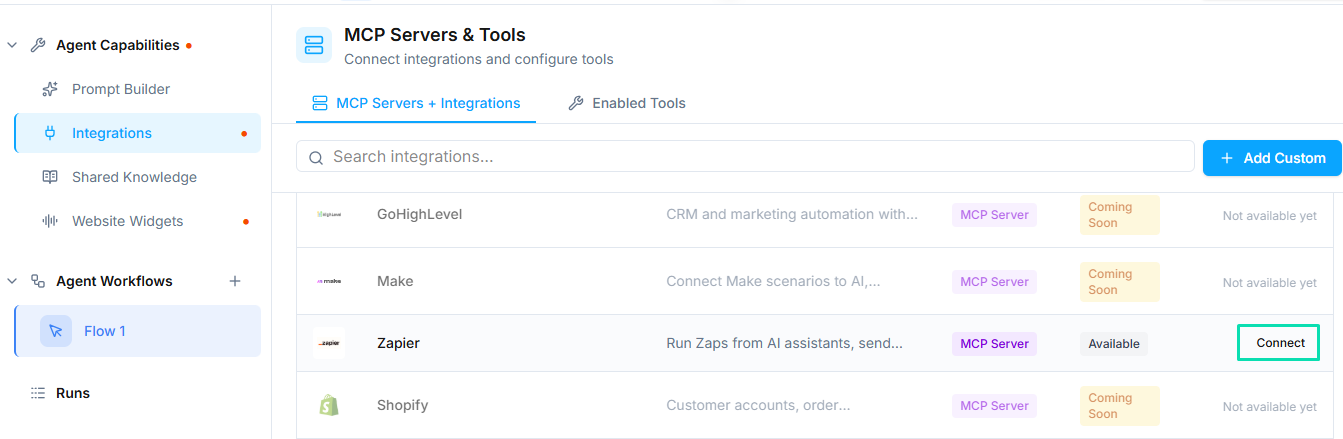
- Select the platform you want to connect
- For OAuth integrations, click Connect and authorize access through the platform's login flow
- For MCP integrations, follow the setup instructions specific to each platform
- Configure which actions the agent is allowed to perform
- Save your changes
Once connected, the agent can use the integration during any conversation. The available actions appear as tools the agent can call within its workflow.
Next Steps
- Manual Tool Call Node -- use integrations within workflow steps
- Sender Identities -- configure email identities for outbound communication