Sender Identities
Sender identities are the email addresses and domains your agents and team use to send emails and SMS. Setting up proper sender identities ensures your outbound messages come from professional, branded addresses instead of generic ones.
Accessing Sender Identities
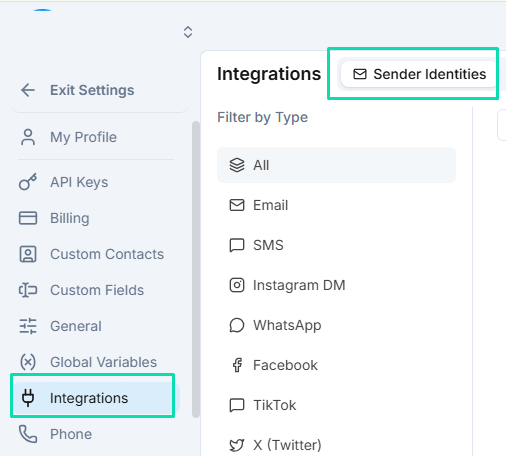
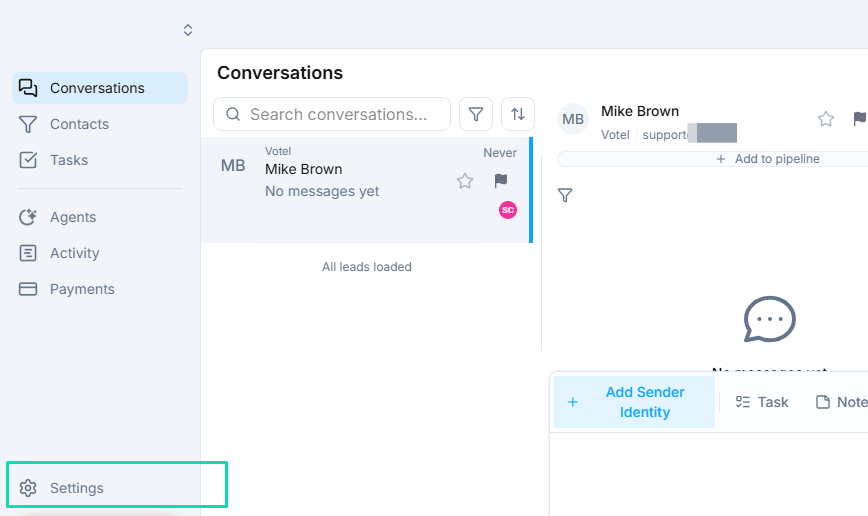
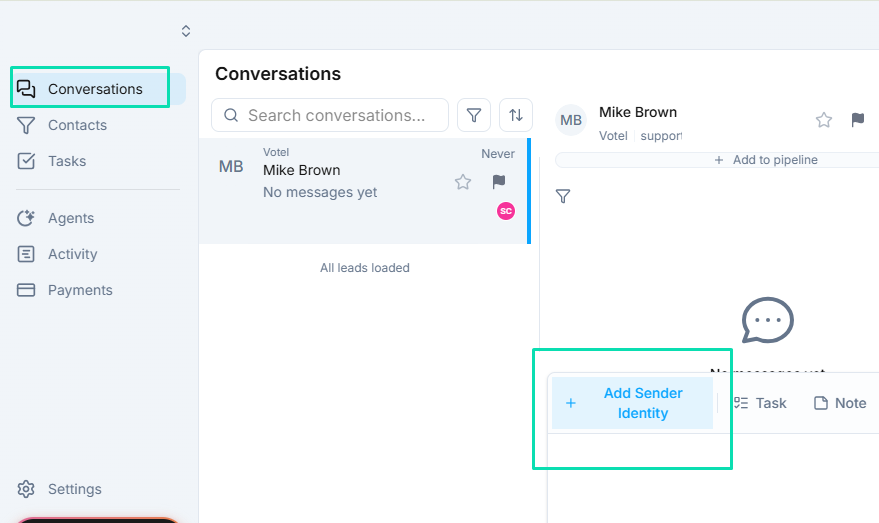
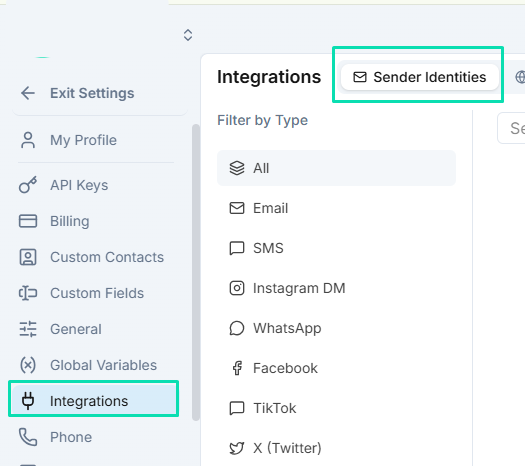
You can manage sender identities from two places:
- Conversations page --- click the gear icon to access sender settings directly from your inbox.
- Settings > Integrations --- find sender identities in the integrations section of your settings menu.
Both paths lead to the same configuration screen.
Connecting Your Email Domain
To send emails from your own domain (e.g., @yourbrand.com), you need to verify and connect it:
- Enter your business domain in the sender identity settings.
- Add the required DNS records (SPF, DKIM, and DMARC) to your domain provider.
- Wait for verification to complete. This confirms you own the domain and authorizes the platform to send on your behalf.
Once verified, you can create sender addresses on that domain.
Creating Sender Addresses
Set up multiple sender identities for different purposes:
sales@yourbrand.com--- for outbound sales sequences and follow-ups.support@yourbrand.com--- for customer service and ticket responses.noreply@yourbrand.com--- for automated notifications that do not need replies.
Each identity can be assigned to specific agents, workflows, or team members.
Shared Identities
By default, a sender identity is available only to the user who created it. Enable the shared option to make an identity available to your entire team. Shared identities are useful when multiple team members or agents need to send from the same address (e.g., a general info@ or support@ address).
Next Steps
- Conversations --- use your sender identities when replying to customers in the inbox
- Email Node --- send automated emails from workflows using your sender identities
- SMS Node --- configure SMS sending in your agent workflows