Contacts & CRM Overview
The CRM is your central hub for managing contacts and leads and tracking their progress through your business pipeline. It brings together every contact - whether created manually, imported from a file, or generated automatically from agent conversations - into a single, organized workspace.
Video Walkthrough
What Is the CRM?
The CRM (formerly called "Contacts" or "List") gives you two ways to view and manage your contacts:
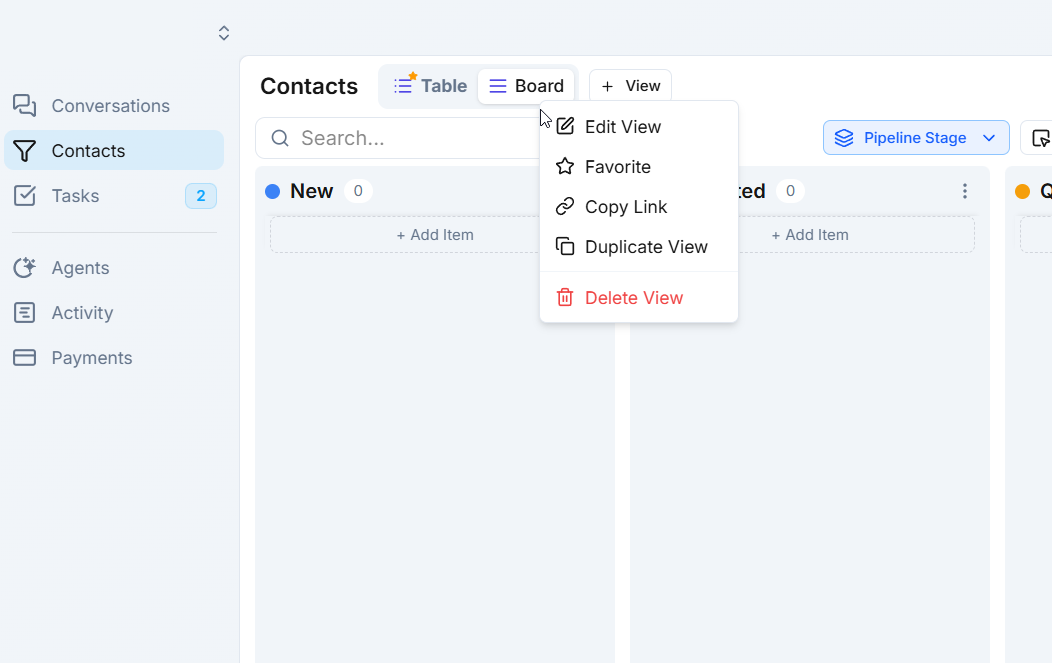
- Board view - a Kanban-style pipeline where contacts appear as cards you can drag between stages like New Lead, Contacted, Qualified, and Sold.
- Table view - a spreadsheet-style layout with sortable columns, inline editing, and filtering for data-heavy management.
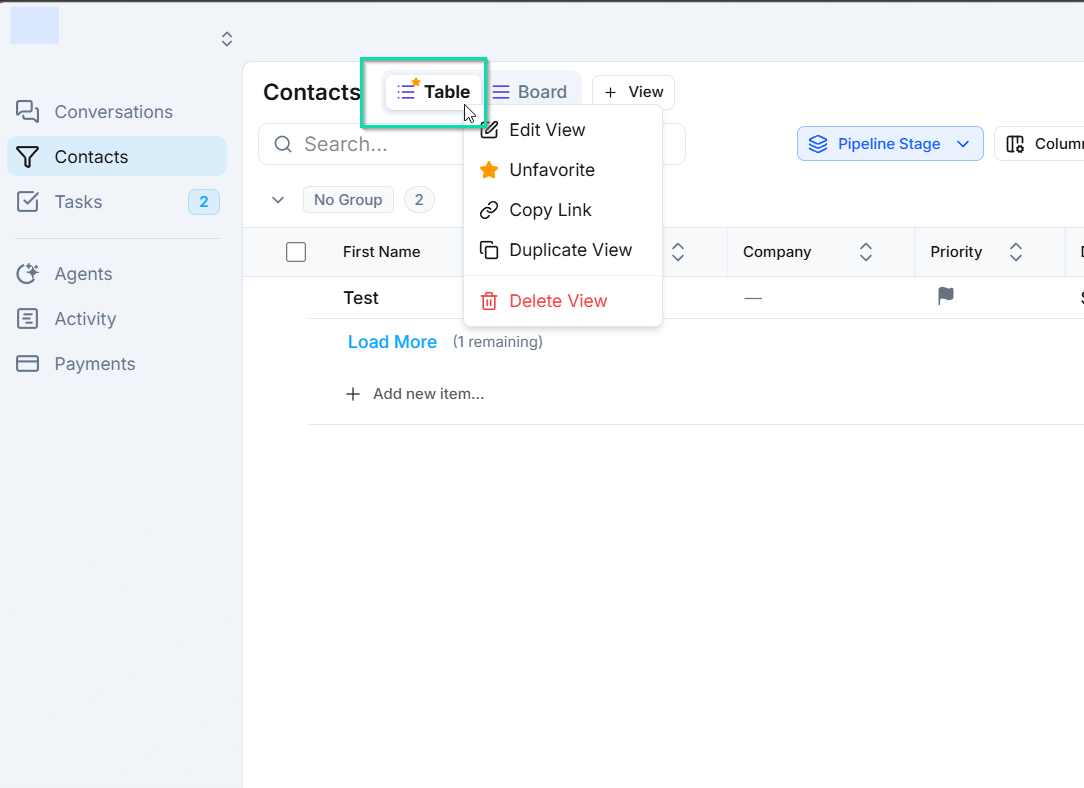
Switch between views at any time depending on what you need. Use the board view for a quick visual snapshot of your pipeline, and the table view when you need to sort, filter, or edit contacts in bulk.
How the CRM Connects to Everything Else
The CRM does not live in isolation. It is tightly connected to your agents and conversations:
- Agents create contacts - when someone calls or messages your AI agent, a contact record is created automatically in the CRM with their details and conversation history.
- Contacts link to conversations - click any contact to open their full conversation thread, including calls, SMS, emails, and WhatsApp messages.
- Pipeline stages sync everywhere - move a contact to a new stage in the CRM, and that change reflects in Conversations and workflow automations.
Key Capabilities
- Organize contacts in customizable pipelines with drag-and-drop stage management.
- Build custom views with filters, groupings, and saved tabs.
- Create custom fields and contact layouts tailored to your business.
- Import contacts from CSV or Excel files with automatic field mapping.
- Run bulk actions like mass SMS, email, agent assignment, and tagging.
- Score leads automatically based on engagement activity.
- Prevent duplicates with built-in deduplication settings.
Next Steps
- Pipelines - create and customize the stages contacts move through
- Custom Fields - add business-specific data fields to your contacts
- Bulk Actions - take action on multiple contacts at once