Pipelines
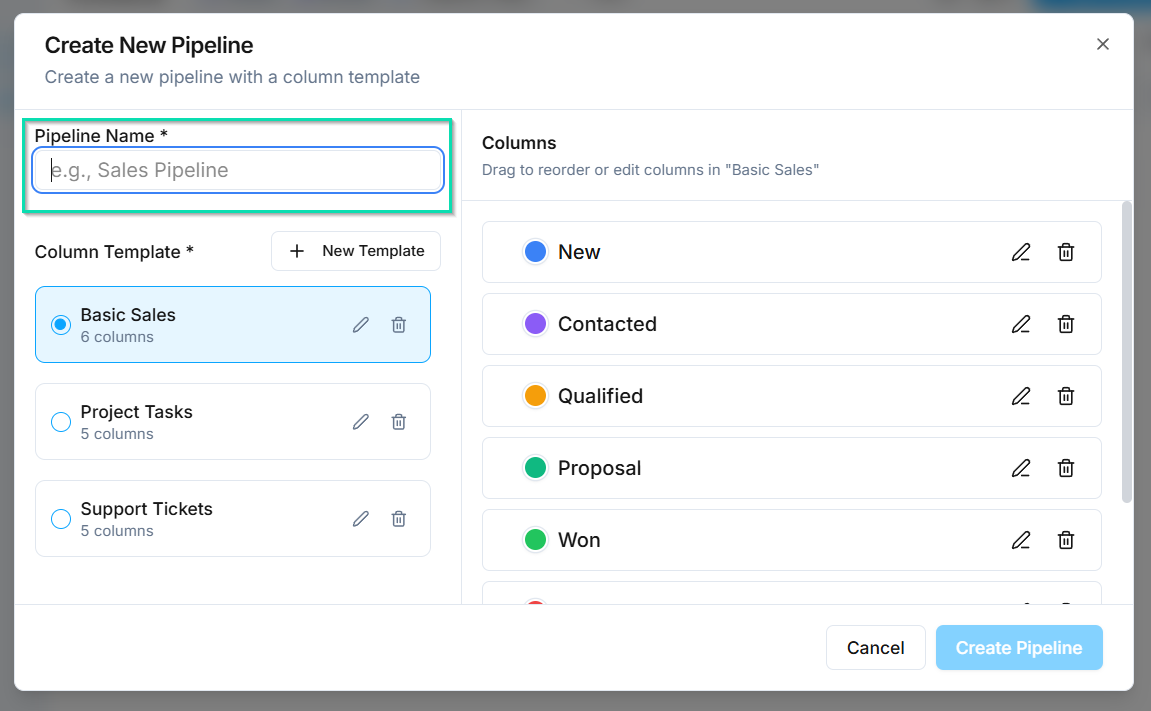
Pipelines define the stages that contacts move through as they progress in your business process. Each pipeline is a sequence of columns representing steps like New Lead, Contacted, Qualified, and Sold - customized to match how your team actually works.
What Is a Pipeline?
A pipeline is a visual representation of your business process broken into stages. In board view, each stage appears as a column, and contacts move left to right as they advance. In table view, the pipeline stage is a field you can sort and filter by.
Pipelines help you see exactly where every contact stands and identify bottlenecks at a glance.
Creating a Pipeline
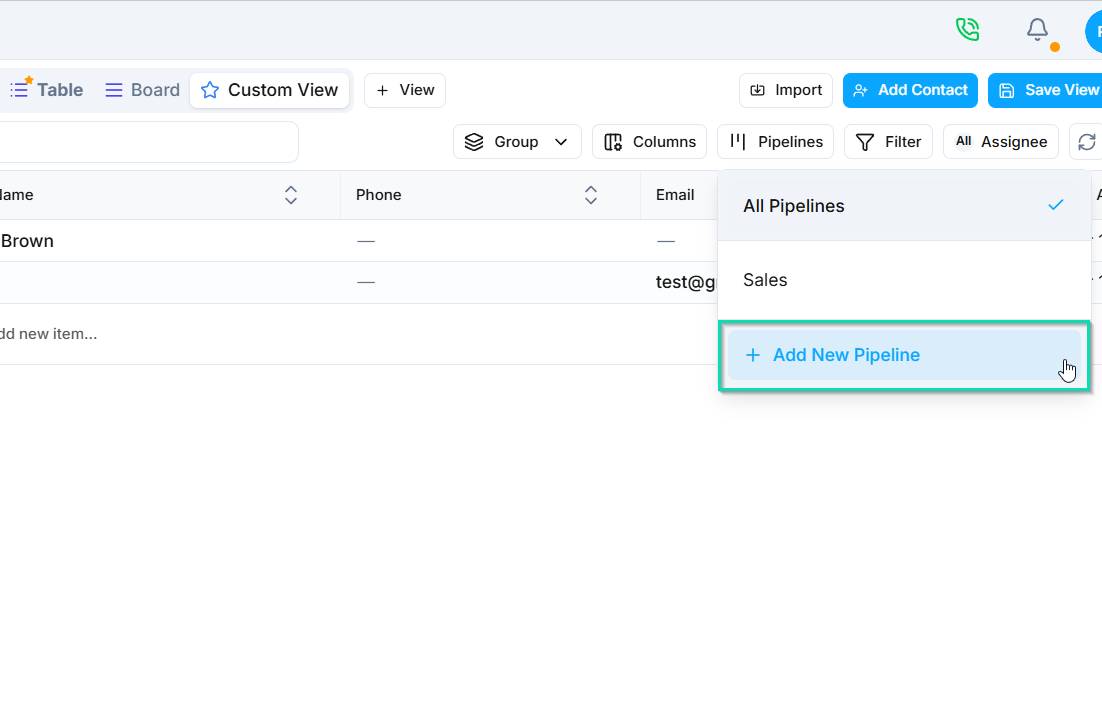
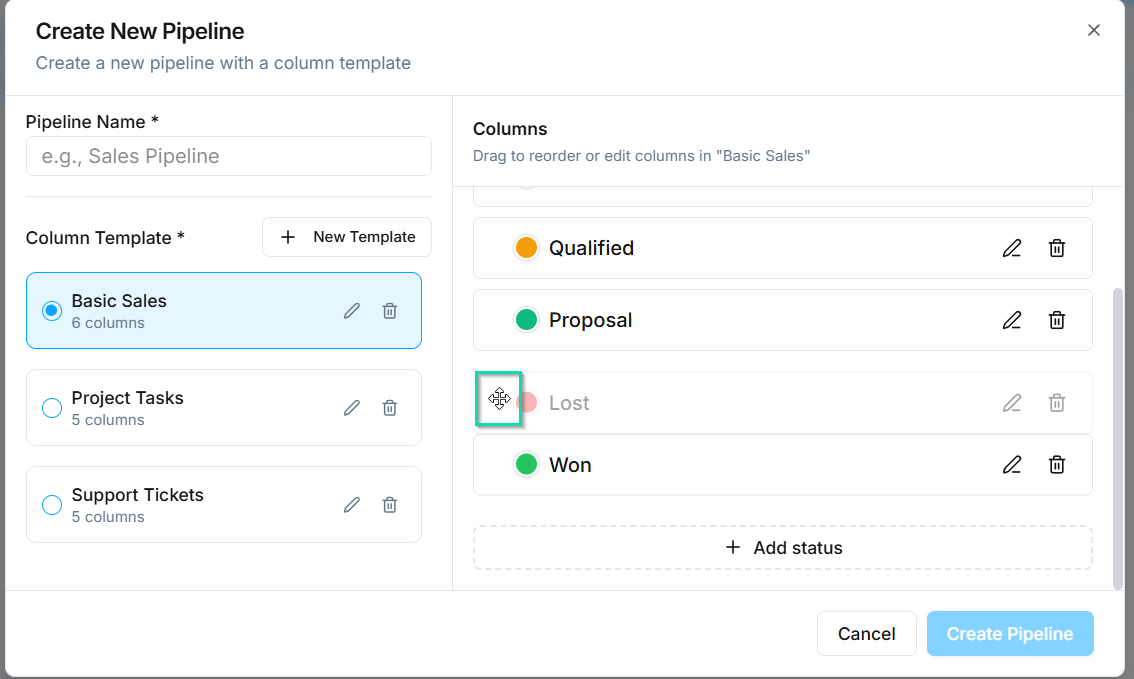
To create a new pipeline:
- Open the CRM and navigate to your pipeline settings.
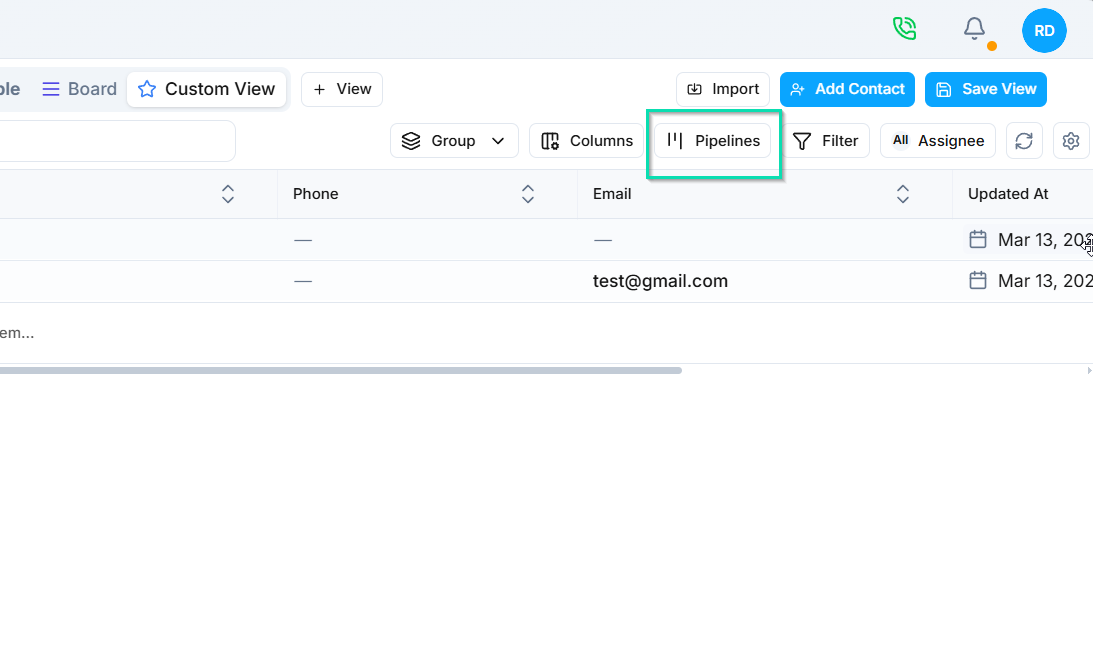
- Click Add Pipeline.
- Give the pipeline a name (e.g., "Sales Pipeline", "Onboarding", "Support Tickets").
- Add your custom columns - each column represents a stage in the process.
Custom Columns
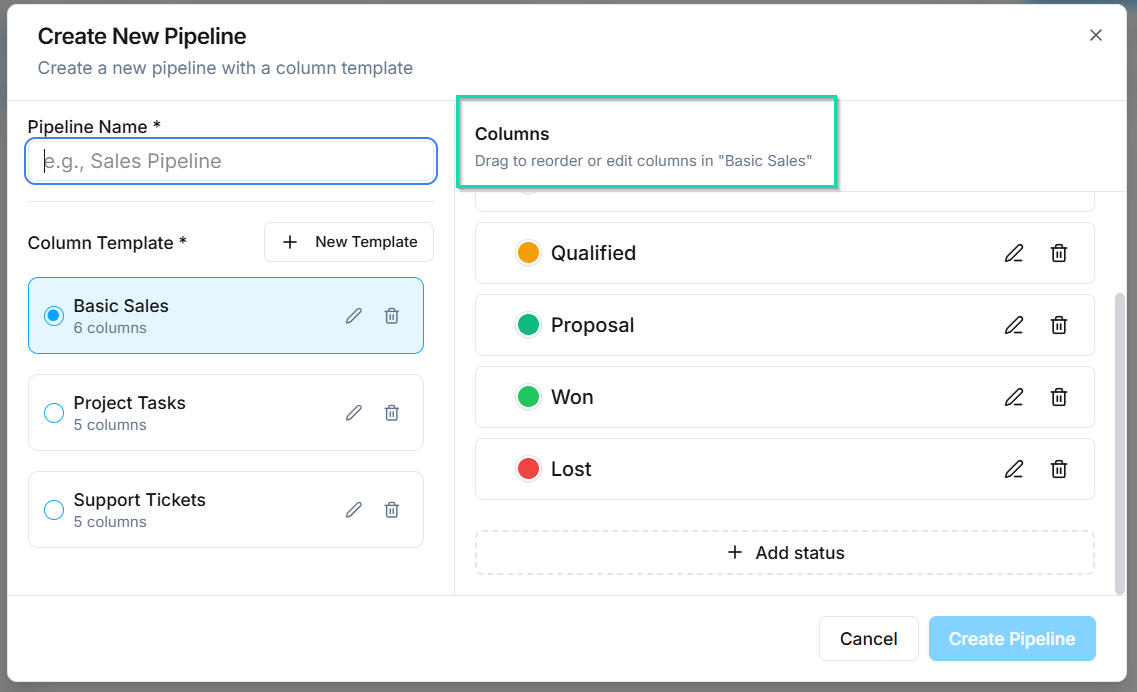
Each column in a pipeline represents a stage. You decide what stages make sense for your workflow. Common examples:
- Sales: New Lead, Contacted, Qualified, Proposal Sent, Negotiation, Won, Lost
- Support: Open, In Progress, Waiting on Customer, Resolved
- Onboarding: Signed Up, Documents Received, Verified, Active
Name your columns with clear, action-oriented labels so your team immediately understands what each stage means.
Reordering Columns
Drag columns to rearrange their order. This is useful when your process changes and you need to add, remove, or reposition stages without rebuilding the pipeline from scratch.
Multiple Pipelines
You are not limited to a single pipeline. Create separate pipelines for different parts of your business:
- A Sales Pipeline for tracking deals from lead to close.
- A Support Pipeline for managing customer issues.
- A Recruitment Pipeline for hiring workflows.
Each pipeline operates independently with its own stages, so contacts in one pipeline do not interfere with another.
Next Steps
- Customizing Pipeline Cards - control which fields appear on contact cards in board view
- Views and Layouts - switch between board and table views and create saved views