Bulk Actions
Bulk actions let you take action on multiple contacts at once instead of updating them one by one. Select a group of contacts and apply changes like agent assignment, tagging, or messaging in a single operation.
Video Walkthrough
Selecting Contacts
You can select multiple contacts from either view:
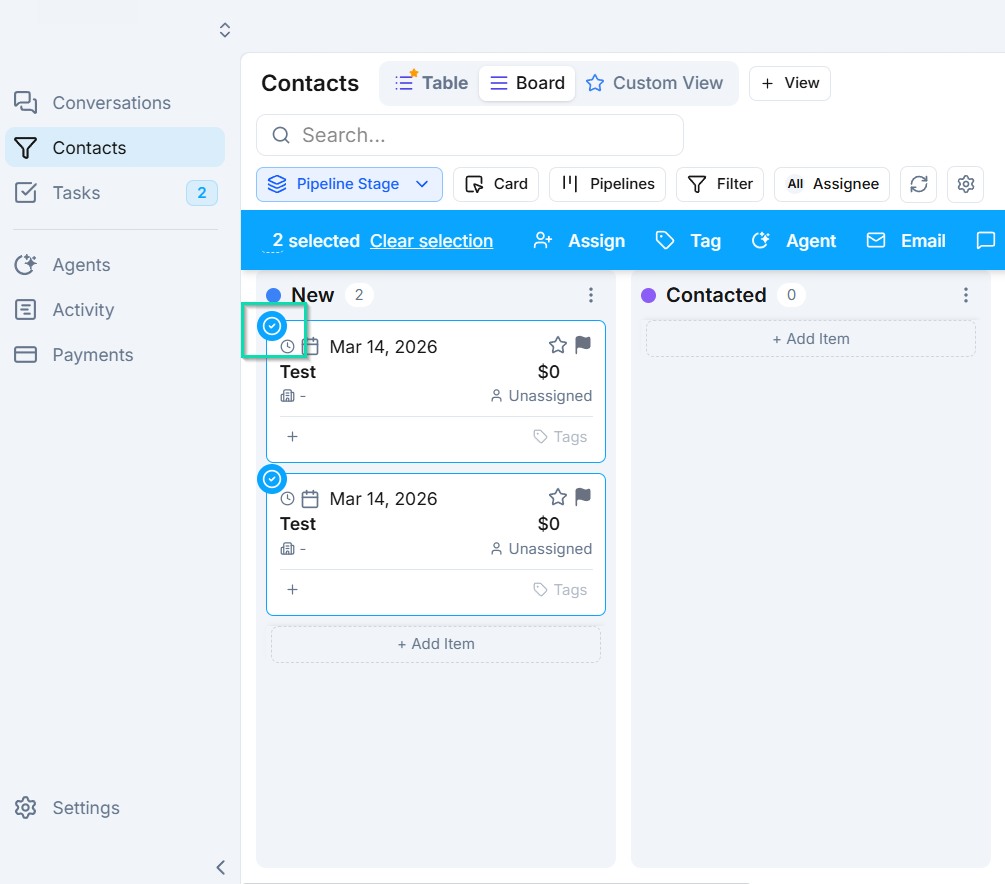
- Board view - select an entire pipeline column to grab all contacts in that stage.
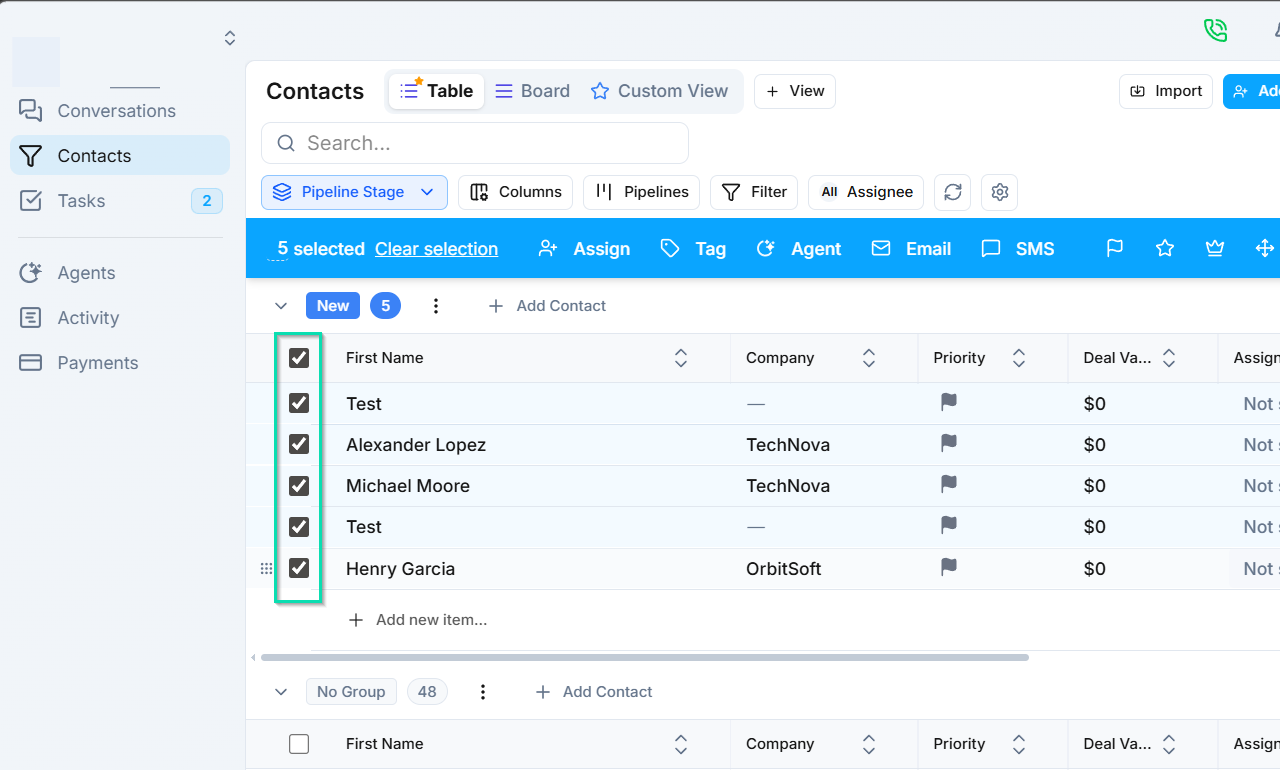
- Table view - use the checkboxes next to individual contacts, or select all visible contacts at once.
Available Bulk Actions
Once you have contacts selected, the following actions are available:
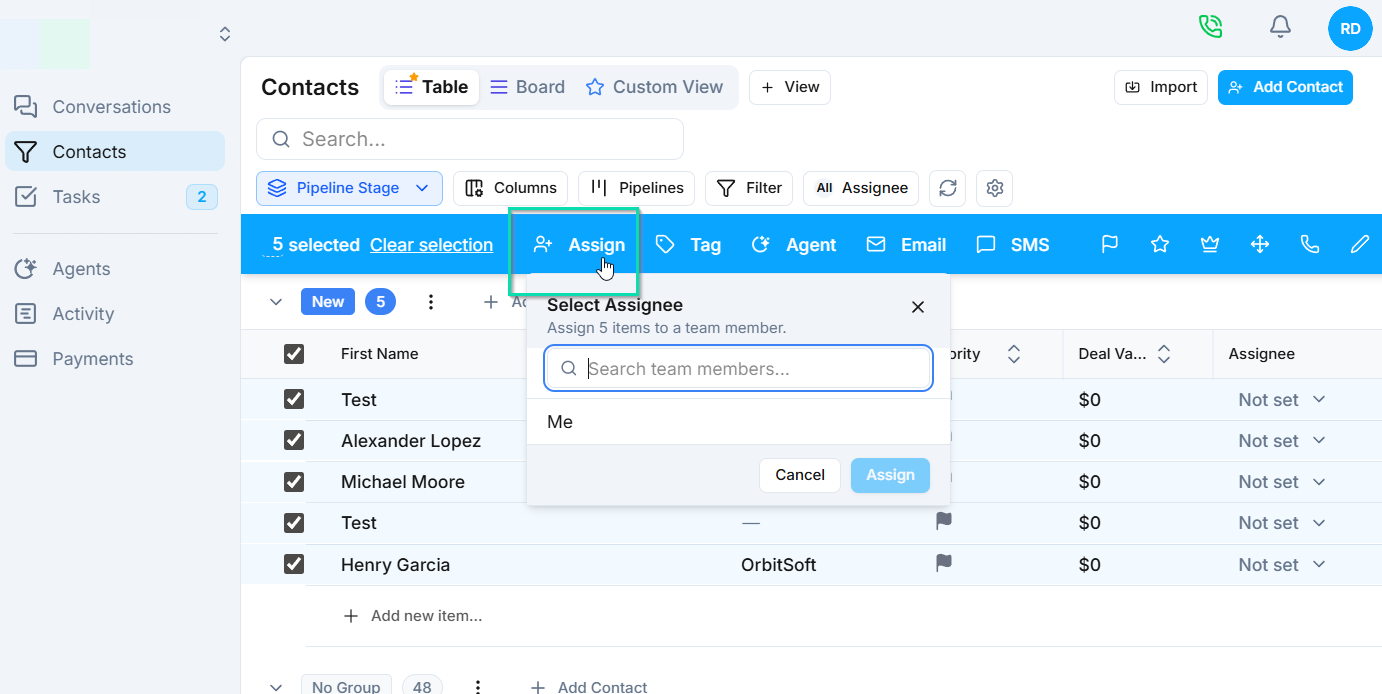
- Assign to team member - distribute contacts among your team.
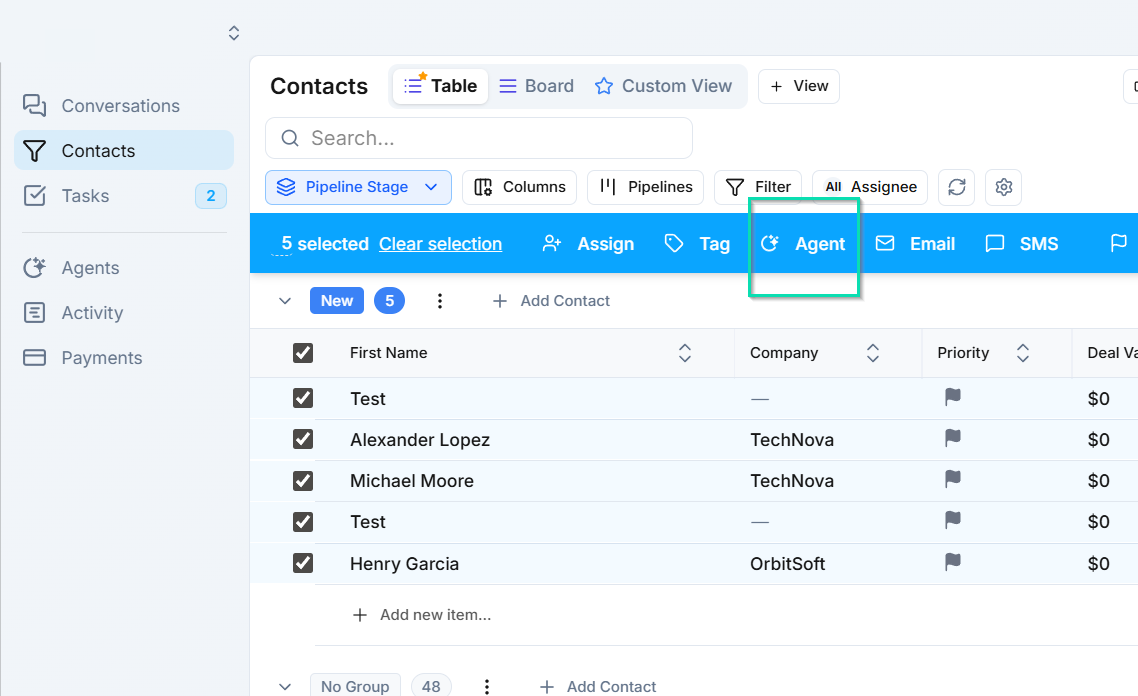
- Assign to AI agent - hand contacts off to an AI agent for automated follow-up.
- Add tags - apply one or more tags to all selected contacts.
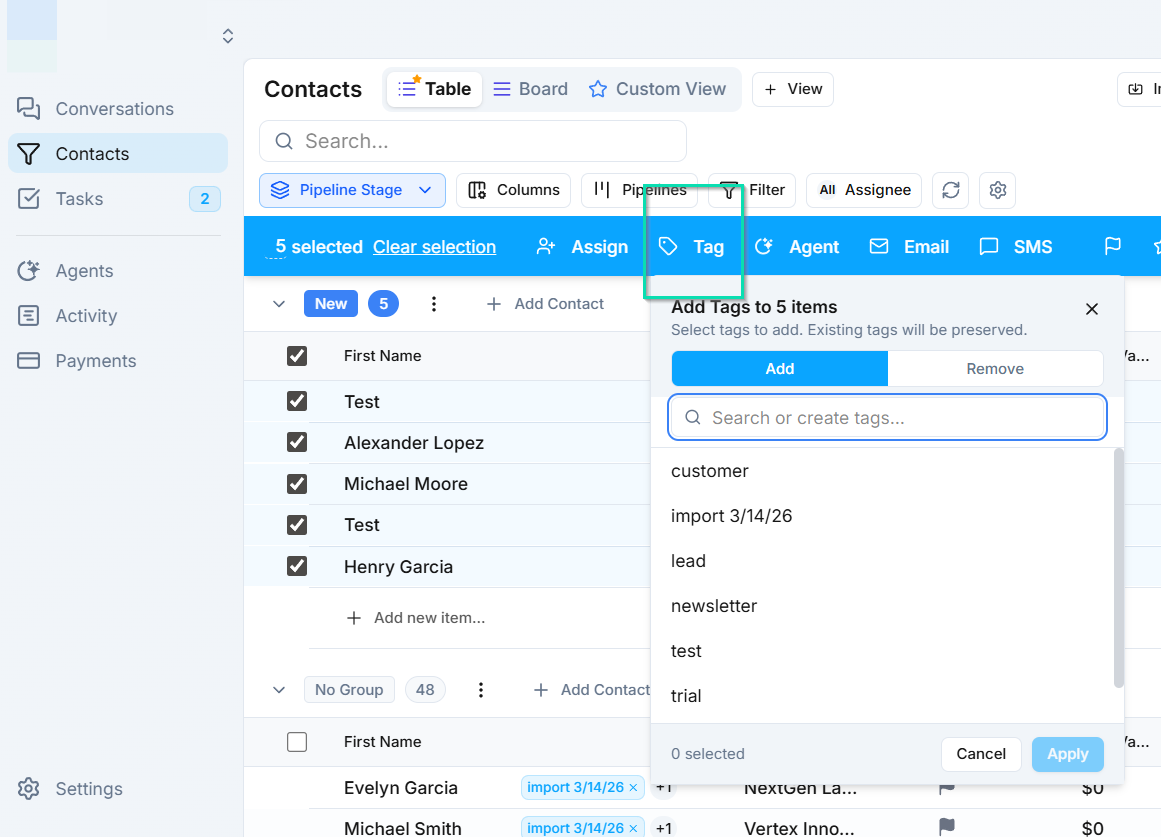
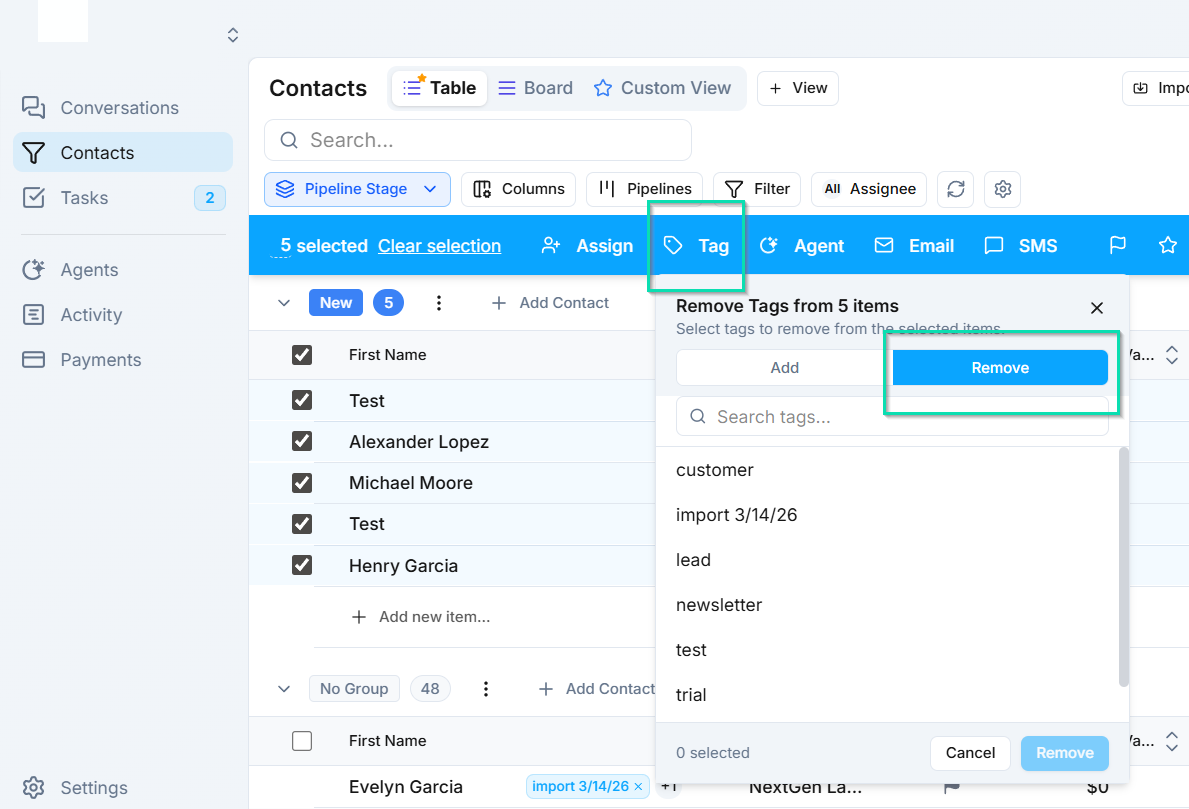
- Remove tags - strip specific tags from all selected contacts.
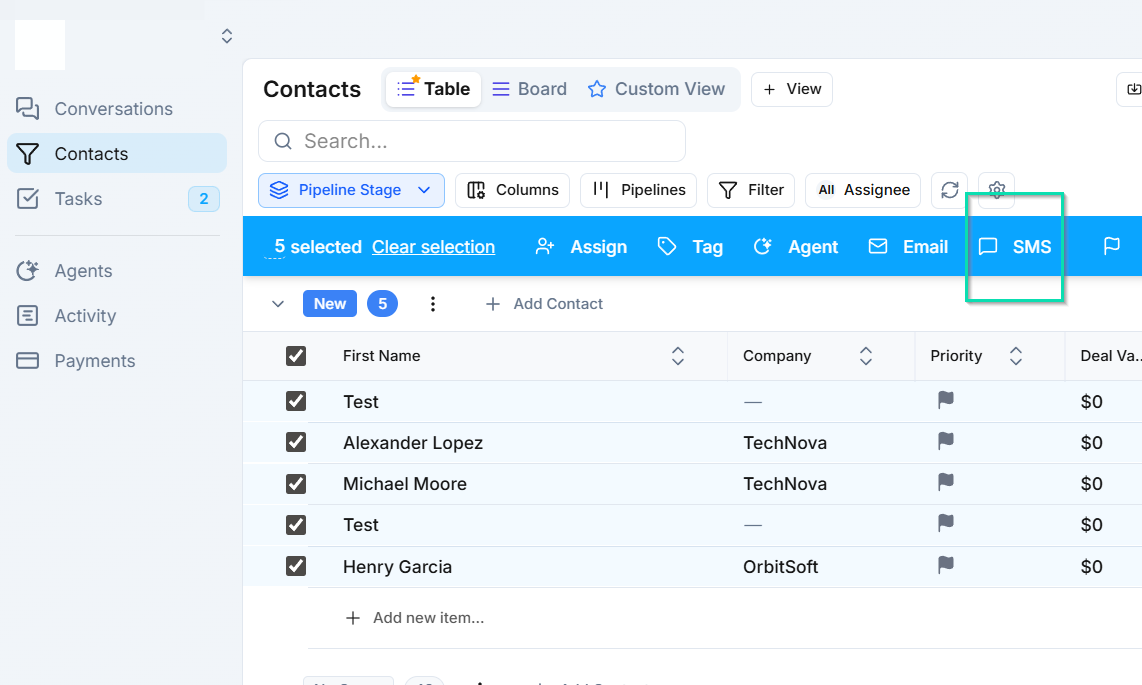
- Send SMS - send a text message to all selected contacts.
- Send email - send an email to all selected contacts.
Quick Roll vs. Drip
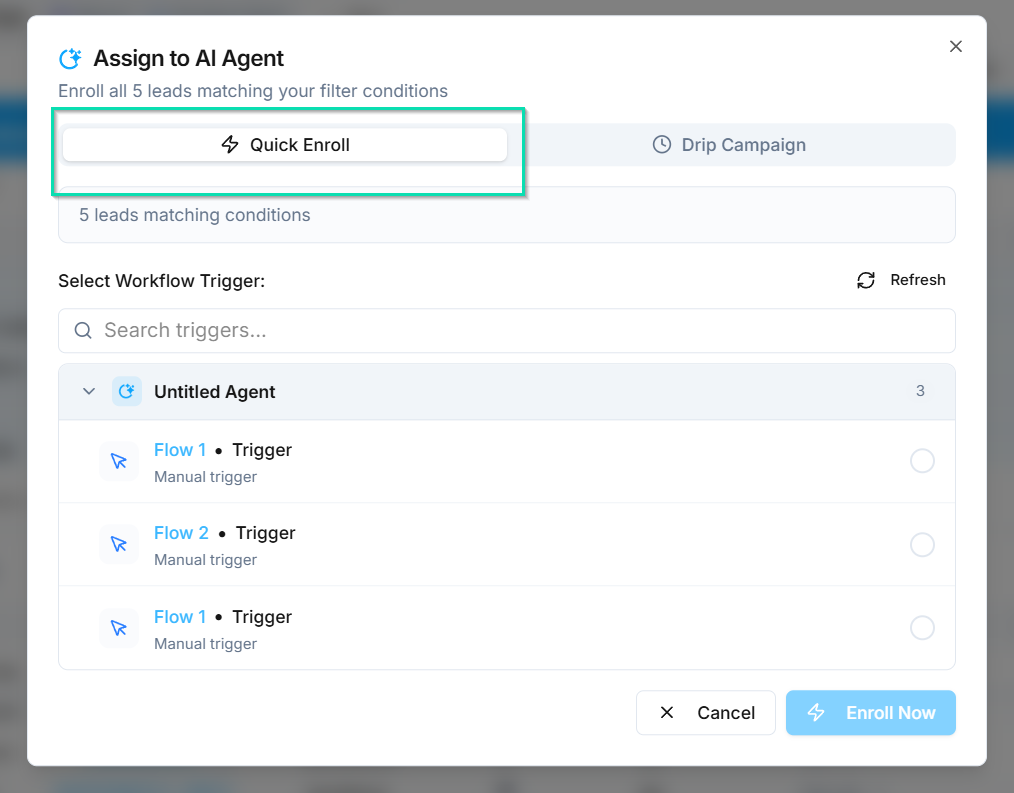
When executing a bulk action, you choose how it is delivered:
- Quick Roll - executes the action on all selected contacts immediately. Best for internal actions like tagging or team assignment, or when you need messages sent right away.
- Drip - spaces out the action over time, sending messages at intervals you define. This prevents overwhelming recipients and helps avoid deliverability issues when sending large volumes of SMS or email.
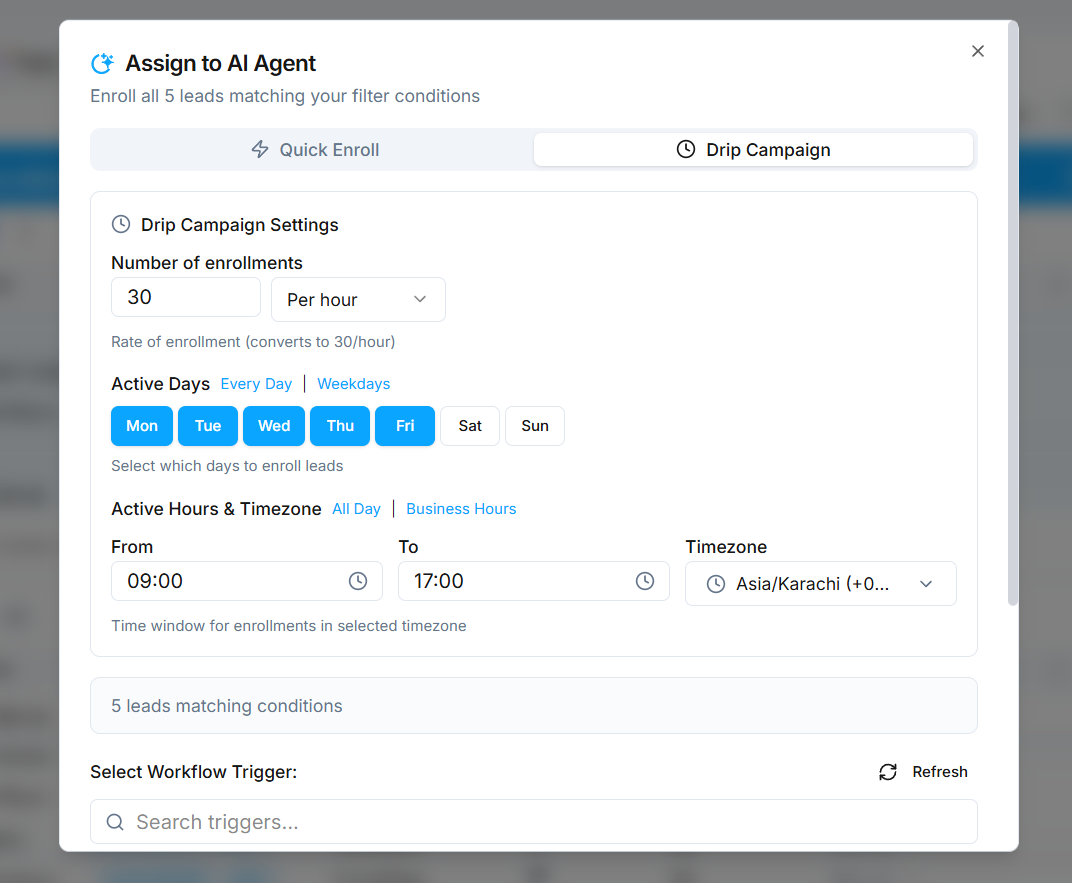
Drip is recommended for outbound messaging campaigns where you want a natural, staggered delivery.
Monitoring Progress
After starting a bulk action, track its progress in the Activity tab. You can see:
- How many contacts have been processed.
- The current status of the action (in progress, completed, or failed).
- Any errors or skipped contacts.
Next Steps
- Building Outbound Campaigns - combine bulk actions with workflow automations for full campaign control
- Wait Node - use wait nodes in workflows to build drip sequences