Contact Deduplication
Deduplication prevents duplicate contact records from cluttering your CRM. When enabled, checks incoming contacts against your existing database and takes action based on your configured rules.
Accessing Deduplication Settings
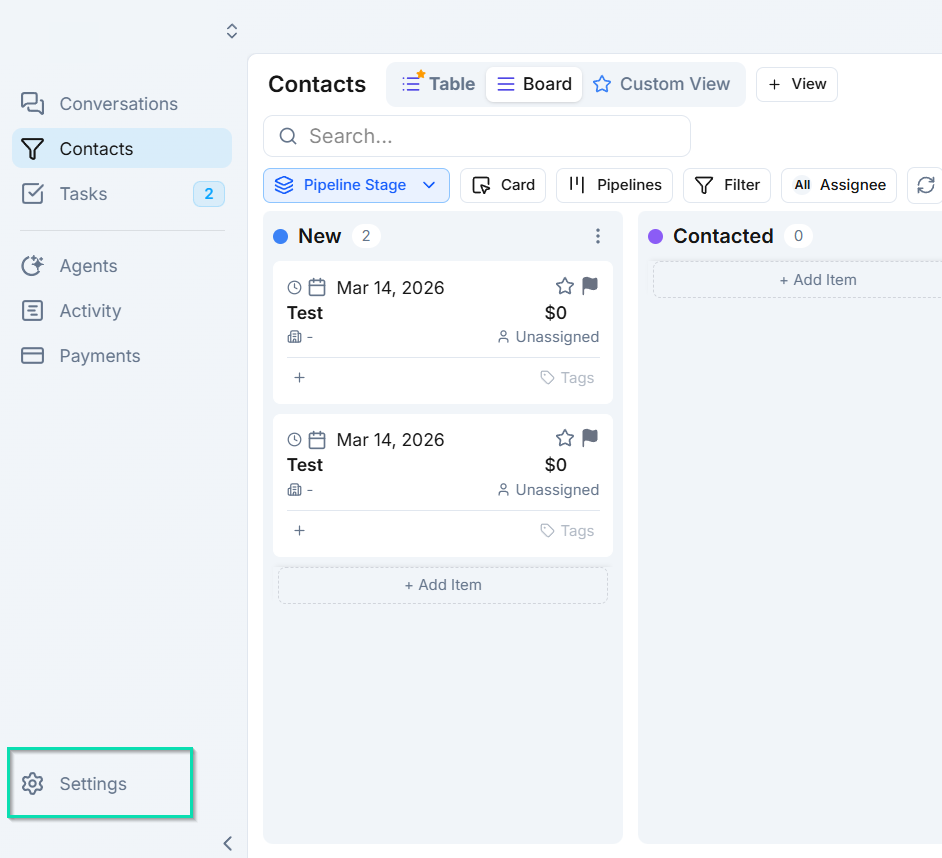
Go to Settings > General to find the deduplication controls.
Enabling Deduplication
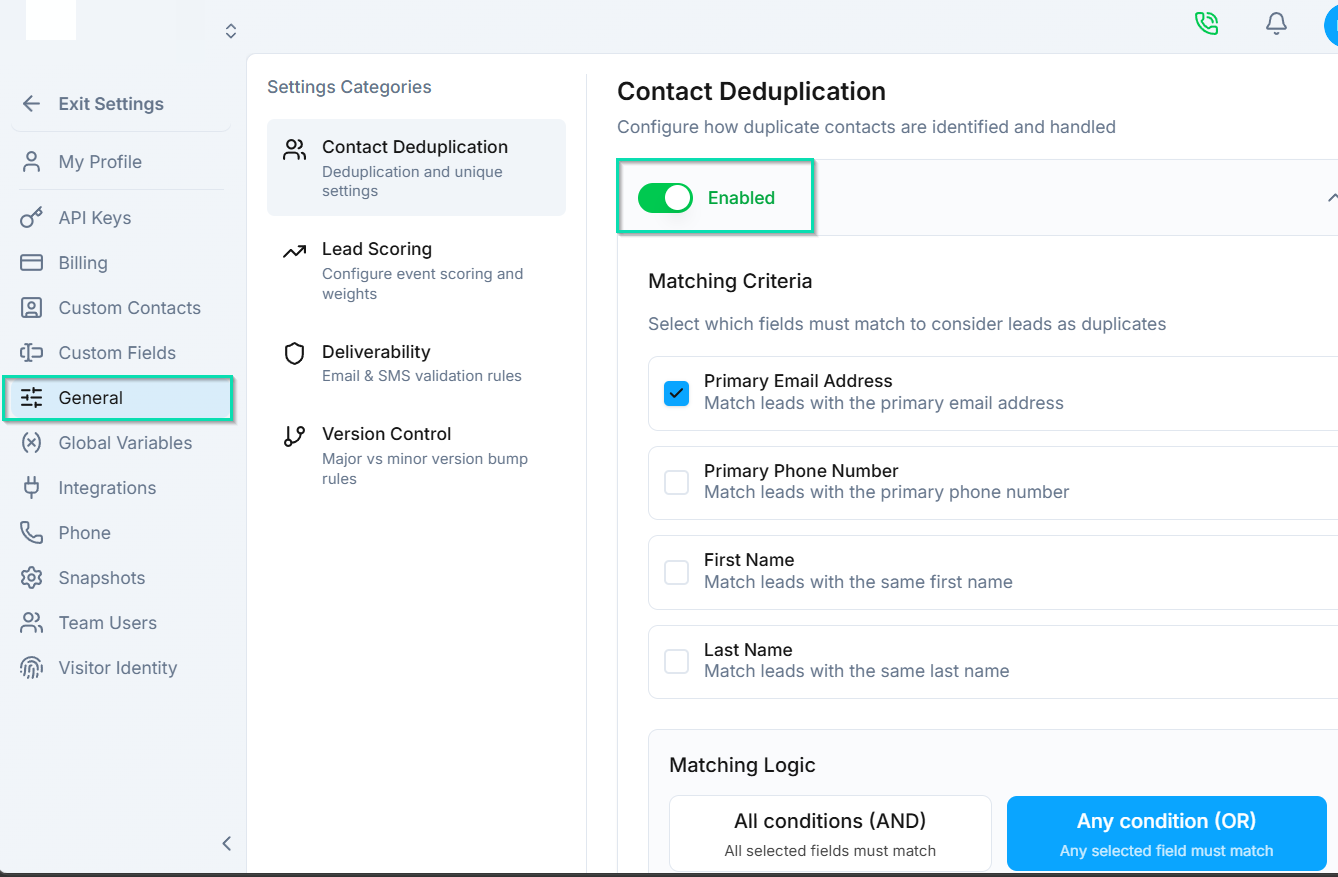
Toggle deduplication on or off depending on your needs. When turned on, every new contact - whether created from an import, a form submission, or an agent conversation - is checked for duplicates before being added.
Choosing Uniqueness Criteria
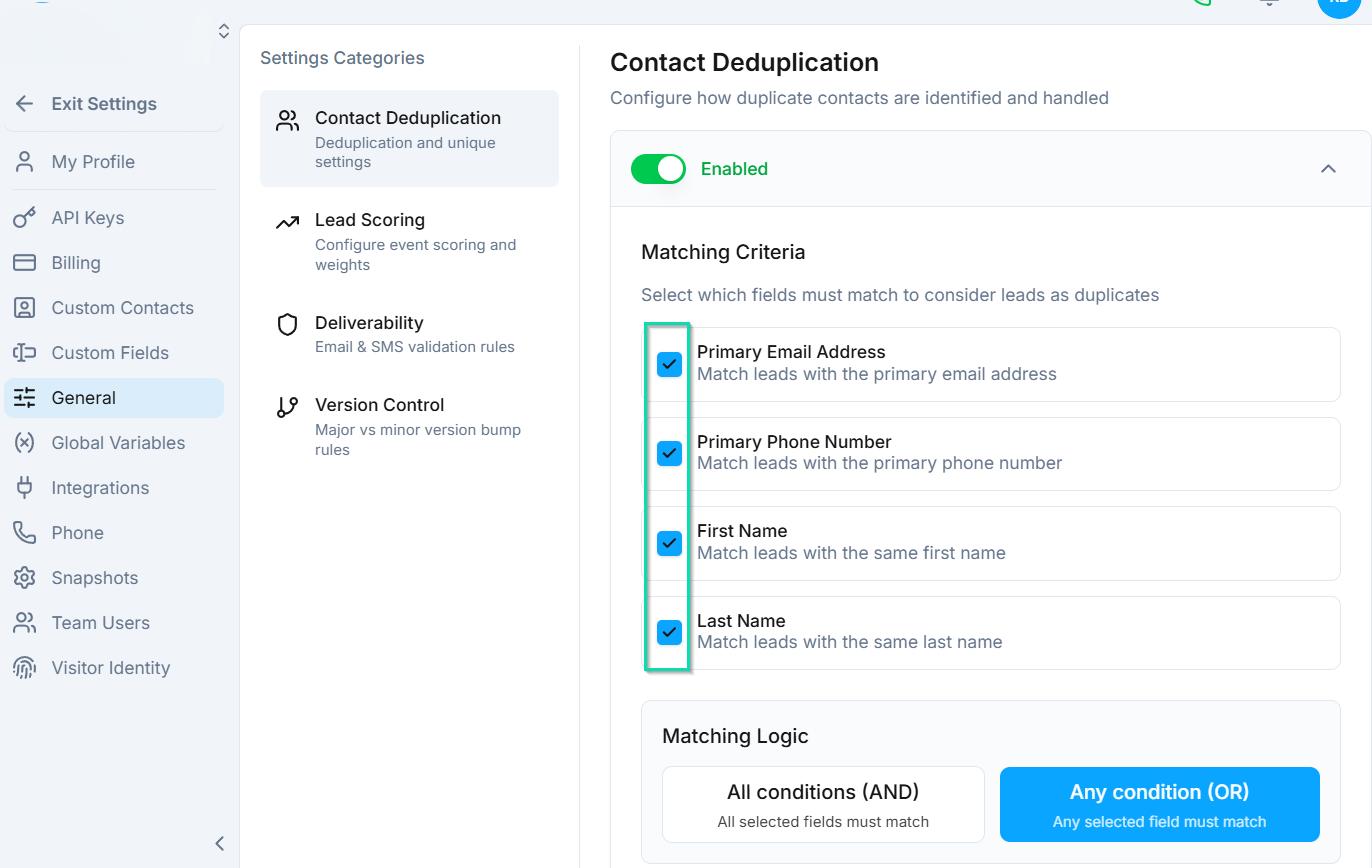
Define what makes a contact unique by selecting one or more matching criteria:
- Email - contacts with the same email address are considered duplicates.
- Phone number - contacts with the same phone number are considered duplicates.
- Name - contacts with the same name are considered duplicates.
- Combinations - match on multiple criteria for stricter deduplication (e.g., same email AND same phone).
Choose the criteria that best fit your data. Email or phone number alone is usually sufficient for most businesses.
Merge Options
When a duplicate is detected, needs to know what to do with the conflicting data. You have two options:
- Keep Existing - preserve the original contact record and discard the new duplicate data. Use this when you trust your existing data and do not want it overwritten.
- Replace - overwrite the existing record with the new data. Use this when incoming data is more current or accurate.
Best Practices
- Enable deduplication before running large imports to prevent creating hundreds of duplicate records.
- Start with email or phone as your uniqueness criteria - these are the most reliable identifiers.
- Use "Keep Existing" as your default merge option unless you have a specific reason to overwrite.
Next Steps
- Contact Lookup Node - look up existing contacts in workflow automations
- Importing Contacts - import contacts with deduplication protection active