Views and Layouts
Views let you control how contacts are displayed in the CRM. You can switch between a visual board layout and a data-focused table layout, and create custom saved views to organize your work the way you need it.
Board View
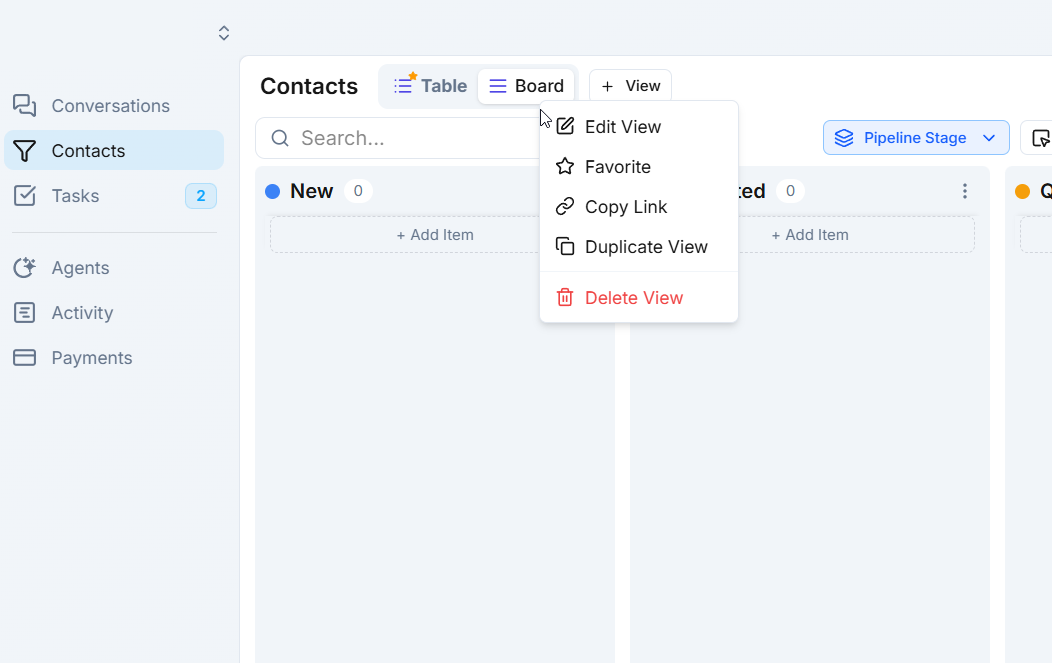
The board view uses a Kanban-style layout where contacts appear as cards organized into pipeline stage columns. This gives you an at-a-glance overview of where every contact stands.
- Each column represents a pipeline stage (e.g., New, Contacted, Qualified, Won).
- Drag and drop cards between columns to move contacts through stages.
- Card content is customizable - choose which fields appear on each card.
Board view is ideal for sales teams and anyone who wants a quick visual summary of their pipeline.
Table View
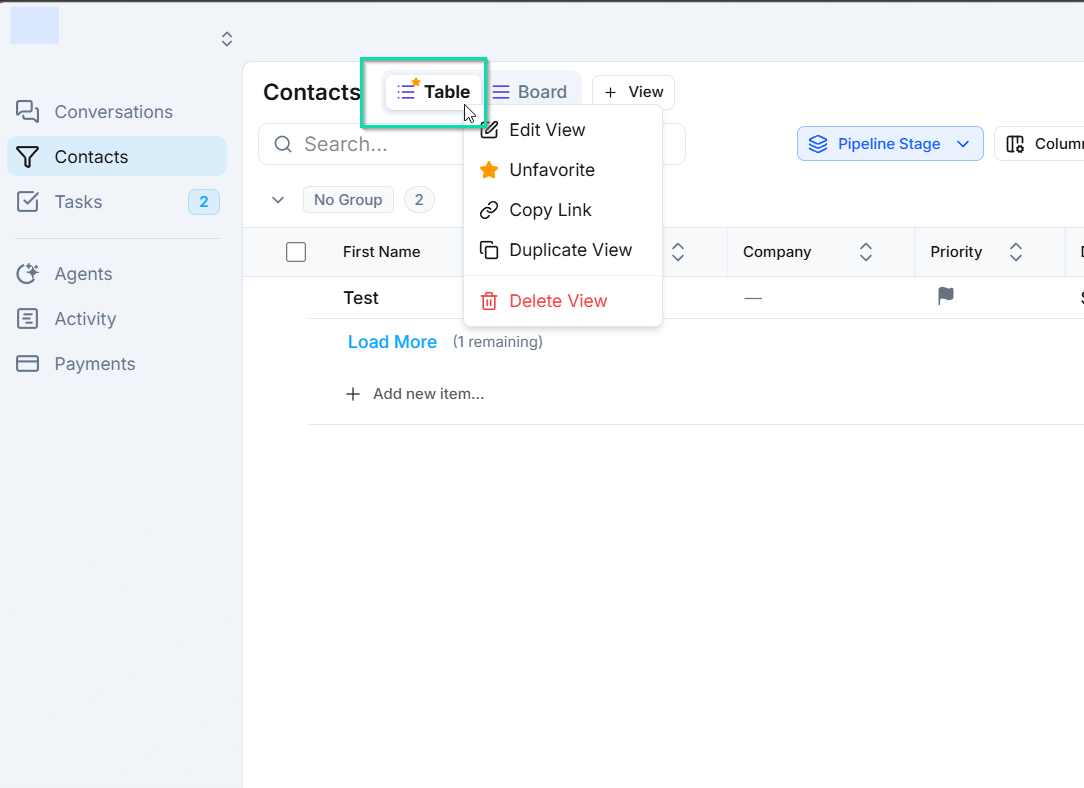
The table view presents contacts in a spreadsheet-style layout with rows and columns. It is built for working with data.
- Sort any column in ascending or descending order.
- Edit field values inline without opening the contact record.
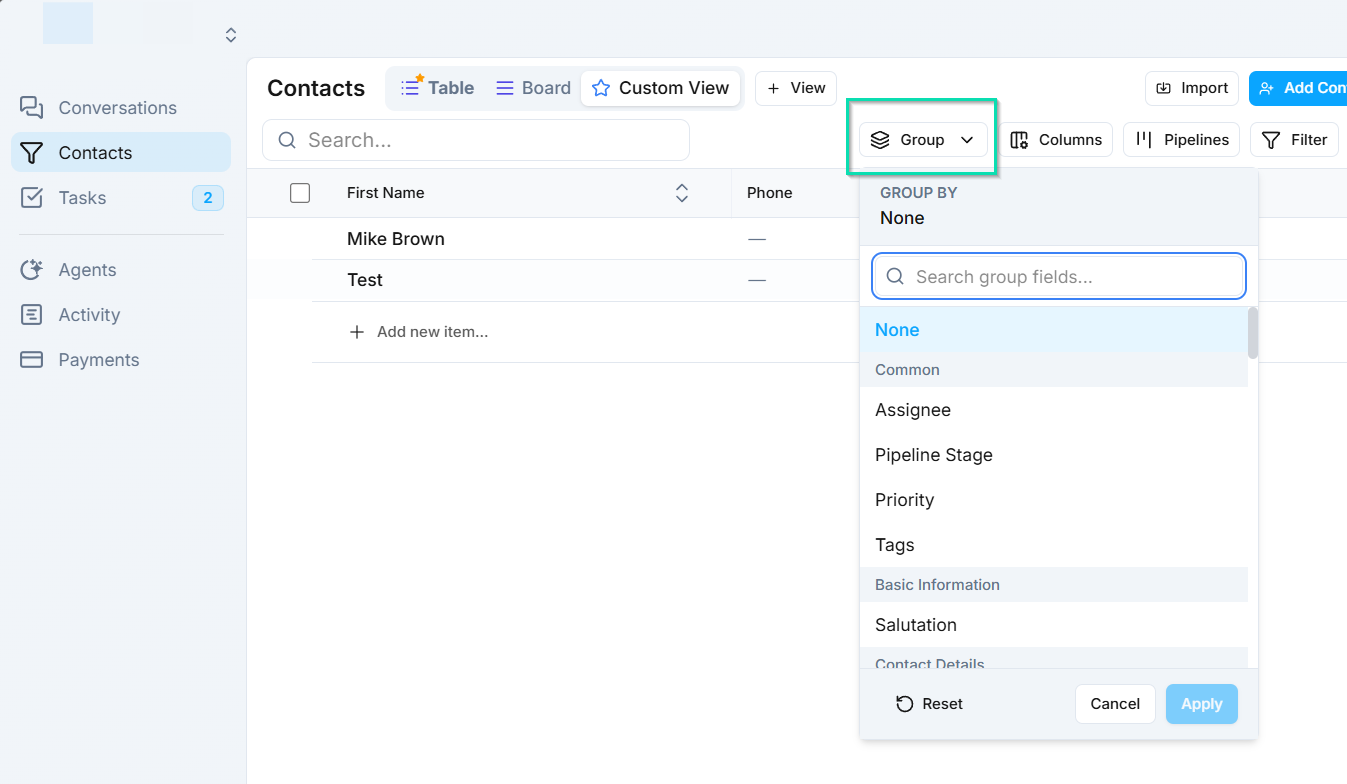
- Filter and group contacts by any field.
- Resize and reorder columns to match your workflow.
Table view is ideal for bulk editing, detailed filtering, and data-heavy management tasks.
Creating Custom Views
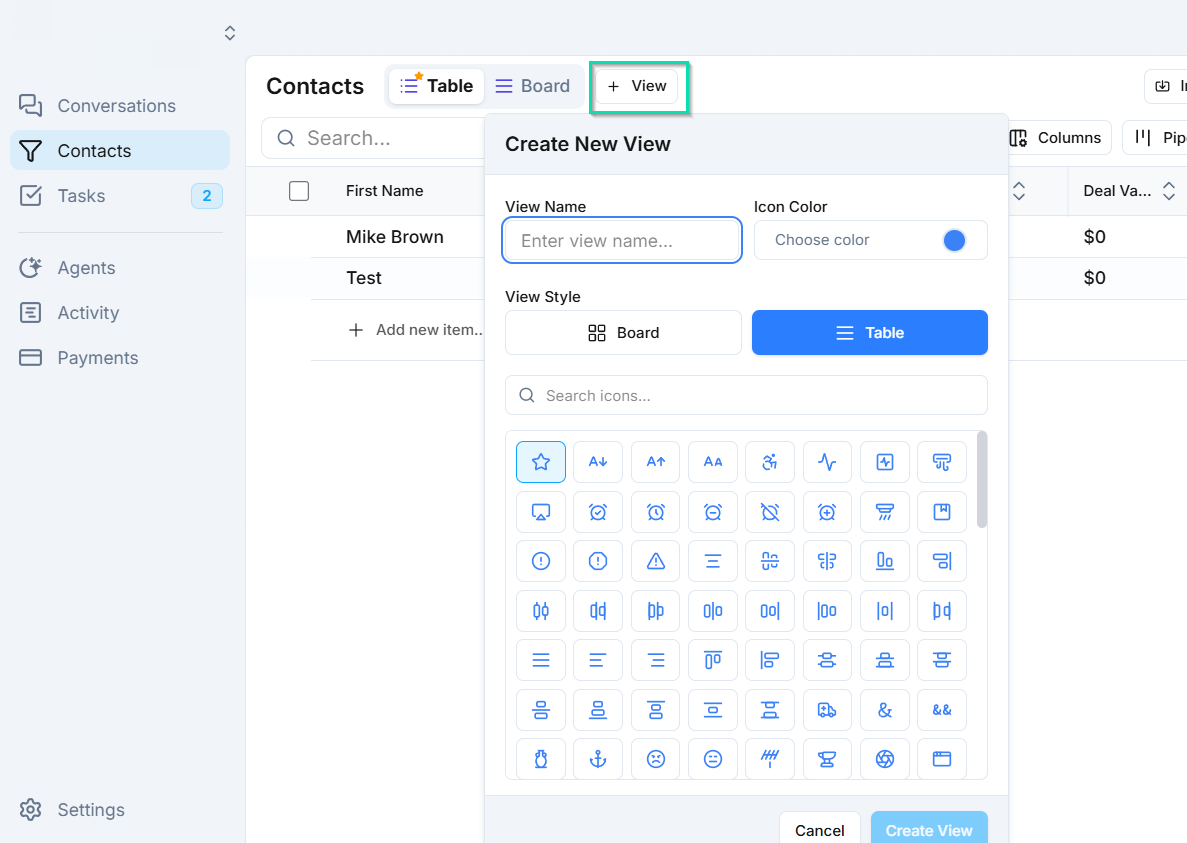
Click + Create New at the top of the CRM to build a custom view. When creating a view, you can:
- Apply specific filters (e.g., only contacts with a certain tag, pipeline stage, or lead score).
- Choose which columns or fields to display.
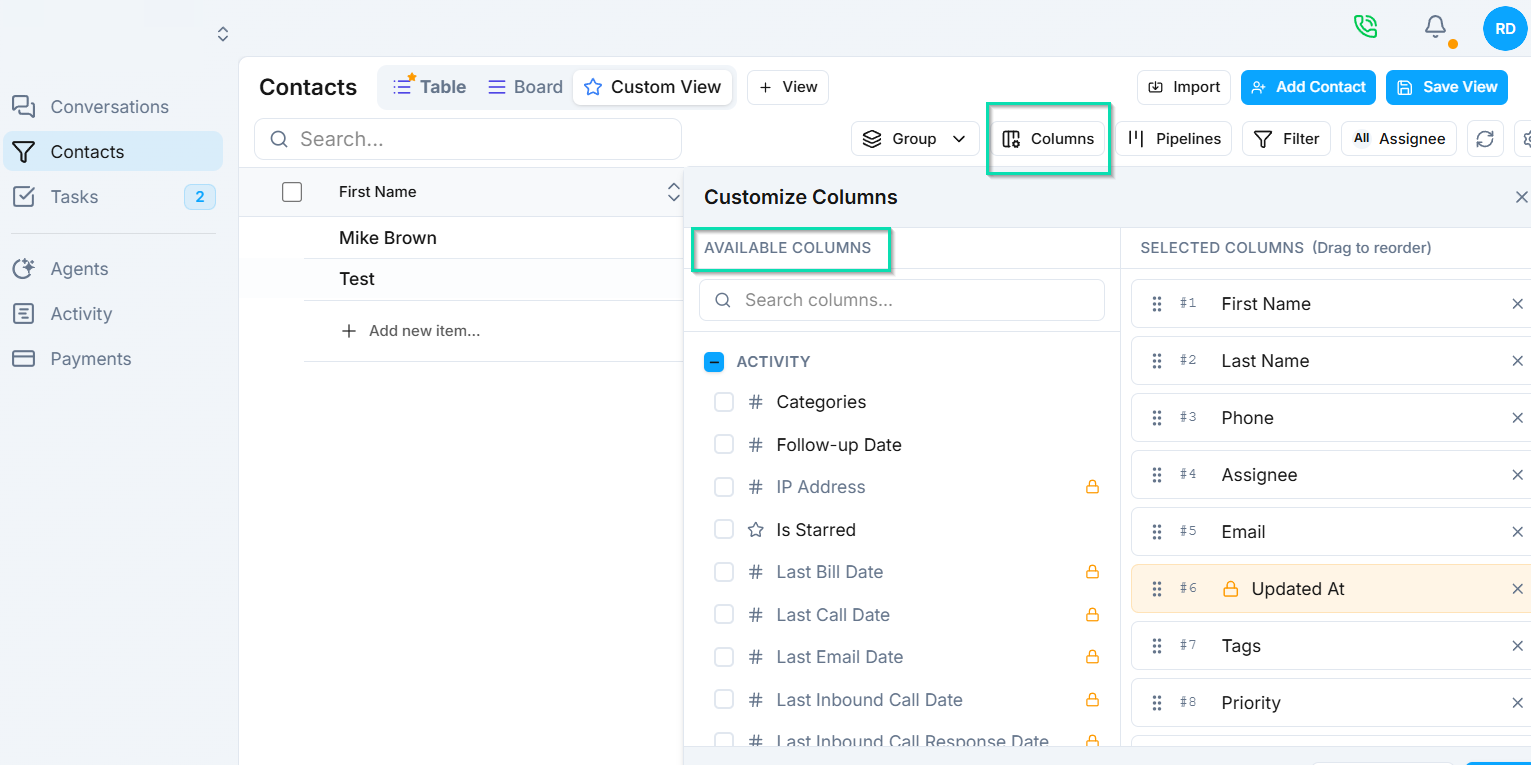
- Set groupings to organize contacts by a shared attribute.
- Add a custom icon for visual organization.
- Name the view for easy reference (e.g., "Hot Leads", "Unassigned", "Follow-Up Today").
Saving and Accessing Views
Once you save a view, it appears as a named tab at the top of the CRM. Click any tab to instantly switch to that filtered, formatted view.
Saved views are not limited to the CRM. They work across the Contacts, Conversations, and Tasks sections, so you can build consistent filtered workspaces throughout .
All team members can access saved views, ensuring everyone works from the same organized data.
Next Steps
- Pipelines - define the stages that power your board view columns
- Search and Filters - learn more about filtering across