Customizing the Contact Panel
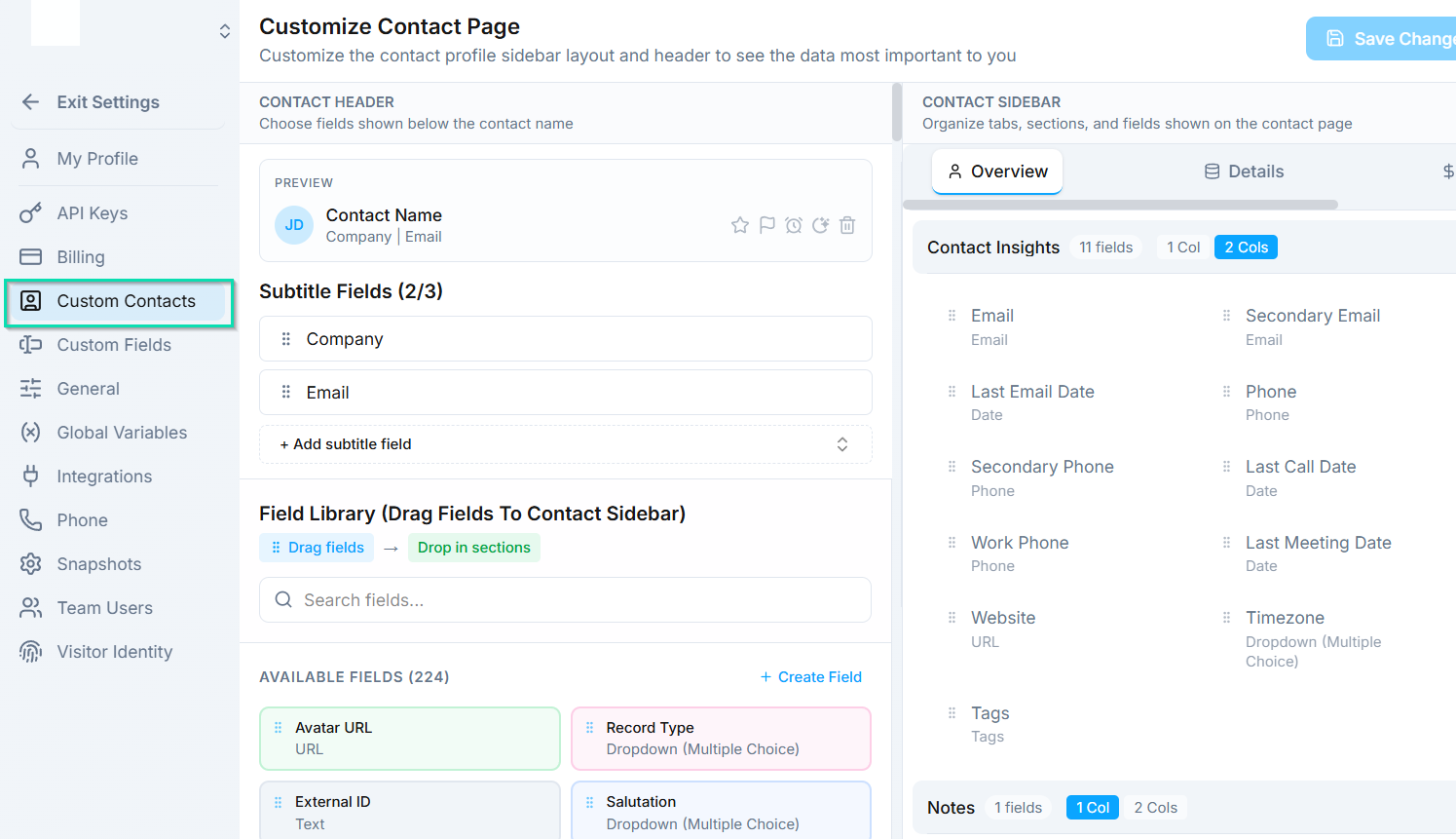
The contact panel is the detailed view that opens when you click on a contact. You can fully customize its layout - tabs, sections, and fields - so it matches the information your business needs to capture and display.
Accessing Layout Settings
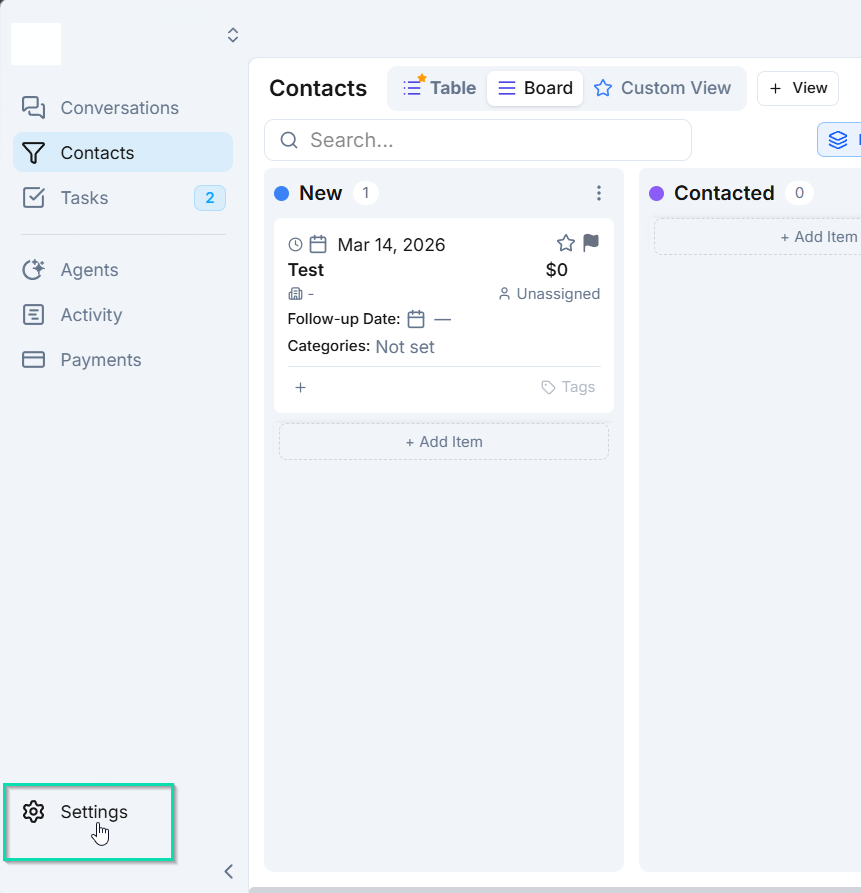
Go to Settings > Custom Contacts to open the layout editor. From here, you can restructure every part of the contact panel.
Tabs
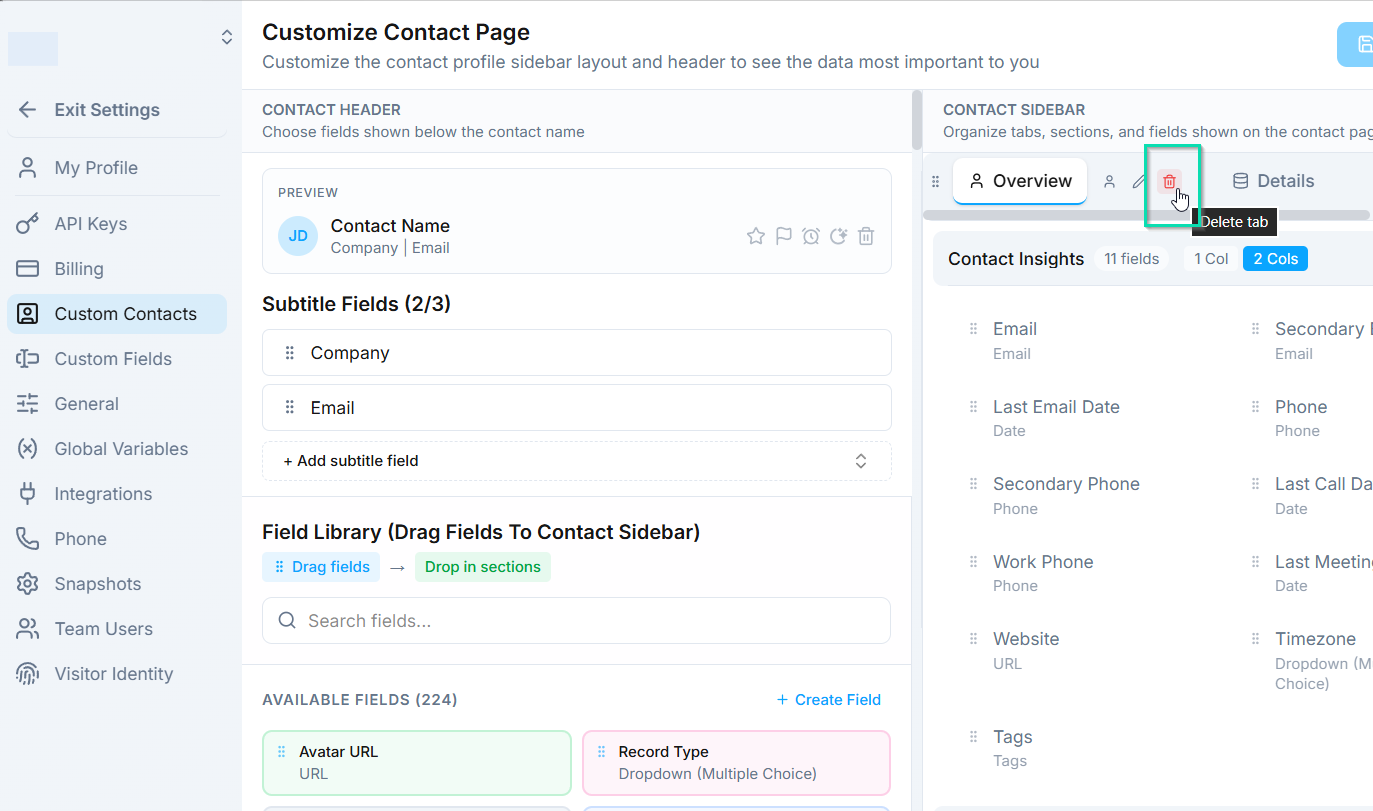
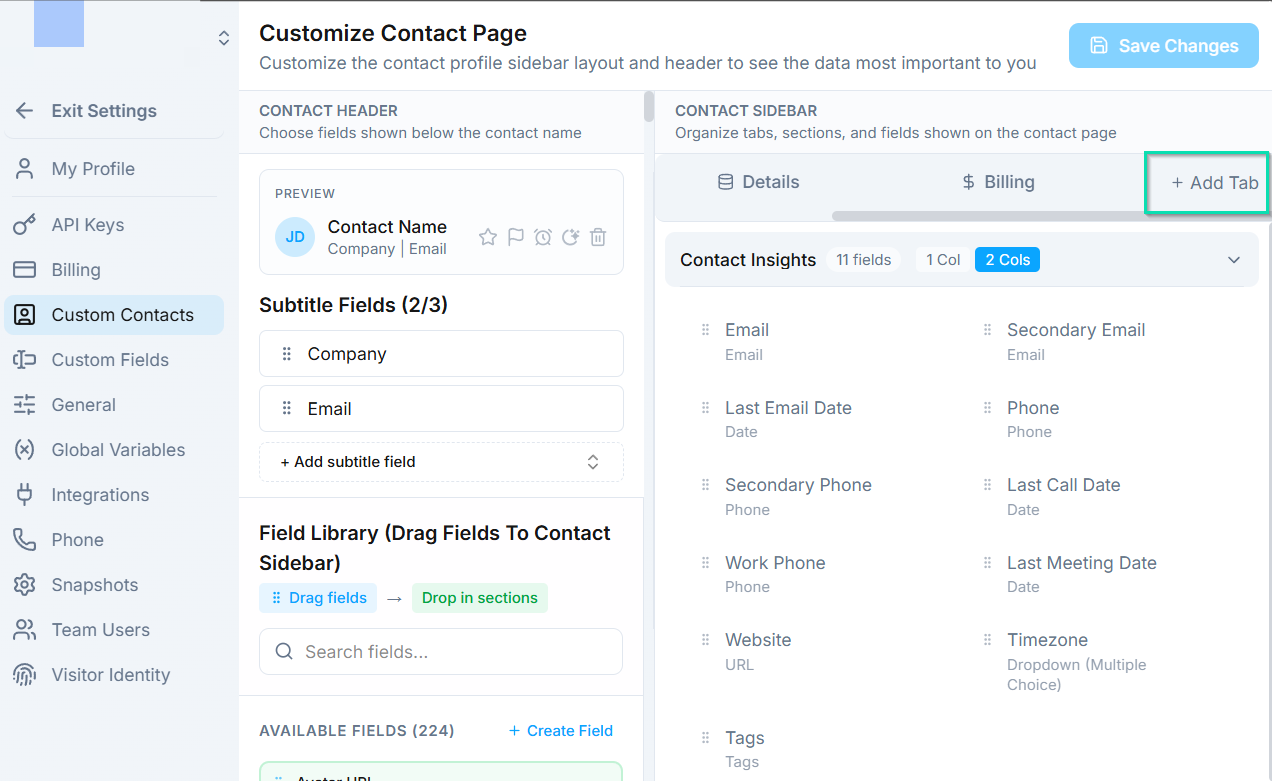
Tabs organize the contact panel into logical groups. You can:
- Remove default tabs that you do not need.
- Add new tabs with custom names (e.g., "Vehicle Info", "Company Details", "Billing").
- Assign icons to each tab for quick visual identification.
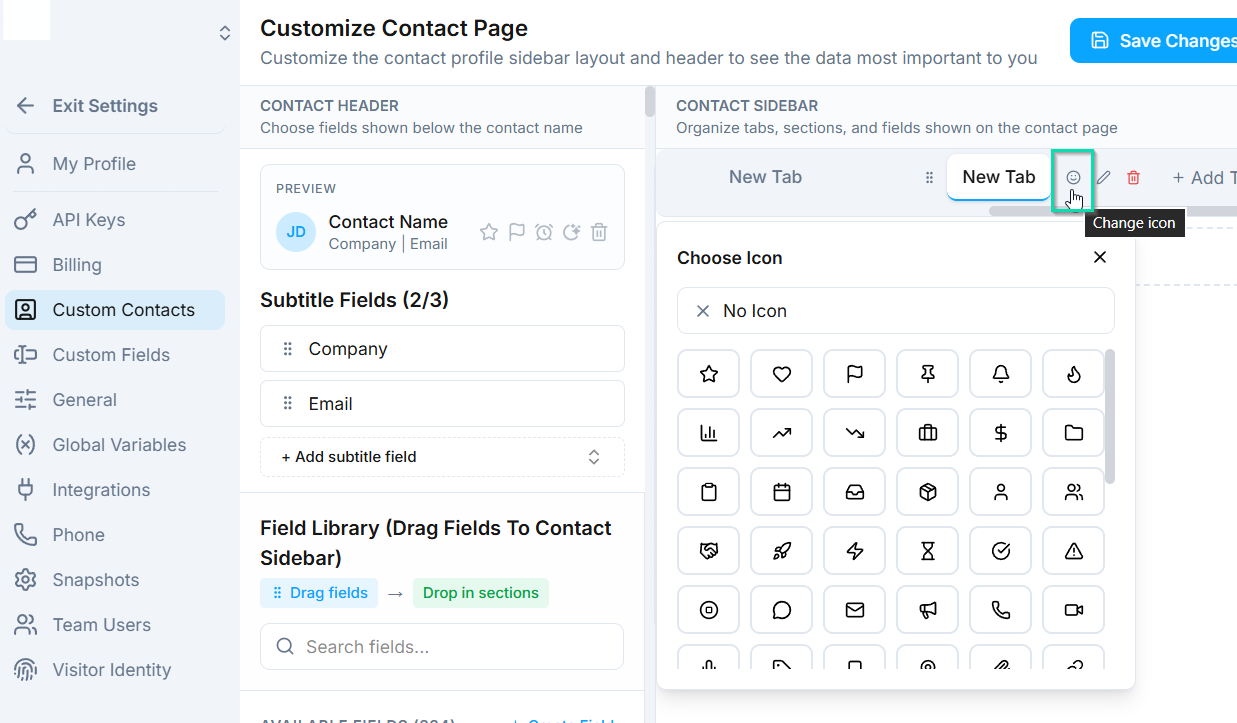
- Reorder tabs by dragging them into your preferred sequence.
Sections Within Tabs
Each tab can contain multiple sections that group related fields together. For example, an auto shop might create:
- A Car Info section with fields for make, model, year, and VIN.
- A Service History section with fields for last service date and notes.
- A Company Info section with fields for business name and address.
Sections keep the contact panel organized and scannable, even when you have many fields.
Adding Fields to Sections
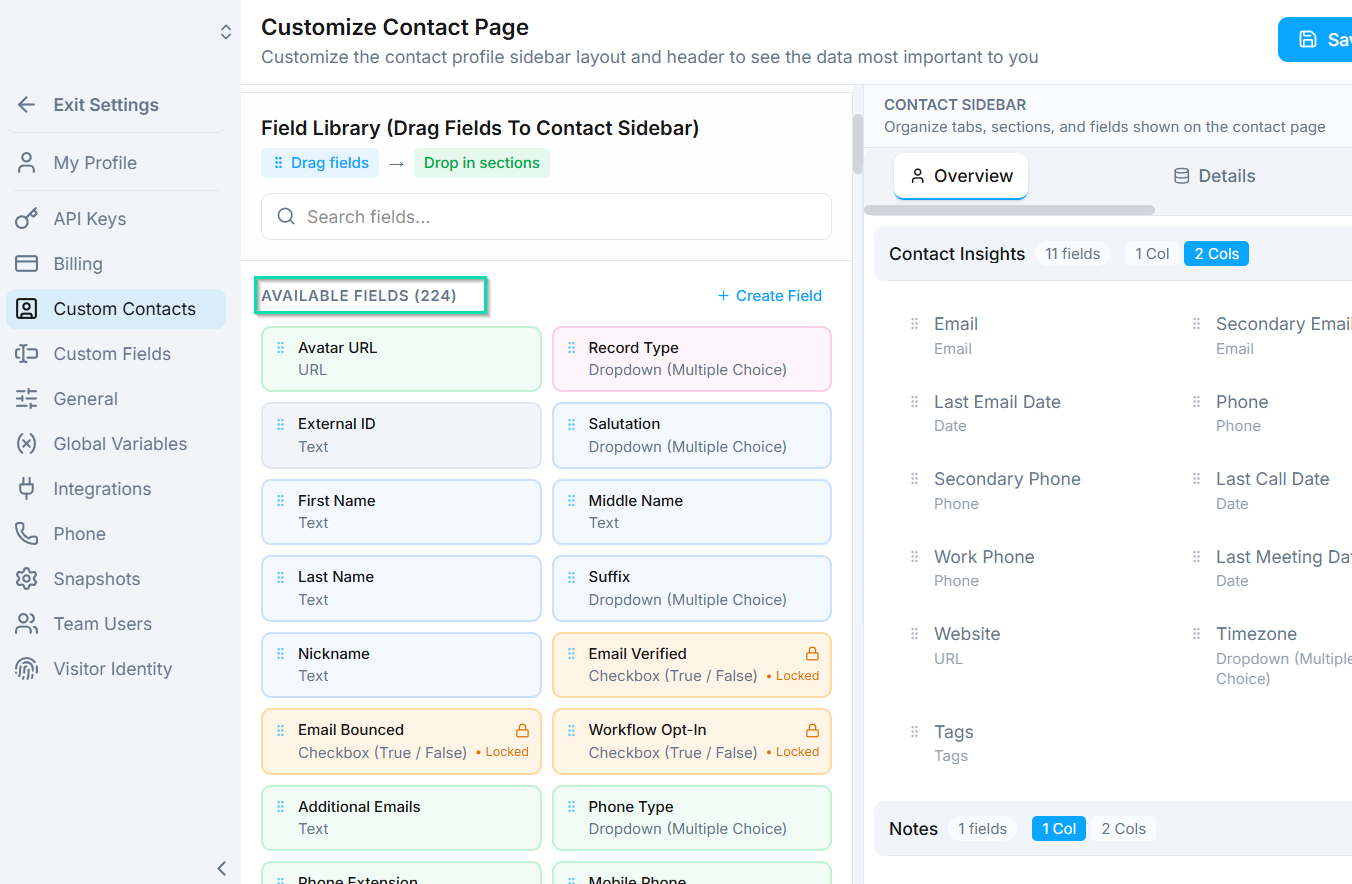
Inside each section, you can:
- Drag built-in fields from the field library into the section.
- Create new custom fields directly from the layout editor (text, dropdown, checkbox, date, number, and more).
- Reorder fields by dragging them within a section.
System-Generated Fields
Some fields are created and maintained by automatically. These appear highlighted in orange in the layout editor and include things like:
- Meeting dates
- Totals and calculated values
- Created date and last activity timestamps
System-generated fields are read-only. You cannot edit their values manually because they are auto-calculated based on contact activity and data.
Subtitle Fields
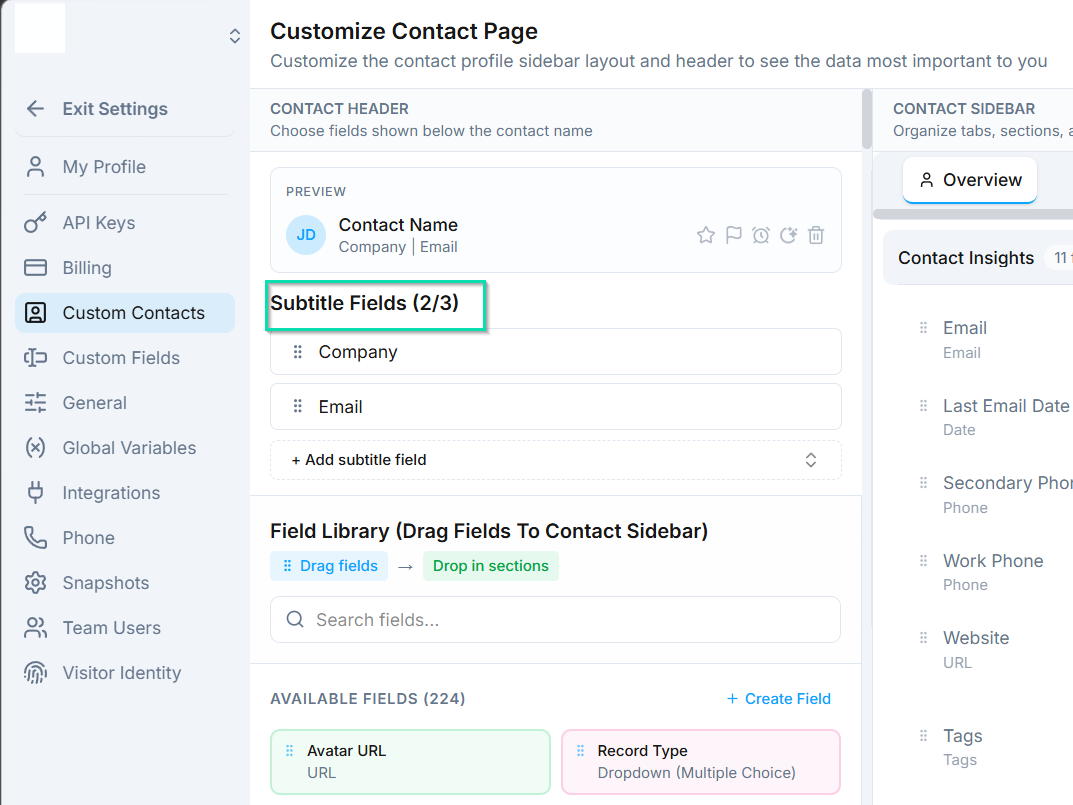
The contact header is the top section visible without scrolling. You can choose which fields appear here to ensure the most important information is always visible - such as name, phone, email, pipeline stage, or lead score.
Previewing Your Layout
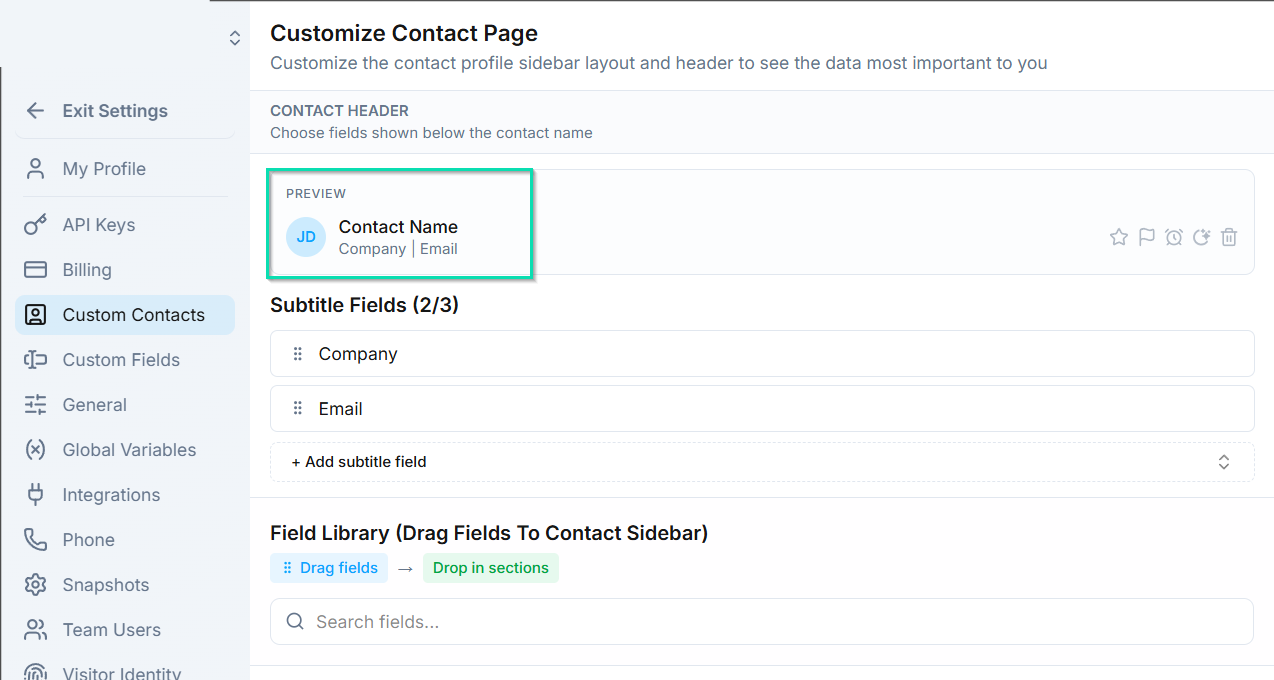
Before saving, use the preview feature to see exactly how your customized contact panel will look. This lets you verify the tab order, section arrangement, and field placement before rolling it out to your team.
Next Steps
- Custom Fields - learn about the field types you can create
- Contact Details Sidebar - see how contact details appear in the Conversations view