Importing Contacts
You can import contacts into from CSV or Excel files. This is the fastest way to bring in an existing contact list, whether you are migrating from another platform or uploading a new batch of leads.
Video Walkthrough
How to Import
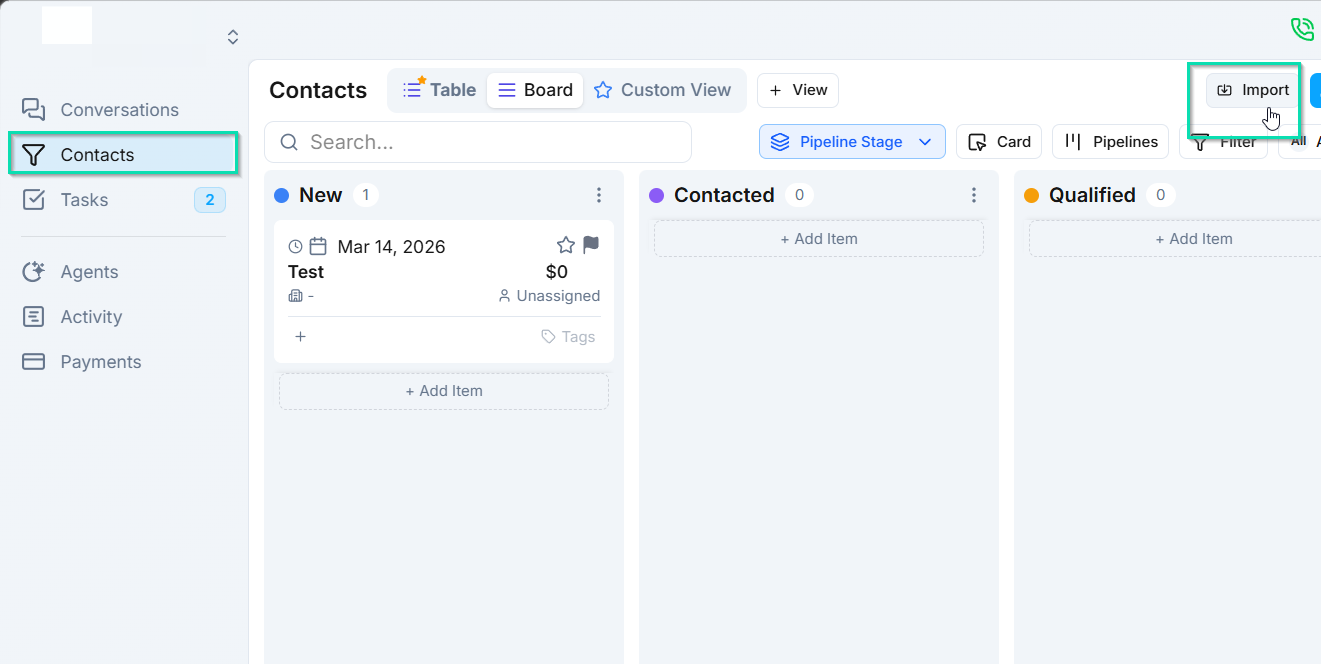
- Navigate to the CRM and click the Import option.
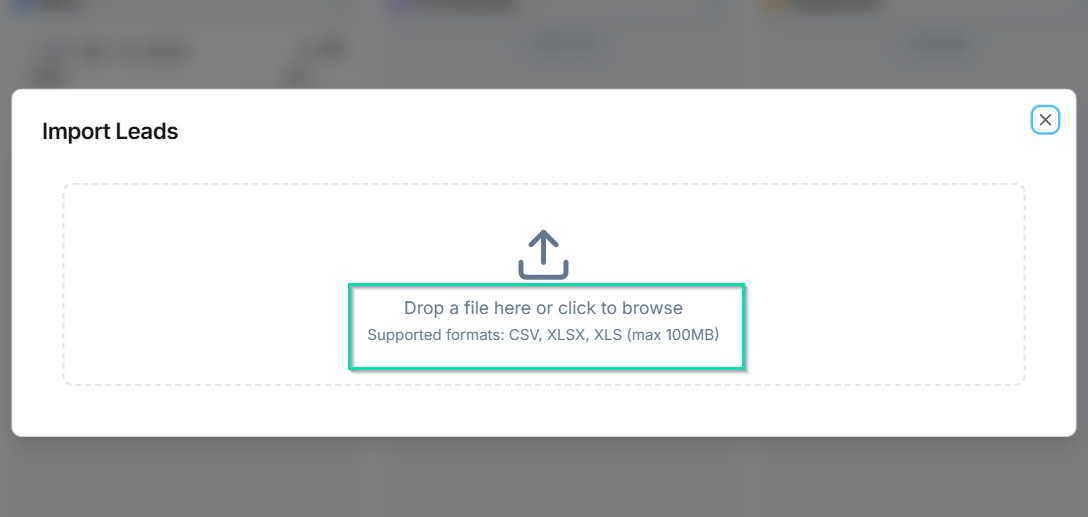
- Upload your CSV or Excel file.
- reads your file and auto-maps the columns to contact fields.
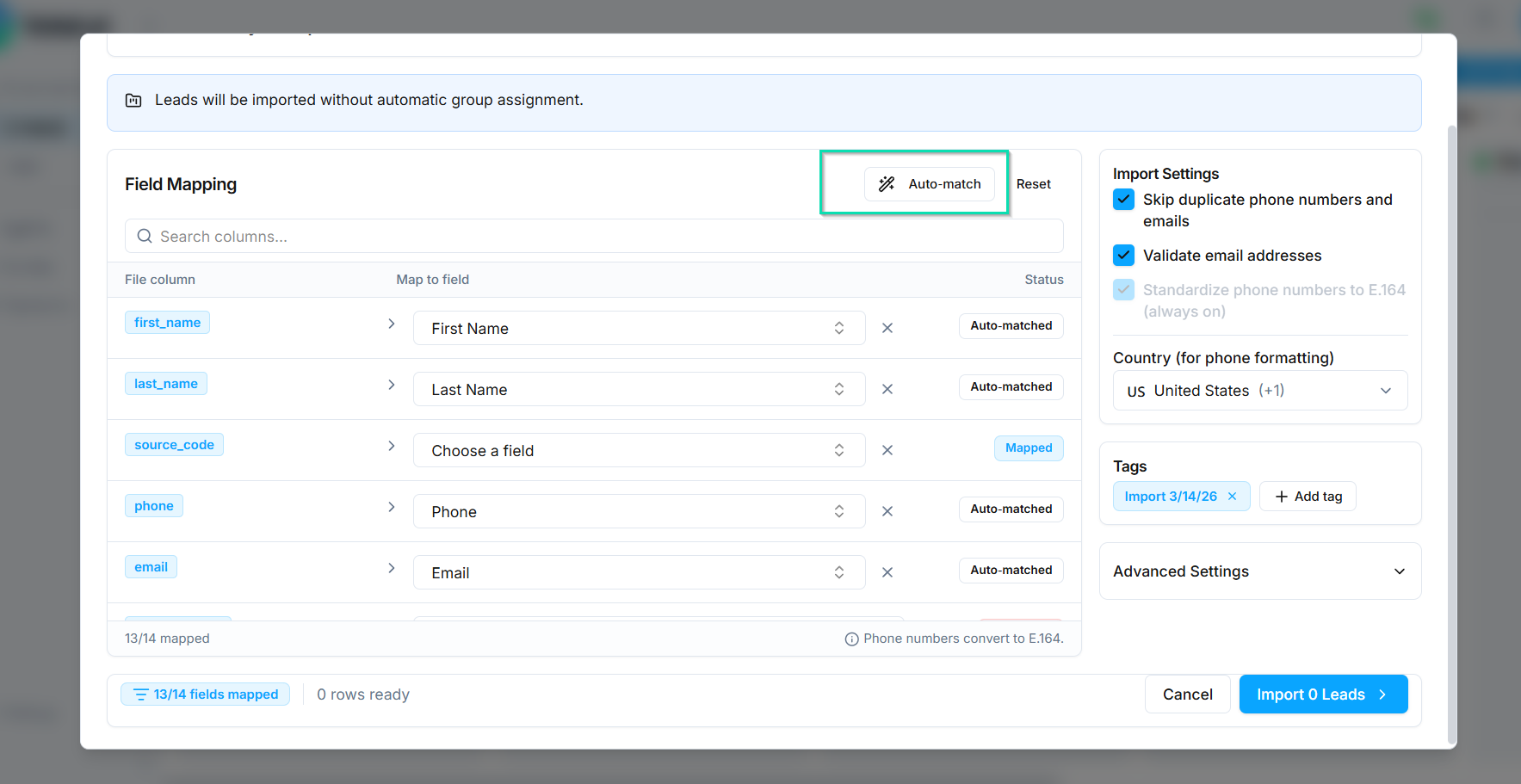
- Review the field mapping. Adjust any mappings that are incorrect - for example, if your file's "Company" column was mapped to the wrong field.
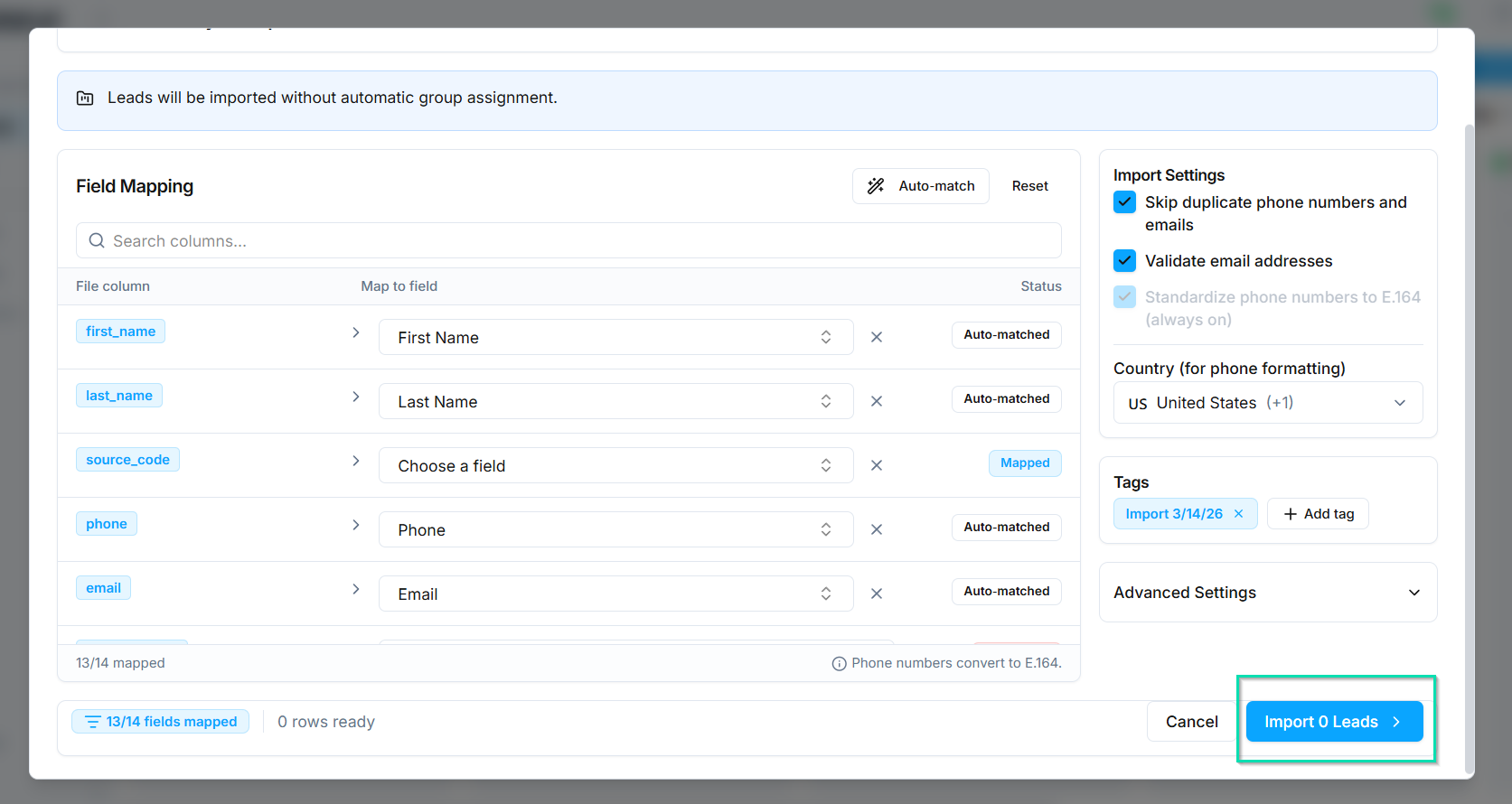
- Confirm and start the import.
Field Mapping
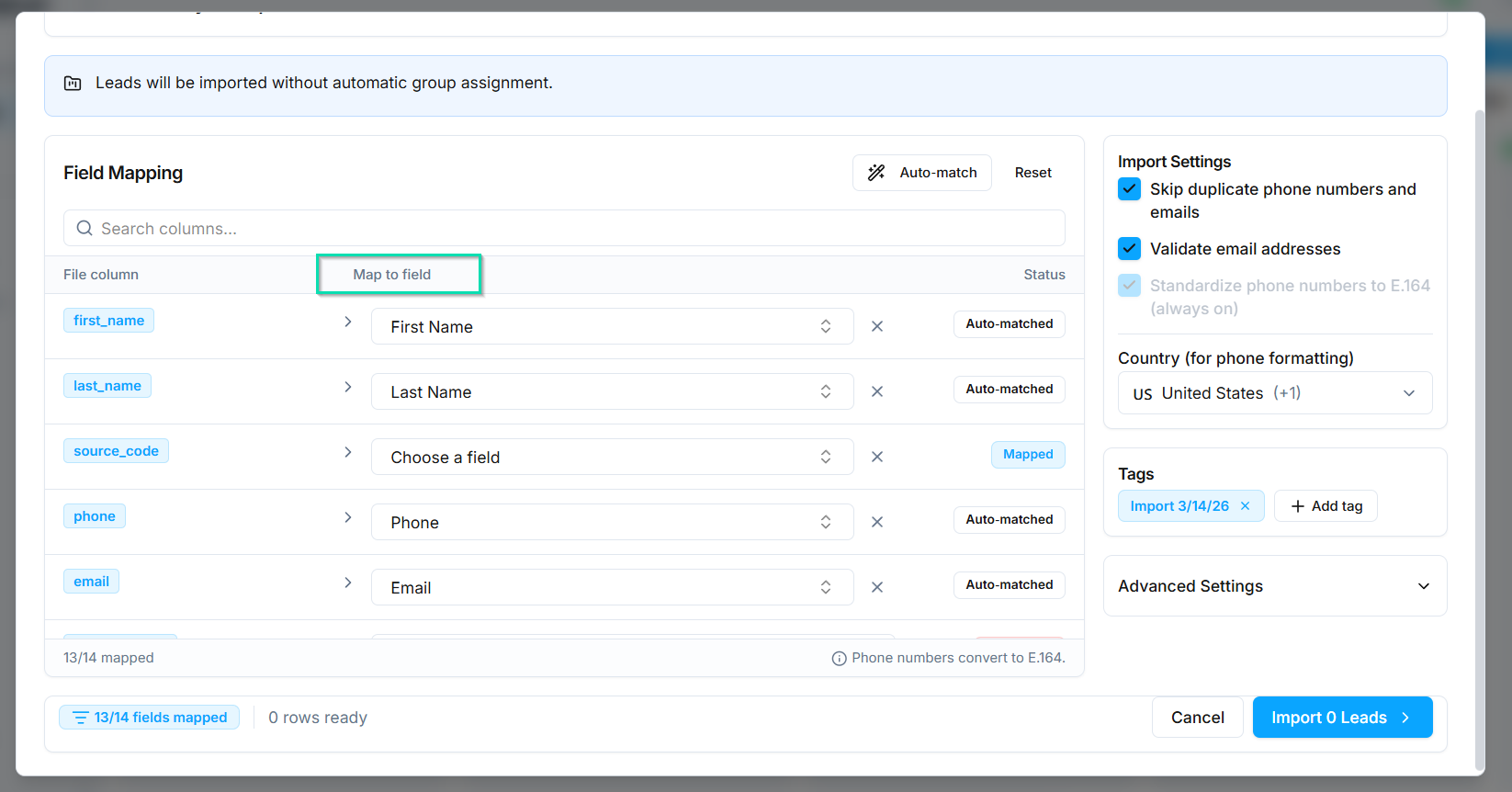
During import, attempts to match your file's column headers to existing contact fields automatically. You will see a preview of the mapping before anything is saved. Common mappings include:
| Your File Column | Mapped To |
|---|---|
| First Name | Contact First Name |
| Last Name | Contact Last Name |
| Email Address | |
| Phone | Phone Number |
| Company | Company Name |
If you have custom fields set up in your CRM, those will also appear as mapping options.
Reviewing Imported Contacts
After the import completes, review the imported contacts to verify accuracy:
- Spot-check a few records to confirm field values landed correctly.
- Use table view to quickly scan the imported data.
- Check for any contacts that may have been skipped due to formatting issues.
Tips for a Clean Import
- Use clear, consistent column headers in your file.
- Remove blank rows and duplicate entries before uploading.
- Ensure phone numbers include country codes if applicable.
- Format dates consistently (e.g., all MM/DD/YYYY or all YYYY-MM-DD).
Next Steps
- Contact Deduplication - prevent duplicate records after importing
- Bulk Actions - take action on your newly imported contacts