Website Widgets
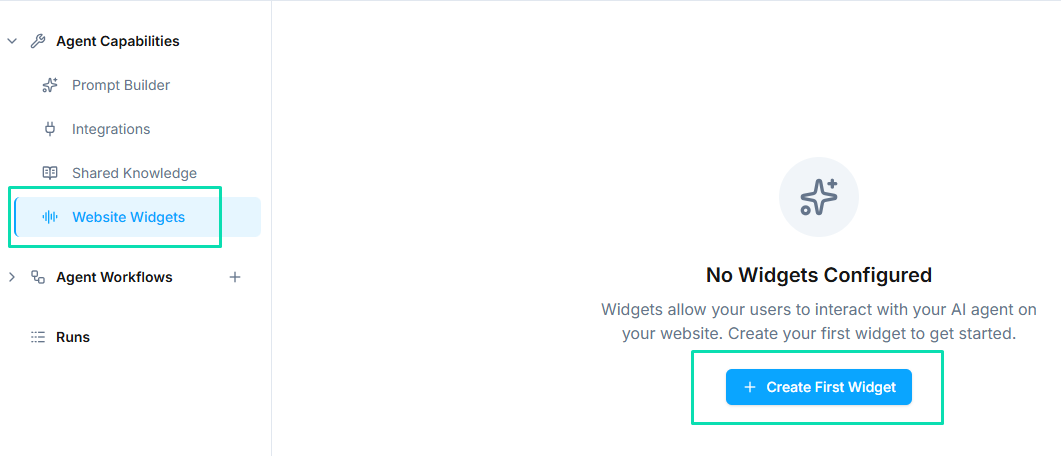
Website widgets let you embed your AI agent directly on your website. Visitors can start a voice or text conversation with your agent without leaving the page -- no app downloads or phone calls required.
Widget Types
offers three widget styles to match your website design:
Chat + Voice
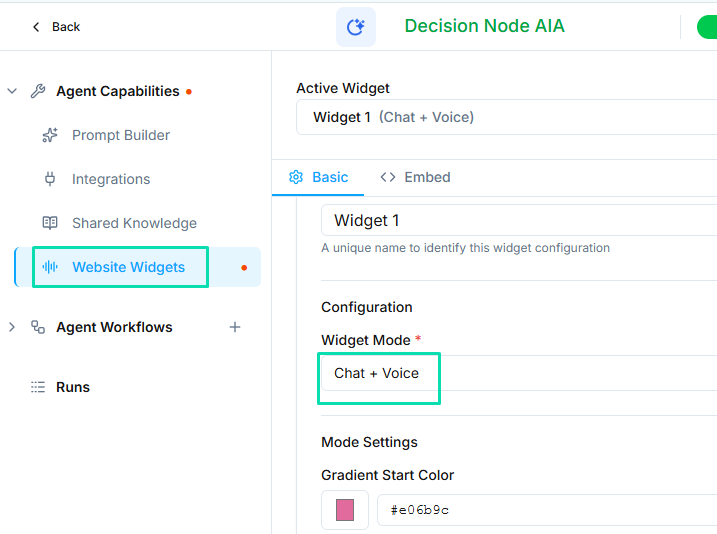
A full conversation interface that supports both text chat and voice interaction. Visitors can type messages or click to start a voice call with your agent. This is the most feature-rich option and works well as a primary support or sales channel on your site.
Button Only
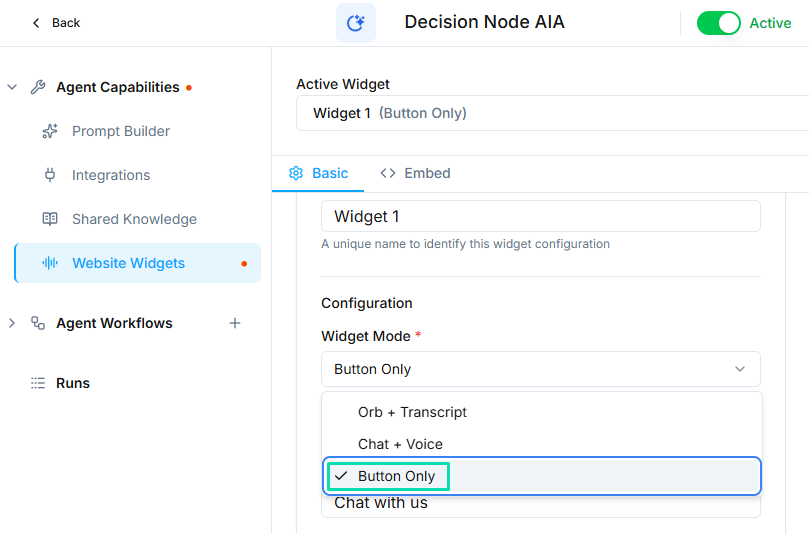
A simple button that visitors click to start a conversation. The button can be labeled with custom text (e.g., "Talk to Us" or "Get Help"). When clicked, it opens the conversation interface. This option is clean and unobtrusive.
Orb
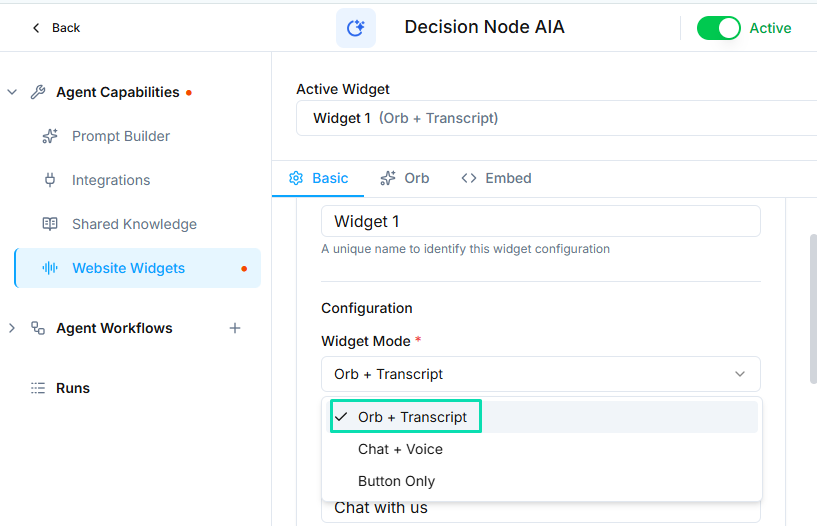
A floating animated circle that sits in the corner of your website. The orb draws attention with subtle animation and expands into the conversation interface when clicked. This is a good option for keeping the widget visible without taking up screen space.
Customization
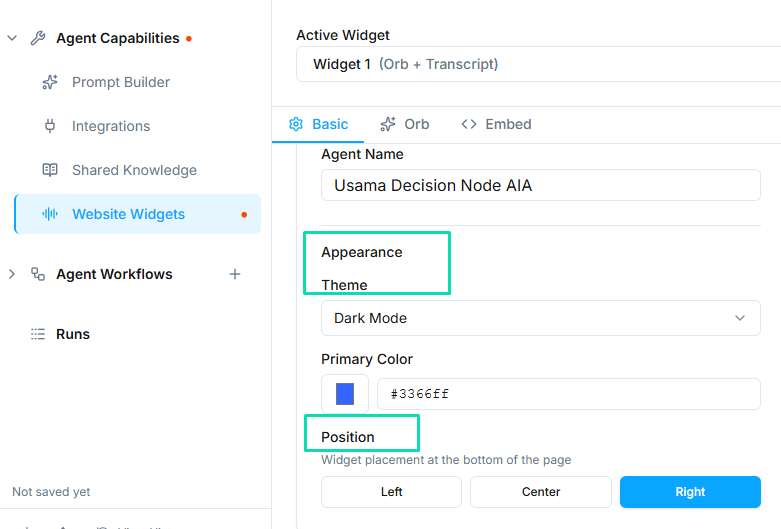
Each widget can be customized to match your brand:
- Colors -- set primary and background colors to align with your website's design
- Position -- choose where the widget appears on the page (bottom-right, bottom-left, etc.)
- Branding -- add your logo or company name to the widget header
Embedding on Your Website
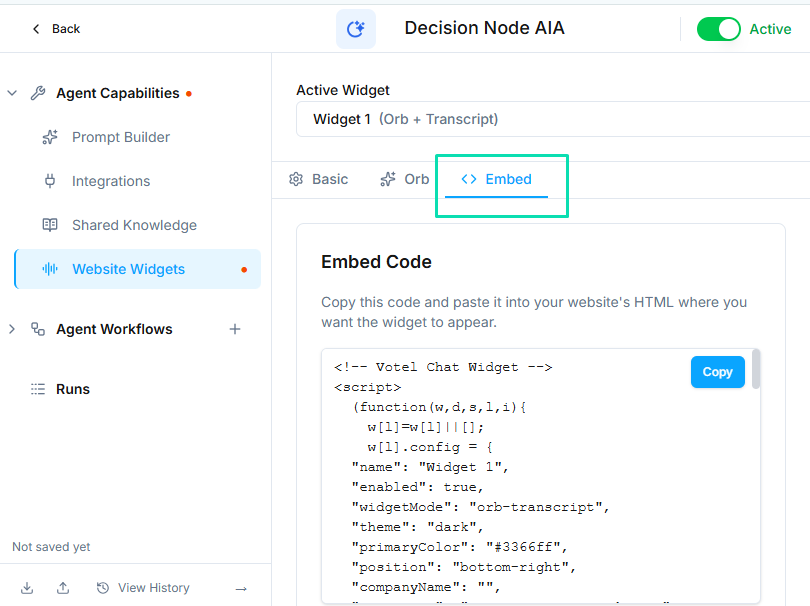
Adding a widget to your site takes three steps:
- Configure the widget in the agent builder (type, colors, position)
- Copy the generated embed code snippet
- Paste the snippet into your website's HTML, typically just before the closing
</body>tag
The snippet works on any website -- static HTML, WordPress, Shopify, Webflow, Squarespace, or custom-built sites. No special plugins or dependencies are required.
How Widgets Connect to Workflows
When a visitor starts a conversation through a widget, the agent uses the Conversation Started trigger to begin the interaction.
- If the agent has a workflow assigned with a "Conversation Started" trigger, the workflow runs and guides the conversation
- If no workflow is set, the agent's system prompt handles the conversation directly
This gives you flexibility: use workflows for structured, multi-step interactions, or rely on the system prompt for open-ended conversations.
Multiple Widgets
You can create multiple widgets for the same agent. This is useful when:
- Different pages need different widget styles (e.g., a chat widget on the support page and an orb on the homepage)
- You want to test which widget type gets more engagement
- Different sections of your site require different conversation entry points
Next Steps
- Workflows -- build the logic that powers widget conversations
- Conversation Node -- control how the agent handles widget-initiated conversations