Manual Tool Call Node
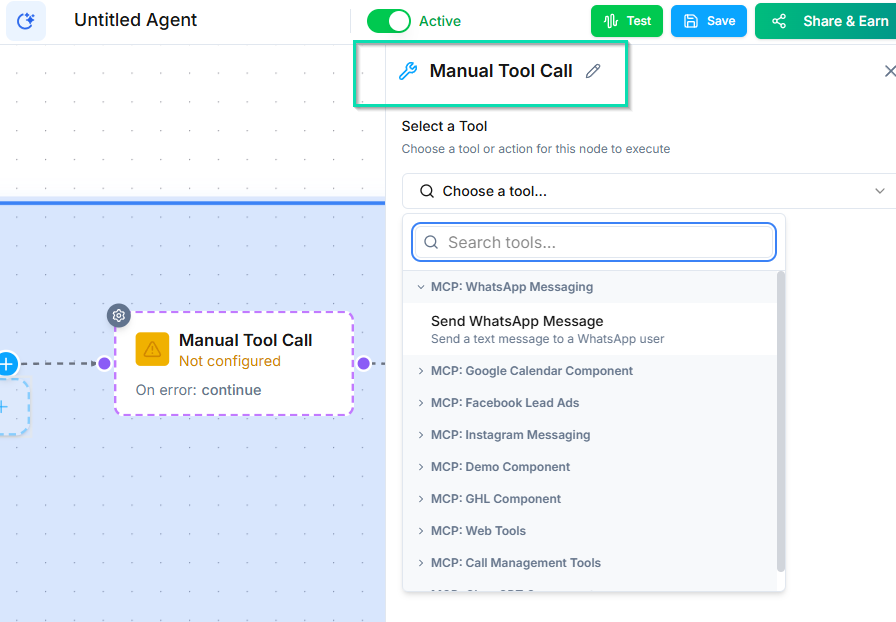
The Manual Tool Call Node lets you call MCP tools and integrations at a specific point in your workflow. Use it to push data to external systems, pull information in, or trigger actions in third-party platforms - all without the caller knowing anything happened.
How It Works
- The workflow reaches the Manual Tool Call Node.
- The node executes the configured tool or integration call.
- Any returned data is stored in workflow variables.
- The workflow continues to the next node.
This happens silently and instantly. The caller experiences no pause or interruption.
Supported Integrations
You can connect to any tool available through your MCP (Model Context Protocol) configuration, including:
- Zapier - trigger Zaps to connect with thousands of apps
- Make (Integromat) - run Make scenarios
- HubSpot - create or update contacts, deals, and tickets
- Salesforce - push lead and opportunity data
- Shopify - look up orders, products, or customer info
- Custom APIs - any tool exposed through MCP
Passing Data to Tools
You can send data from the conversation to the external tool. Use workflow variables collected from Ask and Save Nodes, Conversation Nodes, or any other source:
- Caller's name and contact info
- Answers to qualification questions
- Selected options or preferences
- Conversation summaries
Receiving Data from Tools
When a tool returns data, you can map it to workflow variables and use it in subsequent nodes. For example:
- Look up a customer's order status, then have the agent relay it.
- Check appointment availability, then offer open slots.
- Verify an account number, then proceed with authentication.
Manual Tool Call vs. AI Tool Use
The Manual Tool Call Node fires at a fixed point in your workflow - you decide exactly when it runs. This is different from giving your agent access to tools via the system prompt, where the AI decides when to call them.
Use Manual Tool Call when you need precise control over when an integration fires. Use AI tool access when you want the agent to decide on its own.
Next Steps
- Integrations and MCP Tools - set up the tools and integrations your workflows can call