Ask and Save Node
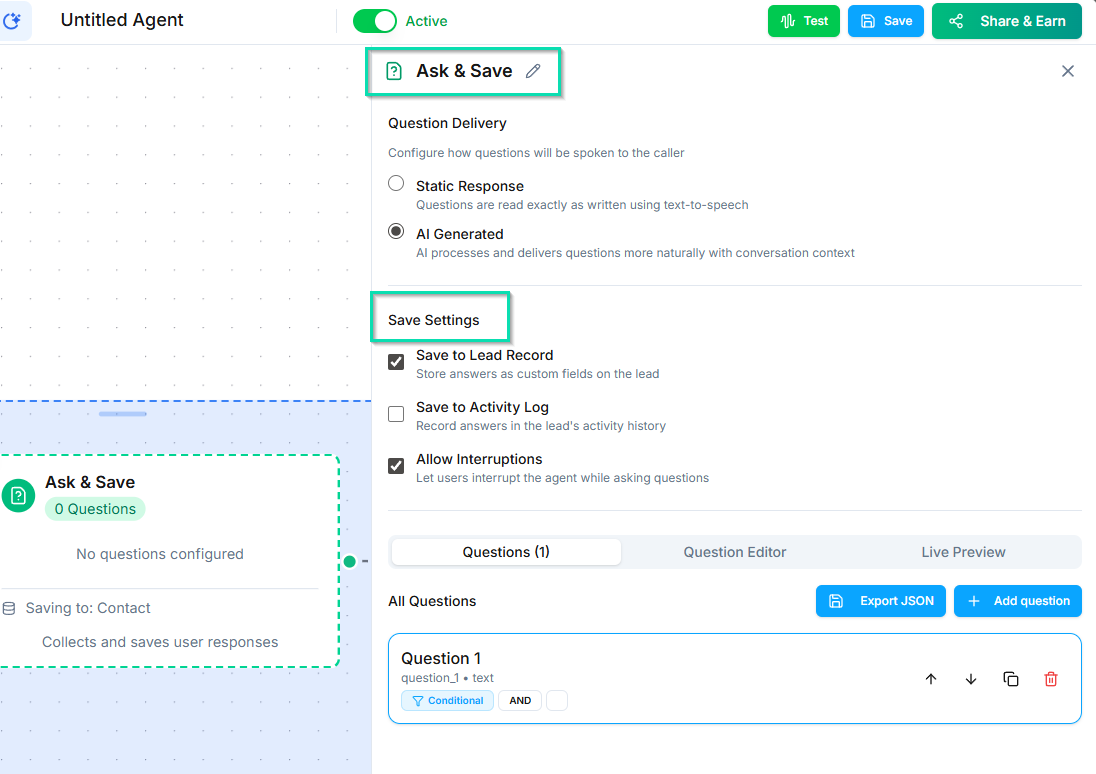
The Ask and Save Node lets your agent ask the caller a question and store their answer. Use it to collect names, emails, phone numbers, preferences, or any other data you need during a conversation.
How It Works
- The agent asks the caller a question you define.
- The caller responds.
- The answer is validated against the field type you selected.
- The validated answer is saved to a workflow variable, a contact field, or both.
If the caller provides an invalid answer (for example, text when a number is expected), the agent will re-ask the question.
Field Types
Choose the field type that matches the data you are collecting:
| Field Type | What It Captures | Example |
|---|---|---|
| Text | Free-form text | Name, company, reason for calling |
| Number | Numeric values | Account number, quantity, age |
| Email addresses | mike@example.com | |
| Phone | Phone numbers | (555) 123-4567 |
| Date | Dates and times | March 15, next Tuesday, 3pm |
| Dropdown / Selection | One option from a predefined list | Department, service tier, location |
| Yes / No | Boolean confirmation | "Would you like to proceed?" |
Conditional Questions
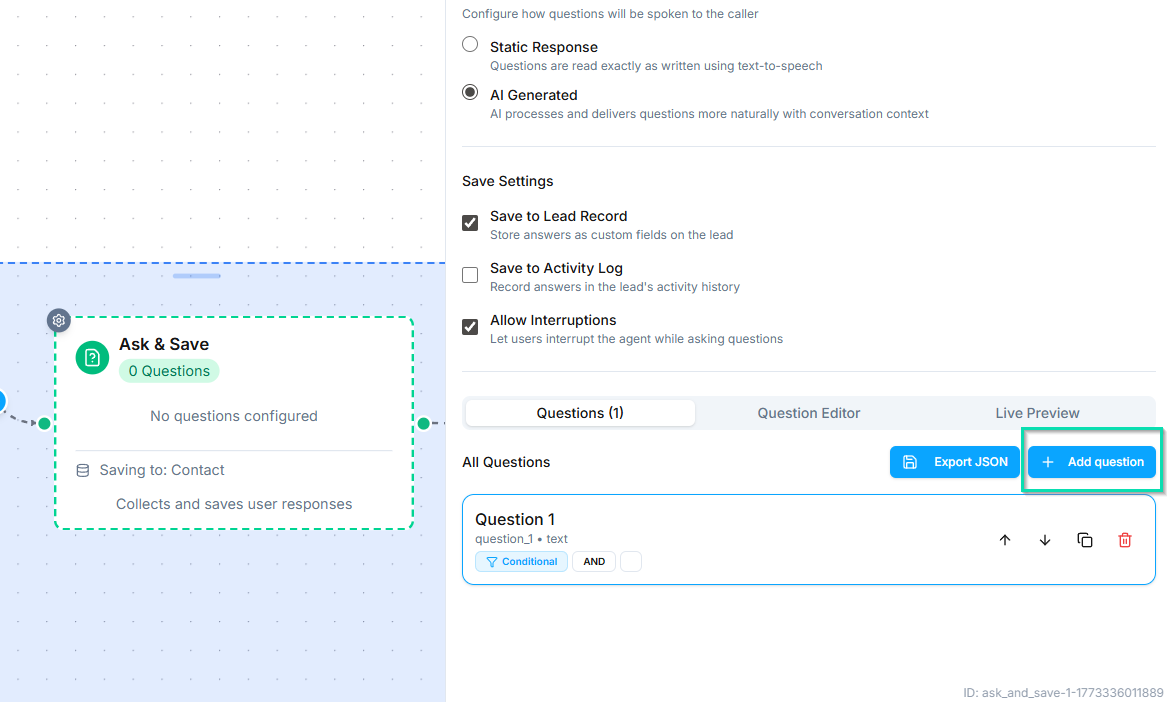
You can configure follow-up questions that change based on previous answers. For example:
- If the caller selects "Residential" from a dropdown, ask about home size.
- If the caller selects "Commercial," ask about business type instead.
This lets you build dynamic intake forms that adapt to each caller.
Save to Variable
Store the answer in a workflow variable so you can reference it later in the same workflow. Variables are available to any subsequent node - use them in conversation scripts, decision logic, API calls, or message templates.
Save to Contact
Automatically save the answer to a contact field in your CRM. This permanently stores the data on the contact's profile, making it available across all future conversations and workflows.
You can save to both a variable and a contact field at the same time.
Custom Fields
If the standard contact fields do not cover your needs, create custom fields to capture business-specific data. Custom fields appear alongside standard fields in the contact profile and can be used in workflows, filters, and reports.
Examples of custom fields:
- Policy number
- Preferred language
- Service tier
- Property address
Next Steps
- Custom Fields - create and manage custom data fields
- Contact Management - view and organize collected contact data
- Update Contact Node - modify contact fields at any point in a workflow