Create Task Node
The Create Task node assigns a task to a human team member directly from a workflow. Use it to ensure that follow-up actions do not fall through the cracks after an AI-handled conversation.
How It Works
When the workflow reaches this node, it creates a task and assigns it to the specified team member. The task appears in that person's Tasks section, ready for action.
Configuration
Task Title
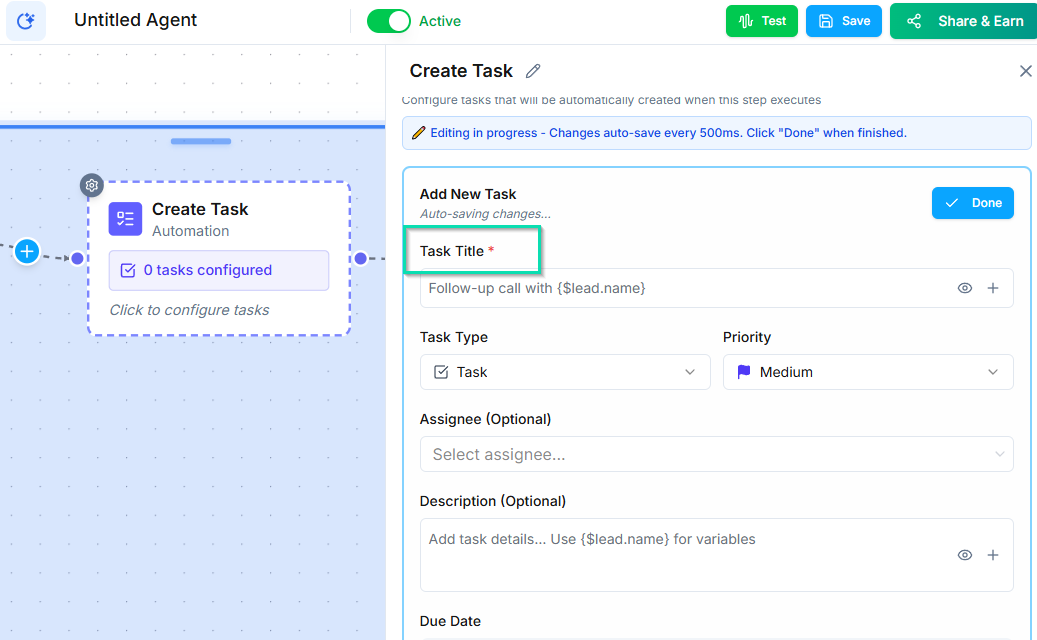
Give the task a clear, descriptive title. You can include workflow variables to make it specific:
Follow up with [first_name] about [inquiry_topic]Send proposal to [company_name]Review voicemail from [phone_number]
Use the double-curly-brace variable syntax in the actual node configuration to insert dynamic values.
Due Date
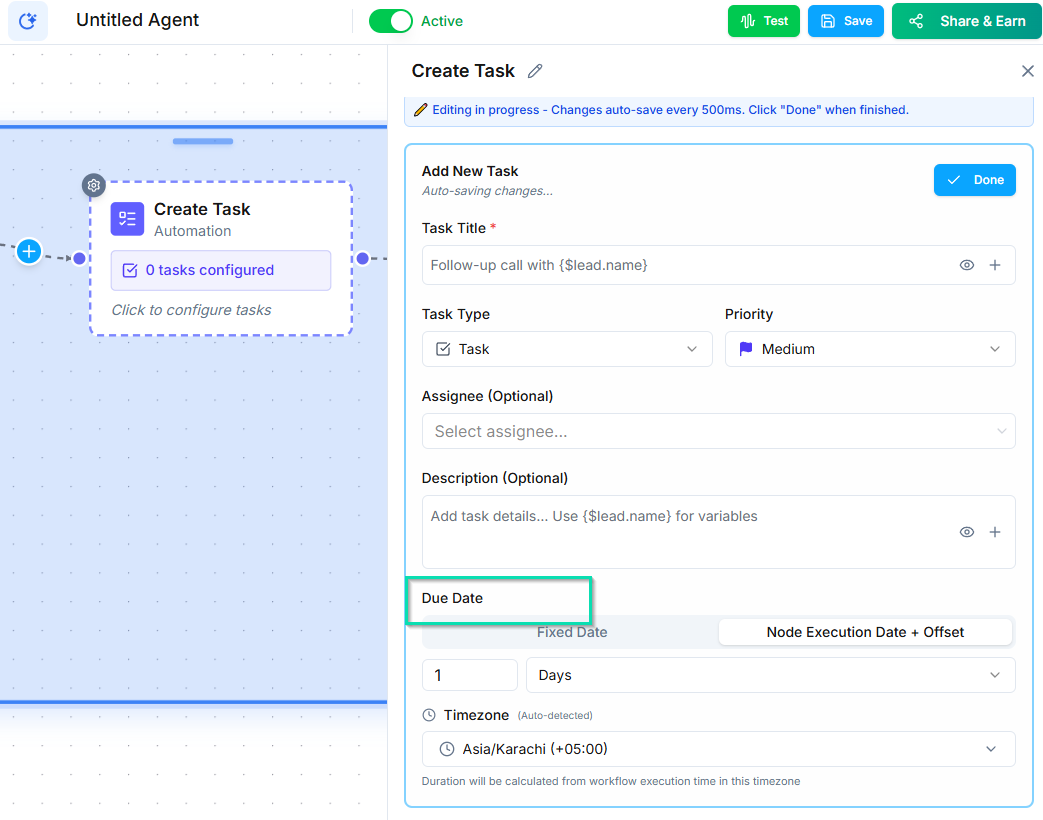
Set when the task should be completed:
- Fixed date --- a specific calendar date.
- Relative date --- a calculated deadline like "2 days from now" or "next Monday."
Relative dates are more common since they adapt to when the workflow runs.
Assignee
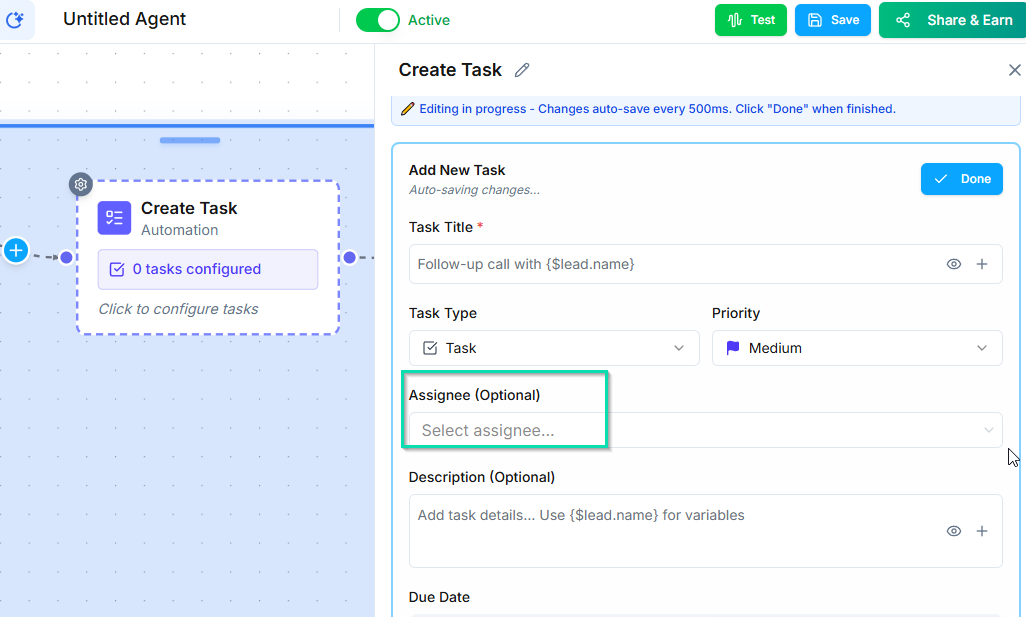
Choose which team member receives the task. Select from your team roster in the node settings.
Common Use Cases
- Post-call follow-up --- After a sales call, create a task for the rep to send a proposal.
- Escalation --- When the AI cannot resolve an issue, create a task for a manager to review.
- Document collection --- Remind a team member to request specific documents from a contact.
Next Steps
- Task Management --- view and manage tasks created by workflows