Go To Node
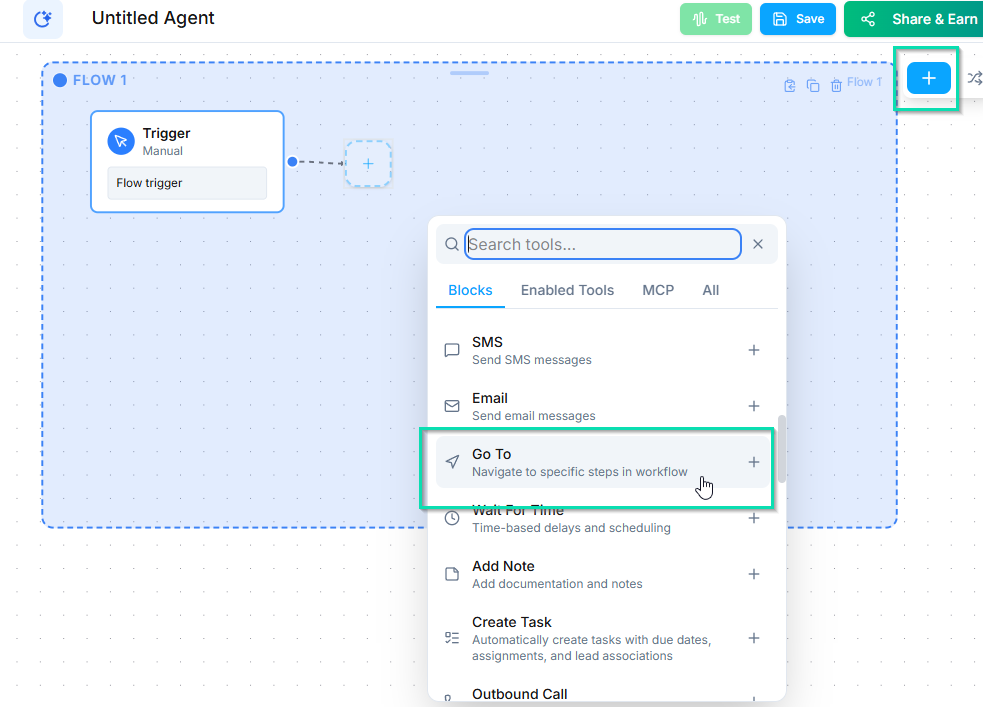
The Go To node lets you jump to another point in your workflow, enabling reusable logic patterns without duplicating node chains.
Video Walkthrough
How It Works
Instead of rebuilding the same sequence of nodes in multiple places, you can use a Go To node to redirect the workflow to an existing node. This keeps your canvas clean and your logic centralized.
When the workflow reaches a Go To node, it immediately jumps to the target node and continues execution from there.
Common Use Cases
- Loop back to a menu --- After handling one option, return to the main menu so the caller can make another selection.
- Retry logic --- If a caller gives an invalid response, jump back to the question node to ask again.
- Shared endings --- Multiple branches that all need the same wrap-up sequence can point to a single shared set of nodes.
- Skip ahead --- Bypass steps that are not relevant based on earlier decisions.
Setting Up a Go To Node
- Add a Go To node to your canvas.
- In the node settings, select the target node you want to jump to.
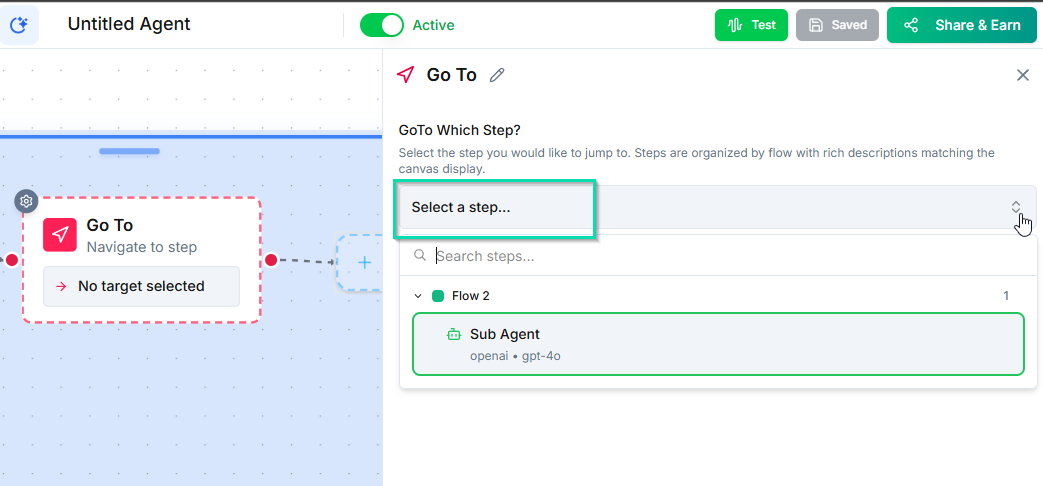
- The dropdown lists all nodes in the current workflow by name.
Keep your node names descriptive so you can easily identify the correct target in the dropdown.
Tips
- Use Go To nodes to reduce clutter on large canvases. If you find yourself copying the same chain of nodes, a Go To node is usually the better approach.
- Be careful with loops. If a Go To node jumps back to an earlier point without any exit condition, the workflow could loop indefinitely.
- Label your nodes clearly so the Go To dropdown is easy to navigate.
Next Steps
- Execute Workflow Node --- call a separate workflow from within your current workflow