Add Note Node
The Add Note node attaches an internal note to a contact's record during a workflow. Use it to log context, flag important details, or leave instructions for team members.
How It Works
When the workflow reaches an Add Note node, it creates a note on the contact's profile. The note appears on the contact's timeline in both the Conversations and Contacts sections.
Notes are internal only --- contacts never see them.
Using Variables in Notes
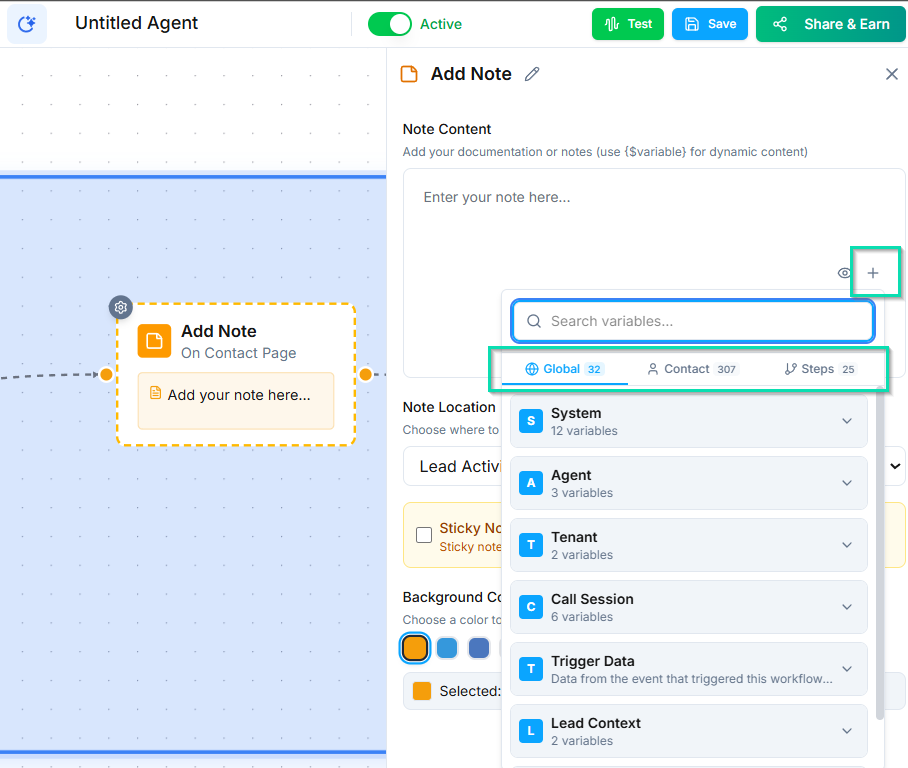
Note content supports workflow variables, so you can include dynamic information from the conversation:
Caller asked about [product_name]Preferred callback time: [callback_time]Sentiment: [caller_sentiment]
Use the double-curly-brace variable syntax in the actual node configuration to insert dynamic values.
This turns your notes into structured records of what happened during each interaction.
Color Coding
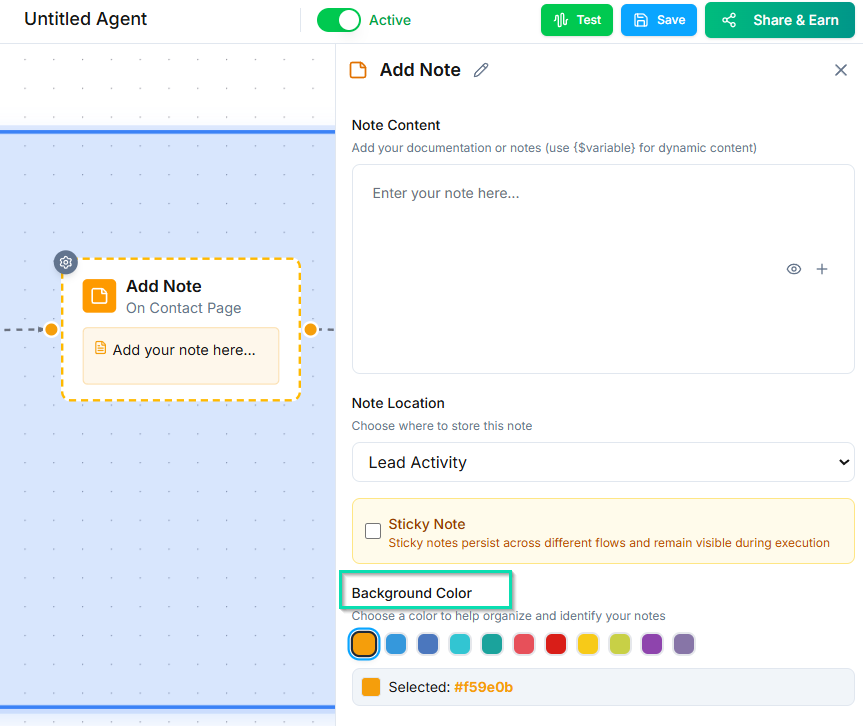
You can assign a color to each note for quick visual categorization. For example:
- Red for urgent follow-up needed
- Green for positive outcomes
- Yellow for pending items
Colors make it easy to scan a contact's timeline and spot important notes at a glance.
Where Notes Appear
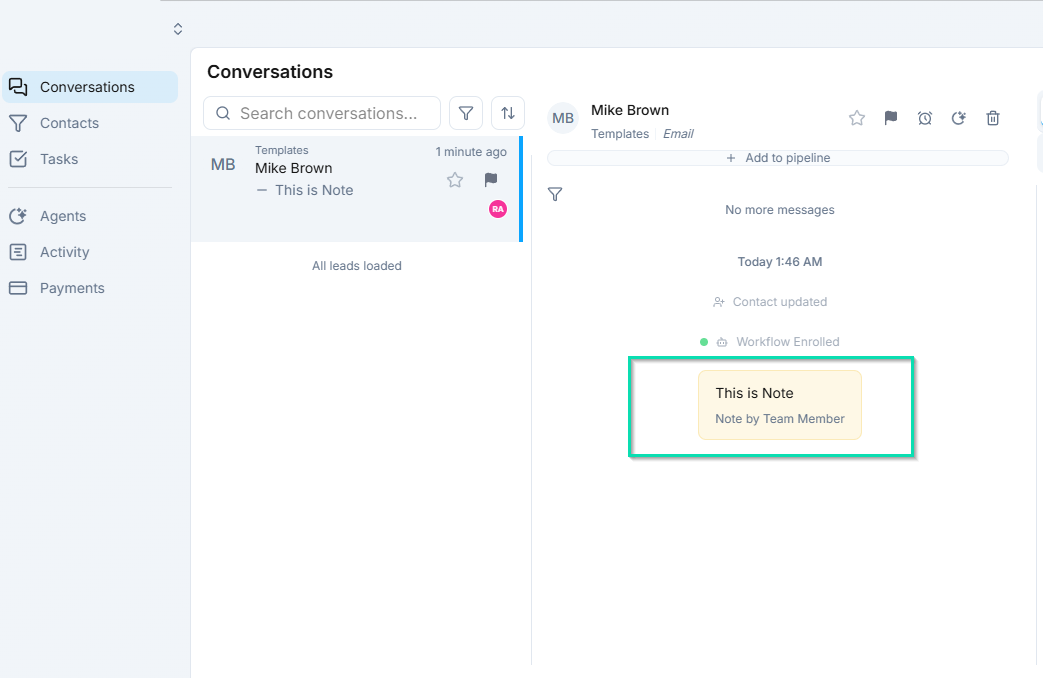
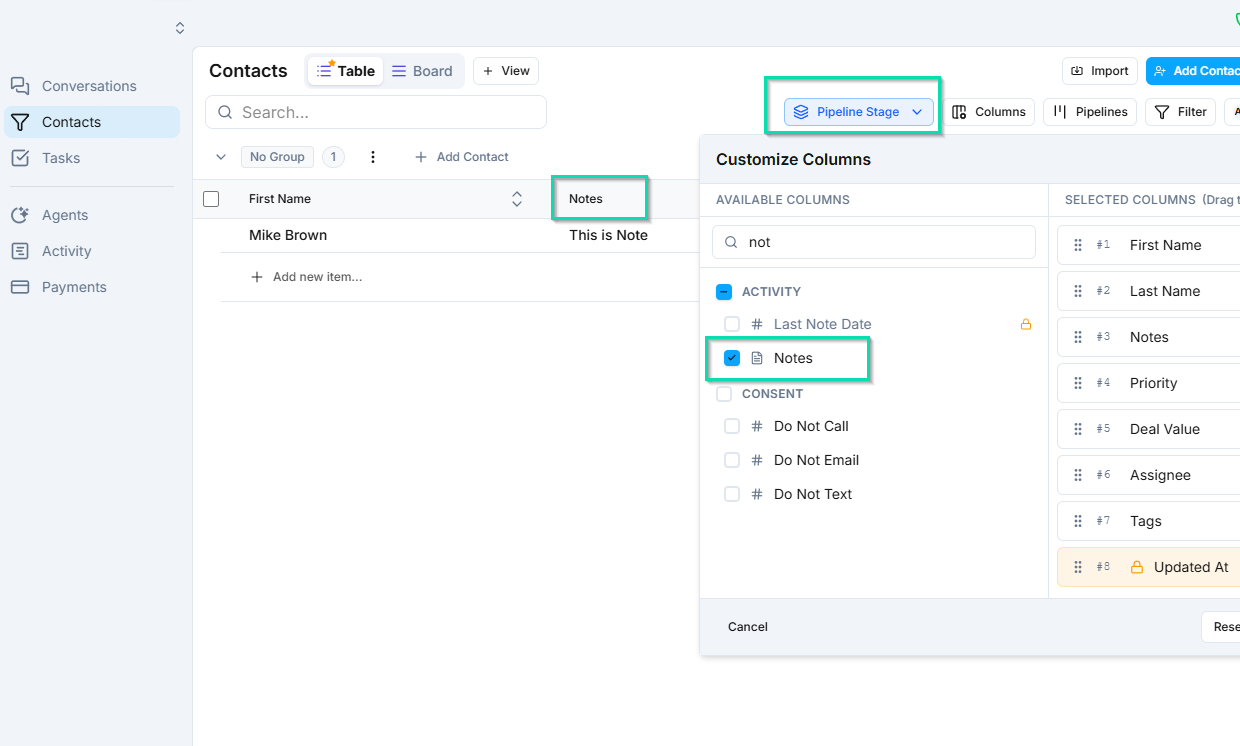
Notes created by the Add Note node show up in two places:
- Conversations --- on the contact's conversation timeline alongside messages and calls.
- Contacts --- on the contact's profile under the activity/notes tab.
Team members can view these notes at any time to get context before reaching out to a contact.
Next Steps
- Contact Management --- learn more about working with contact records