Organizing Leads
Effectively organize and segment your leads using powerful grouping, sorting, filtering, and status management features.
Grouping Leads
Grouping helps you organize leads based on shared properties. You can group leads by salutations, company name or size, assignee, and dozens of other attributes.
💡 Grouping gives you a segmented view for example, seeing which team member has the most open leads or which campaign generated the highest number of prospects.
Sorting Leads
The Sort feature lets you arrange leads according to any property such as Created Date, Name, Rating, or Company. It ensures your most relevant or time-sensitive leads are always on top, aligning perfectly with your team's priorities.

Leads According to Assignee
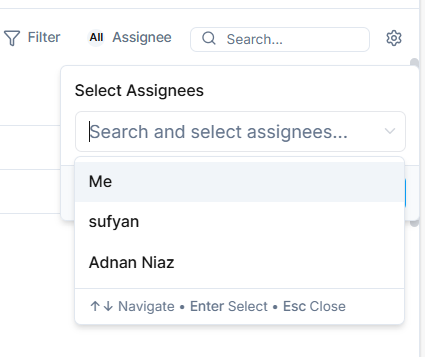
If you work in a team, you can assign each lead to a specific member and in list, you can view the all leads assigned to a specific member or assignee.
This helps organize ownership, accountability, and follow-up.
Click Assignee, choose your team member.
Customization Options
Click the Customize button to tailor your List interface. You can:
- Show or hide columns such as First Name, Company, Email, Tags, and more.
- Reorder columns to match your workflow.
- Save the layout as a custom view for quick access later.
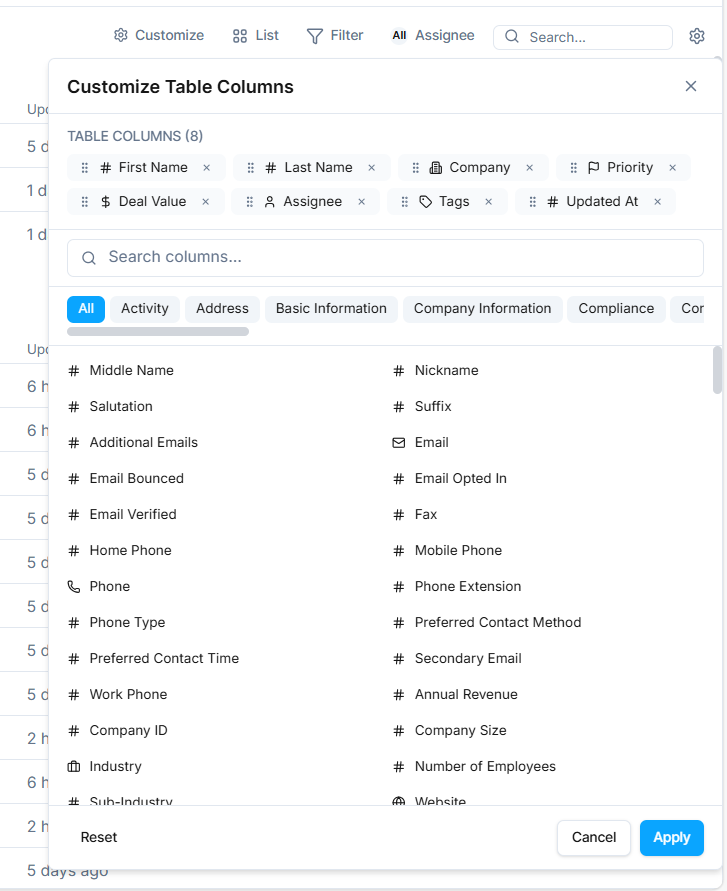
This allows every team to configure the interface exactly as they need whether they're in sales, support, or marketing.
List Statuses
Each lead in your List belongs to a Status (or stage). Statuses define where a lead stands in your workflow, such as:
- Review: New or unprocessed leads.
- To Do: Leads that require action.
- In Progress: Conversations or deals currently underway.
- Done: Successfully completed or closed leads.
- Not Interested / Backlog: Leads that are inactive or deprioritized.

You can add, rename, or reorder statuses to perfectly match your business pipeline.
Filters
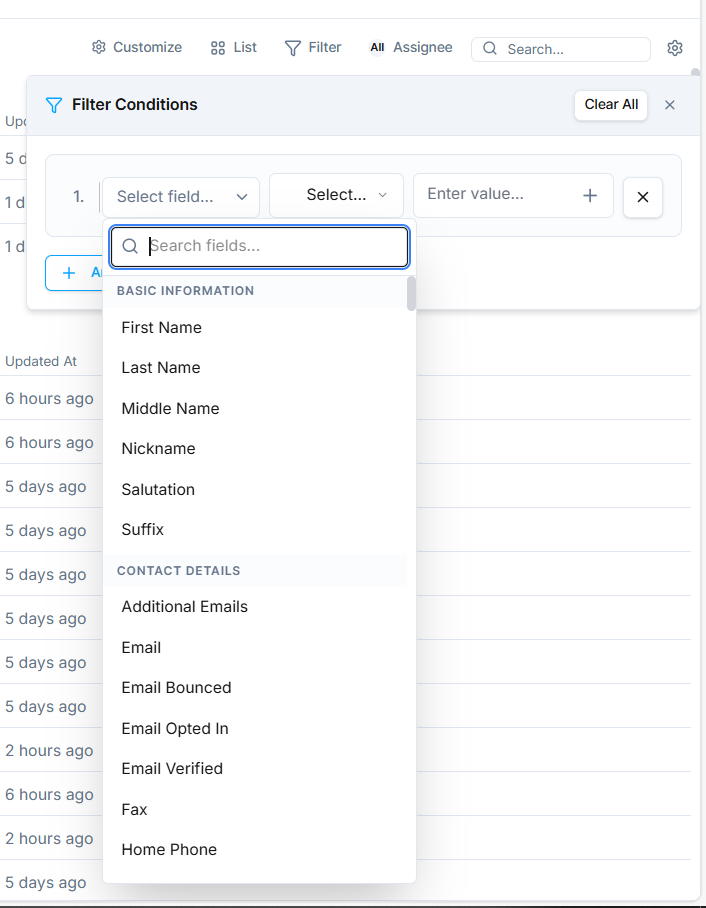
Filters allow you to narrow down your List to focus on the most relevant leads. You can apply multiple filters at once, such as:
- Name + Company
- Name + Email
- Campaign + Rating
- Assignee + Lead Status and so many others combinations to play around
This makes it easy to target specific audiences for example, "All unassigned leads from Campaign A with high ratings."