Creating and Managing Tasks
This guide covers every way to create tasks in and how to manage them through completion. Tasks keep your team aligned on follow-ups, action items, and deadlines.
Creating Tasks
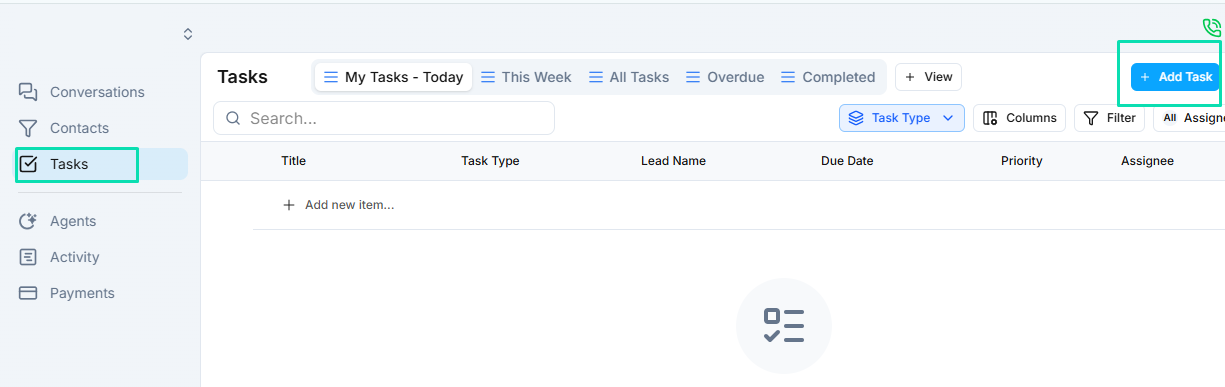
Manual Creation
- Go to the Tasks section from the main navigation.
- Click Add Task.
- Fill in the task details: title, assignee, due date, and any notes.
- Save the task. It immediately appears in the assignee's task list.
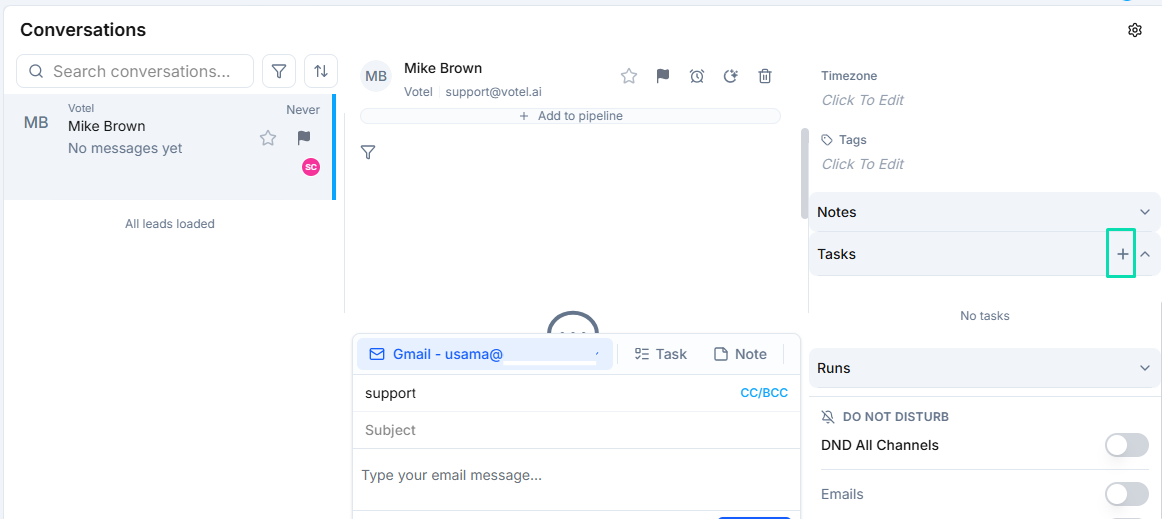
From Conversations
While viewing any conversation, you can create a task directly from the sidebar. This automatically links the task to that contact and conversation, giving the assignee full context when they pick it up.
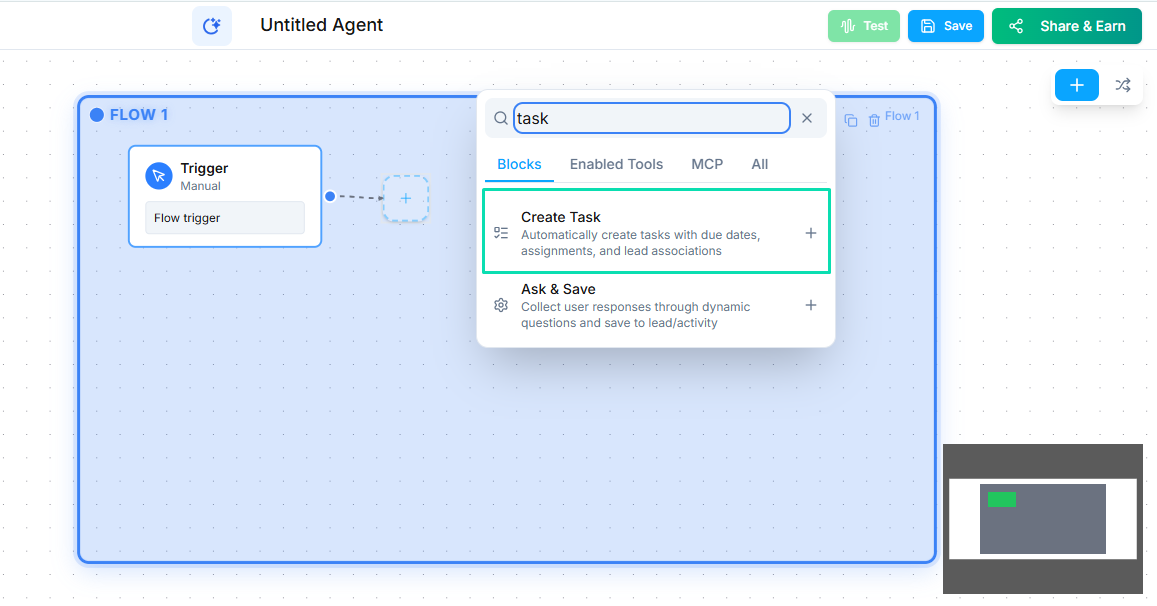
From Workflows
The Create Task Node in the workflow builder generates tasks automatically. For example, after a sales call ends, the workflow can create a task for a team member to send a follow-up proposal. See the Create Task Node documentation for configuration details.
Assigning Tasks
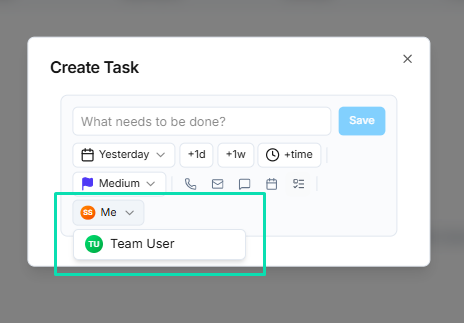
Every task must have an assignee. Select the team member from the dropdown when creating or editing a task. Reassigning is simple --- edit the task and choose a different person.
Tracking Status
Tasks move through statuses as work progresses. Update the status to reflect where things stand:
- Open --- the task has been created but work has not started.
- In Progress --- the assignee is actively working on it.
- Completed --- the work is done.
Keep statuses current so your team has an accurate picture of outstanding work.
Setting Due Dates
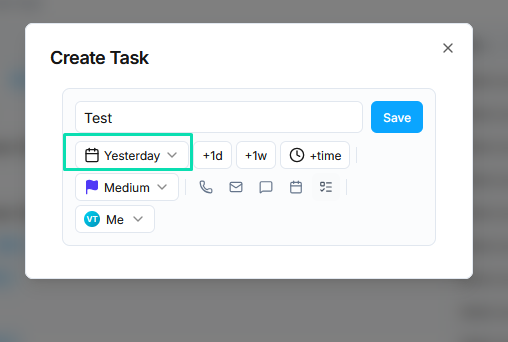
Every task should have a due date. Deadlines create accountability and make it easy to identify overdue items. Tasks past their due date are highlighted so they stand out in the list.
Next Steps
- Create Task Workflow Node --- automate task creation from your AI agent workflows