Navigating the Inbox
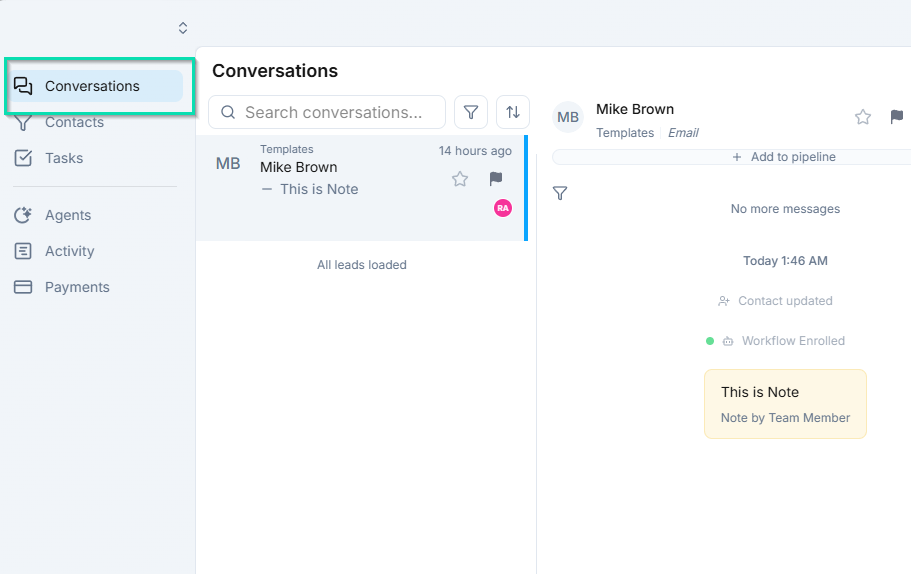
The Conversations inbox is organized into three panels that give you everything you need to manage customer communications without switching screens. This page walks through each panel and the tools available for sorting, filtering, and saving views.
The Three-Panel Layout
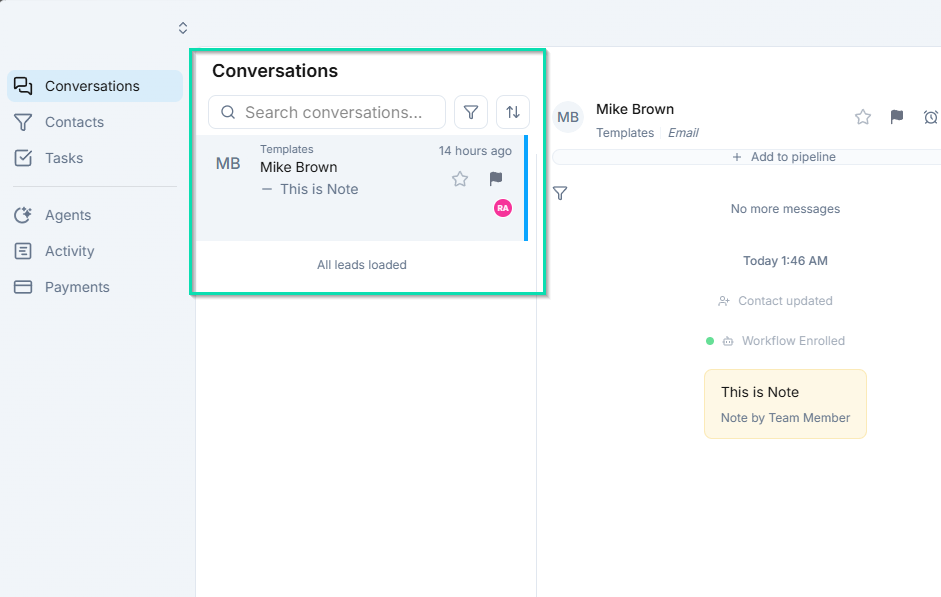
Left Panel - Conversation List
The left panel displays all of your conversations in a scrollable list. Each entry shows:
- Contact name - the person or company you are communicating with.
- Last message snippet - a preview of the most recent message in the thread.
- Status indicators - icons for unread messages, starred conversations, and flagged items.
- Timestamp - when the last message was sent or received.
Click any conversation to open it in the center panel.
Center Panel - Active Conversation
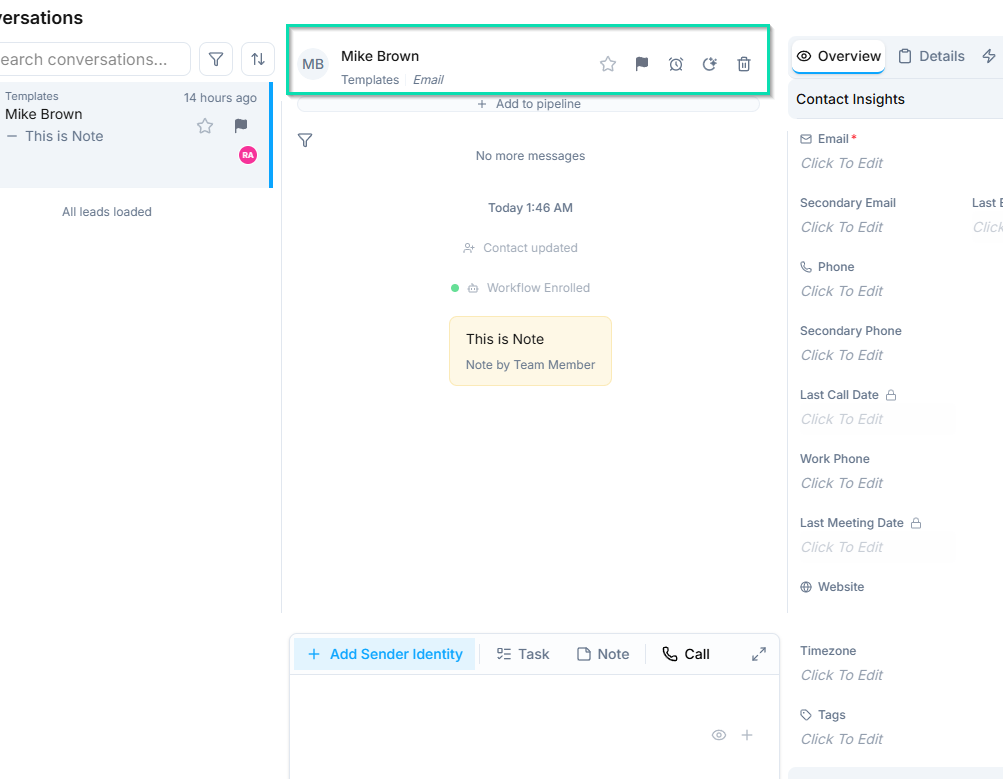
The center panel shows the full message history for the selected conversation. All channels (SMS, email, WhatsApp, voice) appear in a single unified thread so you can see the complete communication history at a glance.
At the bottom of the panel, the reply compose area lets you type and send messages. You can select which channel to reply through directly from the compose box.
Right Panel - Contact Details and Insights
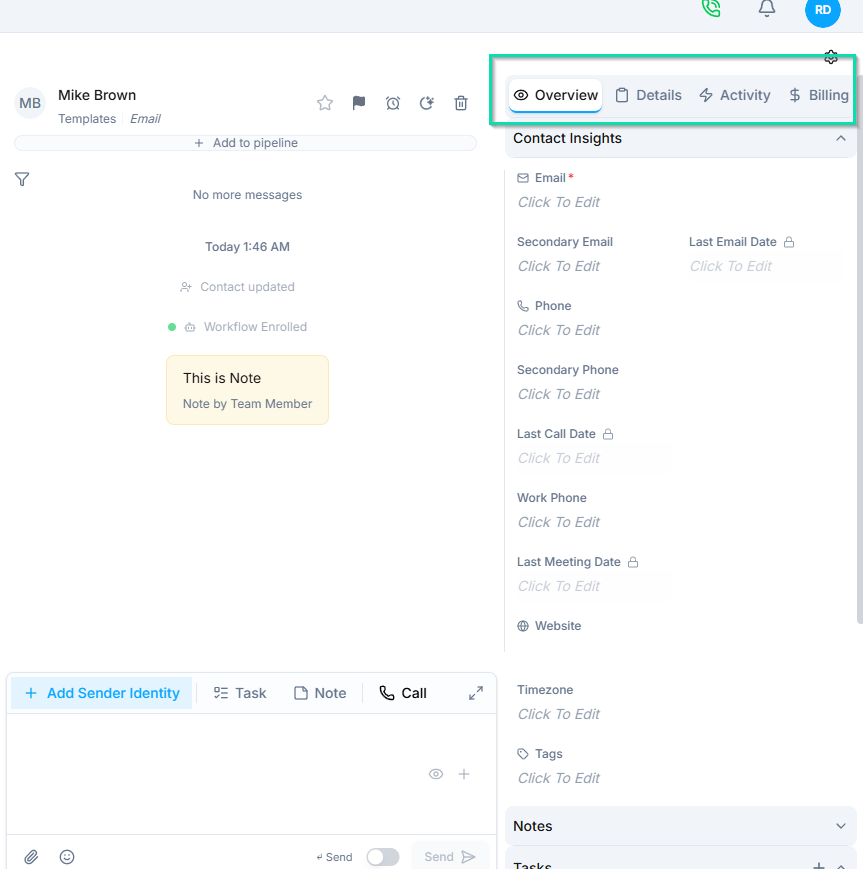
The right panel displays detailed information about the contact in the active conversation, including:
- Contact information (name, phone, email, company).
- Pipeline stage and lead status.
- Custom fields and tags.
- Notes and activity history.
See Contact Details Sidebar for a full breakdown of this panel.
Sorting Conversations
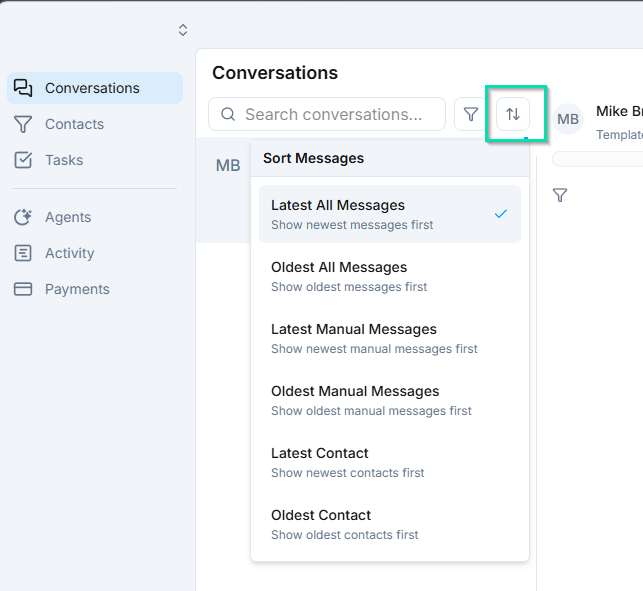
Use the sort options above the conversation list to control the order:
- Newest Message - most recently active conversations appear first. This is the default.
- Contact - sorts alphabetically by contact name.
- Manual - lets you drag conversations into a custom order.
Saved Views
Saved views let you create and store filter combinations for quick access. For example, you can create views for:
- Unread - only conversations with unread messages.
- High Priority - conversations marked as high priority.
- My Assigned - conversations assigned to you.
Views are shared across your team, so everyone can use the same organizational structure.
To create a saved view, apply your desired filters and click Save View. Give it a name and it will appear in your view list for one-click access.
Filters
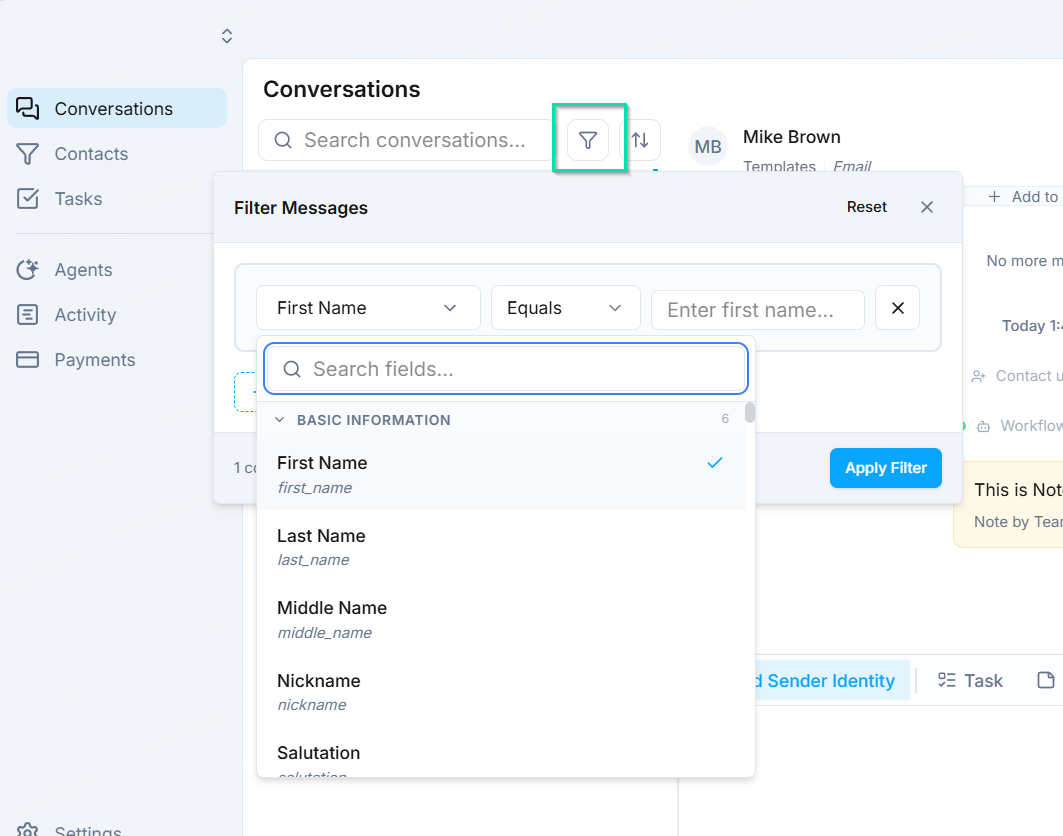
Filter the conversation list to find exactly what you need. Available filters include:
- Name, email, or phone number.
- Pipeline stage.
- Tags.
- Assignee (team member or AI agent).
- Activity status.
- Date range.
You can combine multiple filters at once - for example, show only contacts tagged "VIP" who are in the "In Progress" pipeline stage.
Next Steps
- Search and Filters - advanced search and filter techniques
- Conversation Actions - star, snooze, pin, and manage conversations