Using Pipelines in Conversations
The pipeline selector lets you manage a contact's pipeline stage directly from the conversation view. There is no need to switch to the CRM or contacts page - you can move leads through your sales or support process without leaving the inbox.
Pipeline Selector Bar
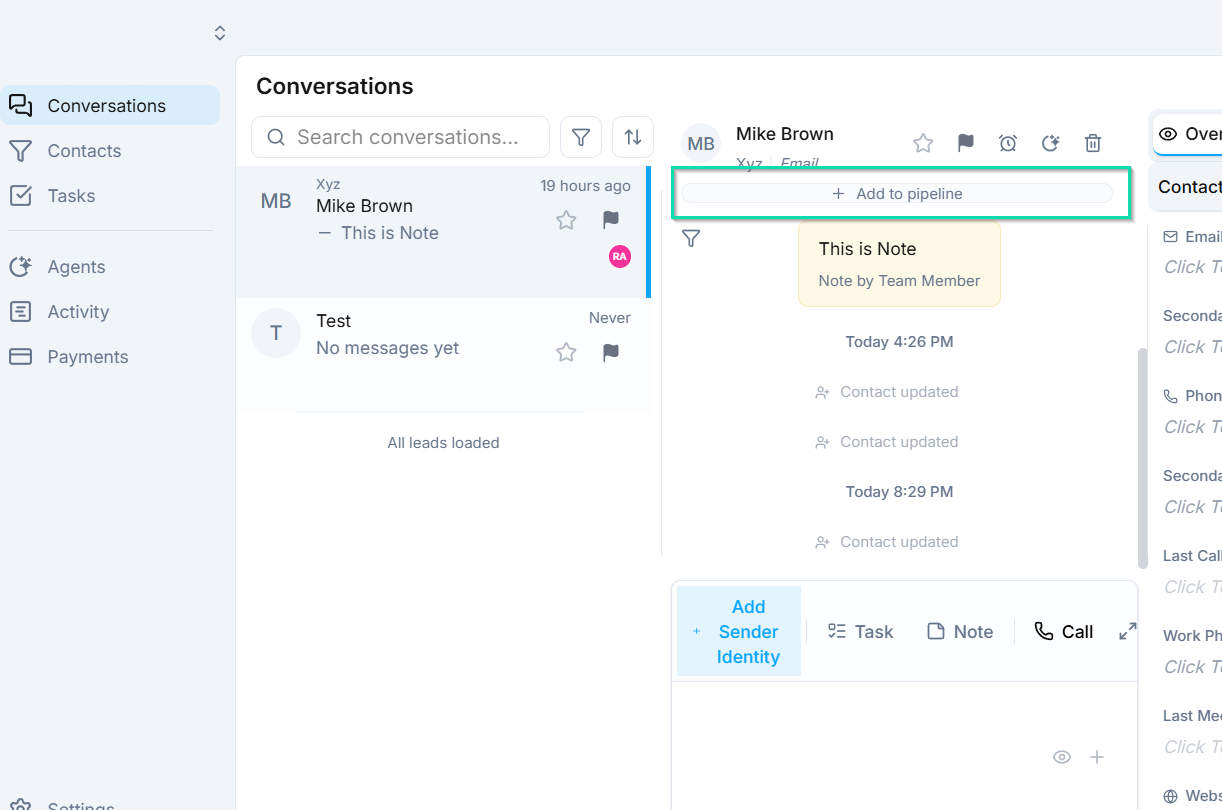
At the top of the conversation view, a horizontal pipeline bar displays the stages of your active pipeline. The contact's current stage is highlighted, giving you an at-a-glance view of where they stand in your process.
Changing Pipeline Stages
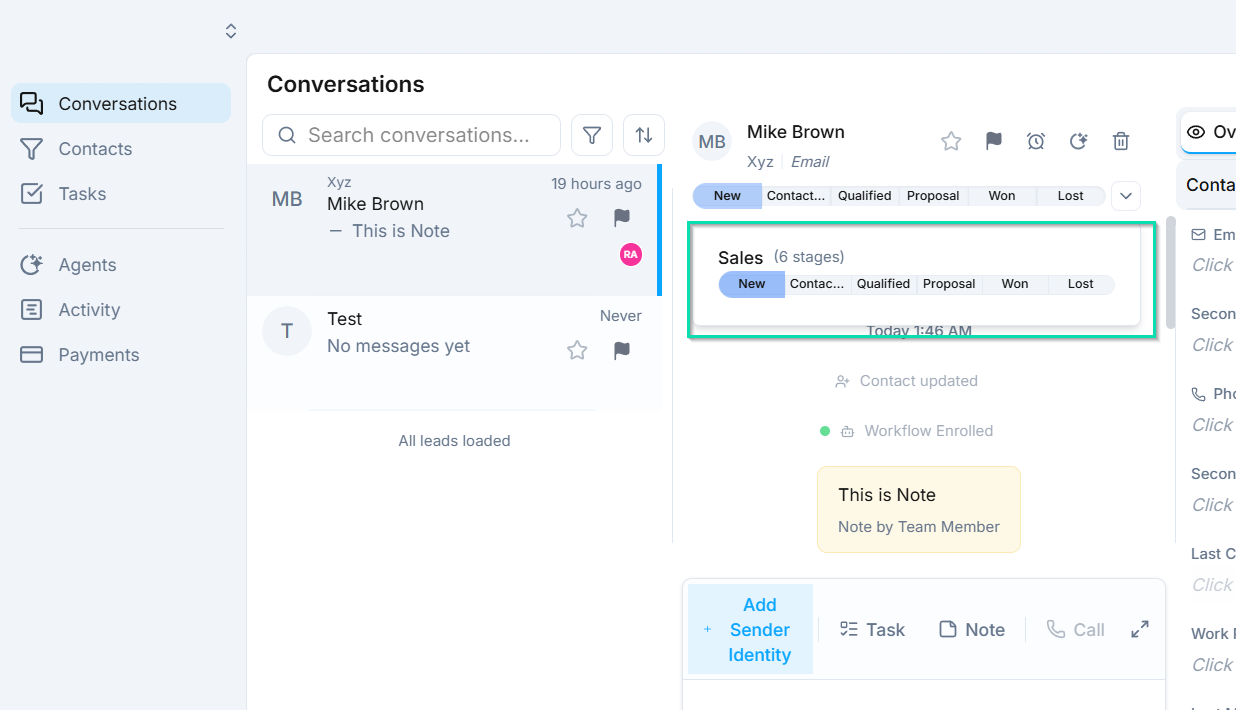
To move a contact to a different stage:
- Open the conversation.
- Click on the desired stage in the pipeline bar at the top.
- The contact's stage updates immediately.
The change is reflected across your entire workspace - the CRM, conversation list, and any filtered views will all show the updated stage.
Why This Matters
Managing pipelines from within conversations keeps your workflow moving. Common use cases include:
- Moving a lead forward after a successful conversation (e.g., "Review" to "In Progress").
- Closing a deal by moving a contact to "Done" right after confirming details.
- Deprioritizing a lead by moving them to "Backlog" when they are not ready to act.
By keeping pipeline management inside the conversation view, your team spends less time navigating between screens and more time engaging with customers.
Next Steps
- CRM Pipelines - configure pipeline stages, create custom pipelines, and manage your sales process